
This article is about
CapCut Premium
capcutdownload.com.pk · Tools
How to Mirror a Video in CapCut on Android
GetApkFree Team
Learn how to mirror a video in CapCut on Android, flip footage horizontally, fix reversed-looking videos, create mirror effects, and export your edit.
- Source
- Developer
- Package
- CapCut Premium
How to Mirror a Video in CapCut on Android
Want to make a video look like its reflection in a mirror? CapCut on Android has a built-in Mirror tool that can flip your video horizontally with just a few taps.
Mirroring is useful when text, logos, or objects appear reversed, when you want to create a reflection-style effect, or when you simply want the subject to face the opposite direction.
In this guide, you'll learn how to mirror a video in CapCut on Android, how mirroring differs from rotating and reversing, how to mirror only part of a video, and how to fix common problems.
Quick Answer
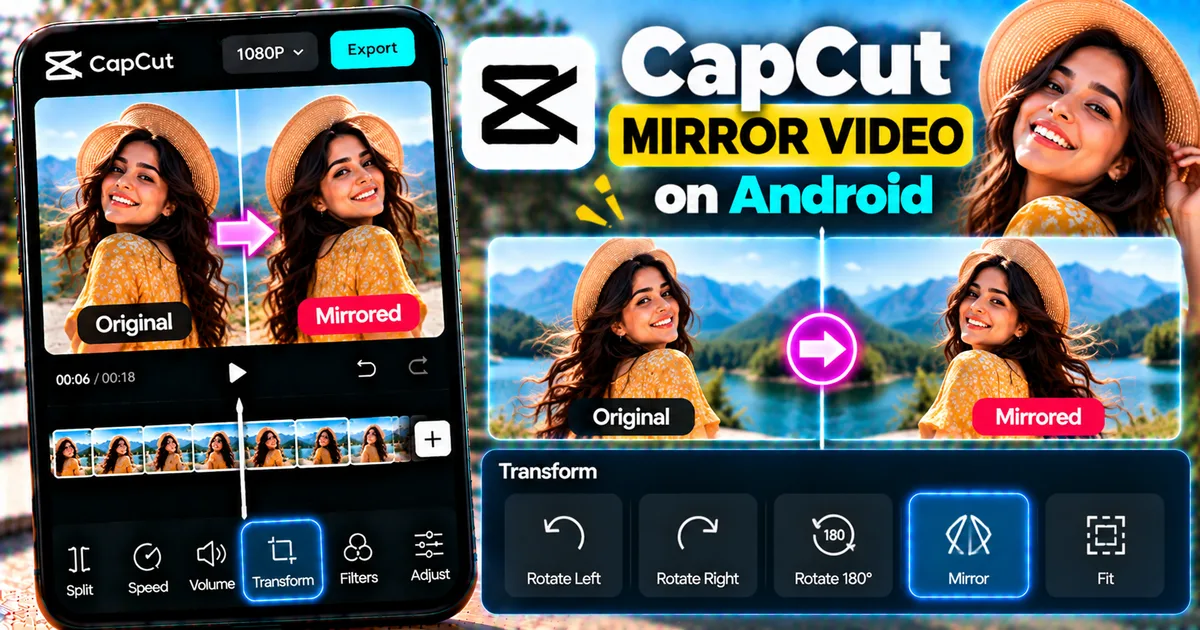
To mirror a video in CapCut on Android, open CapCut and create a new project. Select your video and add it to the timeline. Tap the video clip, open the editing controls, find Transform, and select Mirror. Preview the result and export the video when you're satisfied.
CapCut's current mobile workflow places the Mirror option under the transformation controls, although the exact interface can change between app versions.
What Does Mirroring a Video Mean?
Mirroring a video creates a reflected version of the footage.
Imagine standing in front of a mirror. Your reflection appears on the opposite side of the frame.
A horizontal mirror effect does the same thing to video footage.
For example, if a person is facing toward the right side of the screen, mirroring the video can make them appear to face toward the left.
This is different from rotating a video.
Mirror vs Rotate vs Reverse
These three editing functions are easy to confuse.
Mirror
Mirror flips the visual image horizontally.
It changes the left and right sides of the footage.
Rotate
Rotate turns the entire video frame around its center.
For example, a sideways video can be rotated 90 degrees to make it upright.
You can learn more in our guide on [how to rotate a video in CapCut on Android].
Reverse
Reverse changes the playback direction.
A person walking forward can appear to walk backward when a clip is reversed.
See our guide on [how to reverse a video in CapCut on Android] for more information.
How to Mirror a Video in CapCut on Android
Follow these steps to mirror a video.
Step 1: Open CapCut
Launch the CapCut app on your Android phone.
From the home screen, start a new project.
Step 2: Create a New Project
Tap New Project.
Your phone's media library should appear.
Select the video you want to mirror.
Then add the selected video to the project timeline.
Step 3: Select the Video Clip
Tap the video clip on the timeline.
This opens the editing controls for that specific clip.
Make sure the clip is selected before looking for the transformation tools.
Step 4: Open Transform
Look through the editing controls for Transform.
Depending on your version of CapCut, the location or appearance of the controls may be different.
CapCut's current mobile guidance places the Mirror function inside the transformation controls.
Step 5: Tap Mirror
Tap Mirror.
CapCut will horizontally flip the selected video.
The change should be visible immediately in the preview.
Step 6: Preview the Result
Play the video and check whether the mirrored orientation looks correct.
Pay special attention to:
- Faces
- Text
- Logos
- Signs
- Clothing details
- Hand movements
- Objects with a clear left-right orientation
If everything looks correct, you can move to export.
Step 7: Export the Video
Tap the Export button.
Choose the available resolution and frame-rate options that suit your project.
Then export the video to your Android device.
Your mirrored video is now ready to save or share.
How to Flip a Video Horizontally in CapCut
Horizontal flipping and mirroring are commonly used to describe the same visual transformation.
When you use CapCut's Mirror tool, the left and right sides of the video are exchanged.
For example:
Original:
Person → facing right
Mirrored:
Person ← facing left
The video content itself continues playing normally. Only its visual orientation changes.
How to Mirror Only Part of a Video
You don't have to mirror the entire video.
If only one section needs to be mirrored, split that section into a separate clip first.
Step 1: Find the Section
Move the playhead to where the section you want to mirror begins.
Step 2: Split the Video
Use the Split tool.
Then move to the end of the section and split the video again.
You should now have an independent clip.
Step 3: Select the Section
Tap the separated clip.
Step 4: Apply Mirror
Open the transformation controls and tap Mirror.
Only the selected section will be mirrored.
This can be useful when creating creative edits where one shot changes direction while the rest of the video remains unchanged.
For more detailed clip editing, see our guide on [how to cut and trim videos in CapCut on Android].
Why Would You Mirror a Video?
There are several practical reasons to mirror footage.
Correct a Reversed Selfie Video
Front-facing cameras and editing workflows can sometimes produce footage that looks different from the preview you expected.
Mirroring can help create the orientation you prefer.
Fix Reversed Text
If text appears backward, mirroring may be part of the solution.
However, always check the original footage and editing workflow before changing the entire video.
Change the Direction of Movement
Mirroring can make a person, vehicle, or other subject appear to move in the opposite horizontal direction.
This can help when arranging multiple clips into a sequence.
Create Symmetrical Effects
Two mirrored copies of the same footage can be combined to create symmetrical visual effects.
This can be especially useful for short-form videos and creative edits.
Create a Reflection Effect
Mirrored footage can be combined with overlays, masks, and other editing techniques to create reflection-style compositions.
For more advanced layering, see our guide on [how to add overlays in CapCut on Android].
How to Create a Mirror Effect With Two Videos
You can create more advanced mirror compositions by using multiple layers.
One possible workflow is:
- Add your original video.
- Duplicate or add another copy as an overlay.
- Position the second copy beside the first.
- Mirror the second video.
- Resize and align both clips.
- Use a mask if you need a cleaner separation.
- Preview the result.
- Export the finished video.
This can create a symmetrical visual where the two sides reflect each other.
For more advanced control, you can also use keyframes to animate the position of the layers.
See our guide on [how to add keyframes in CapCut on Android].
How to Mirror a Video for Instagram Reels
If you're preparing a mirrored video for Instagram Reels, first make sure your project has the correct framing.
After applying the Mirror effect:
- Check the subject's position.
- Check any text or logos.
- Confirm that the video fits the vertical frame.
- Preview the entire clip.
- Export at an appropriate quality.
Mirroring changes the visual direction but does not automatically optimize the video for a particular social media platform.
How to Mirror a Video for YouTube Shorts
The same basic workflow can be used for Shorts.
After mirroring the clip, check that:
- The subject is positioned correctly.
- Text remains readable.
- Important objects aren't accidentally cut off.
- The video fits the project's aspect ratio.
- The entire clip plays normally.
Always preview the final version before exporting.
What Happens to Text When You Mirror a Video?
Text inside a video can become reversed when the entire video is mirrored.
For example, a sign that originally reads:
"OPEN"
could appear visually reversed after mirroring.
This is important when editing:
- Tutorials
- Product demonstrations
- Screen recordings
- Educational videos
- Videos containing signs
- Videos containing brand logos
If you need the subject mirrored but the text to remain readable, you may need a more advanced layer-based editing workflow instead of simply mirroring the entire video.
How to Mirror a Video Without Reversing Text
If your footage contains important text, consider separating the text from the footage when possible.
For example, if you've added text using CapCut itself, you may be able to keep the text on a separate layer while transforming the underlying video.
This gives you more control over which elements are mirrored.
However, text that is physically recorded inside the original footage will generally be mirrored along with the video.
How to Mirror an Overlay in CapCut
You can also mirror an overlay rather than the main video.
Add the image or video as an overlay and select that layer.
Then open the available transformation controls and use Mirror if available.
This can be useful when creating:
- Split-screen videos
- Reflection effects
- Symmetrical compositions
- Before-and-after edits
- Creative transitions
Using separate layers gives you more control than mirroring the entire project.
Mirror Effect Ideas for CapCut
Once you understand the basic Mirror tool, you can use it for creative edits.
Symmetrical Face Effect
Place two versions of a portrait next to each other and mirror one side.
This can create an unusual symmetrical face composition.
Mirrored Dance Edit
Mirror a dance clip and combine the original and mirrored versions.
This can create the appearance of two people performing the same movement.
Reflection Effect
Place a mirrored copy below the original subject.
With careful positioning, masking, and opacity adjustments, you can create a reflection-style visual.
Direction Change
Mirror a moving subject to change the direction in which the subject appears to travel.
This can help when matching the direction of movement between two consecutive shots.
Split-Screen Mirror
Place the original and mirrored versions beside each other.
This works particularly well with symmetrical backgrounds and centered subjects.
Common Problems When Mirroring a Video in CapCut
I can't find the Mirror option
First make sure the video clip is selected.
Then check the editing and transformation controls.
CapCut can change its interface between versions, so the exact position of the option may not always match older tutorials.
My video looks backward after mirroring
That is the expected visual result of a horizontal mirror.
Mirroring swaps the left and right sides of the image.
If you have text, signs, or logos inside the footage, they may appear reversed.
The Mirror button isn't working
Make sure you have selected an editable video clip rather than another timeline element.
If the app is not responding normally, try closing and reopening the project.
Also make sure CapCut is updated and your device has enough free storage for editing and exporting.
Only part of my video needs to be mirrored
Split the video around the section that needs the effect.
Then select only that section and apply Mirror.
The mirrored video doesn't fit the frame
Check the project's aspect ratio and the clip's scale.
Mirroring itself doesn't necessarily change the project's dimensions, but repositioning or combining mirrored clips may require additional framing adjustments.
Tips for Better Mirrored Videos
Check text before exporting
This is one of the most important steps.
Text embedded in the original footage can become reversed.
Preview the entire video
Don't check only the first frame.
Watch the complete clip before exporting.
Keep the original footage
Keep an unedited copy of the source video.
This lets you return to the original if you change your mind.
Use layers for advanced effects
If you want to mirror only certain elements, overlays and separate layers provide more control.
Combine mirror with other tools carefully
You can combine mirroring with trimming, transitions, keyframes, masks, and other CapCut tools to create more advanced edits.
Frequently Asked Questions
Can I mirror a video in CapCut on Android?
Yes. CapCut's mobile editor provides a Mirror function for flipping a video horizontally.
Is mirroring the same as flipping?
The terms are often used interchangeably when referring to a horizontal flip. CapCut's documentation uses Mirror for this type of transformation.
Does mirroring reverse the video?
No. Mirroring changes the visual orientation of the footage. It does not change the playback direction.
If you want the video to play backward, use the Reverse function instead.
Does mirroring rotate a video?
No. Mirror and Rotate are different transformations.
Rotate changes the angle or orientation of the video, while Mirror flips the image horizontally.
Can I mirror only part of a video?
Yes. Split the video into separate sections and apply the Mirror effect only to the clip you want to change.
Will mirroring make text backward?
Yes, text that is physically part of the video image can appear reversed after horizontal mirroring.
Can I mirror an overlay?
Yes. Depending on the type of overlay and the controls available in your CapCut version, you can apply transformation effects to individual layers.
Can I undo a mirror effect?
Yes. You can undo the edit while working in the project. You can also make a new adjustment if you decide the original orientation looks better.
Final Thoughts
Mirroring a video in CapCut on Android is a simple way to change the left-right orientation of your footage.
The basic process is:
- Open CapCut.
- Create a new project.
- Add your video.
- Select the clip.
- Open Transform.
- Tap Mirror.
- Preview the result.
- Export the finished video.
Remember that mirroring is different from rotating and reversing. Mirror changes the left-right appearance, Rotate changes the orientation, and Reverse changes the direction in which the video plays.
Before exporting, always check text, logos, faces, and other important details to make sure the mirrored version looks the way you intended.
Related Articles

How to Fix CapCut Video Lagging After Export on Android
Fix CapCut video lagging after export on Android. Learn how to troubleshoot choppy playback, frame-rate mismatches, heavy effects, storage issues, and export settings.
GetApkFree Team

How to Fix CapCut Preview Not Matching Export on Android
Fix CapCut preview not matching the exported video on Android. Troubleshoot missing effects, text, transitions, timing, colors, and rendering differences.
GetApkFree Team

How to Fix Couldn't Apply AI Background in CapCut on Android
Getting "Couldn't Apply AI Background" in CapCut on Android? Check usage limits, clip selection, video quality, app updates, and practical troubleshooting steps.
GetApkFree Team

How to Fix CapCut Effects Not Applying on Android
CapCut effects not working on Android? Check clip selection, effect layers, timeline timing, conflicting adjustments, and app performance with these practical fixes.
GetApkFree Team