
This article is about
CapCut Premium
capcutdownload.com.pk · Tools
How to Rotate a Video in CapCut on Android
GetApkFree Team
Learn how to rotate a video in CapCut on Android, fix sideways or upside-down footage, change video orientation, and export the corrected video.
- Source
- Developer
- Package
- CapCut Premium
How to Rotate a Video in CapCut on Android
Have you ever recorded a video sideways or realized that a clip is upside down after recording it? You don't need to record the video again. CapCut on Android lets you rotate video clips directly inside the editor so you can correct their orientation before exporting.
You can use the rotation tool to turn a video into the correct portrait or landscape orientation, fix footage that was recorded at the wrong angle, or intentionally rotate a clip for a creative effect.
Quick Answer
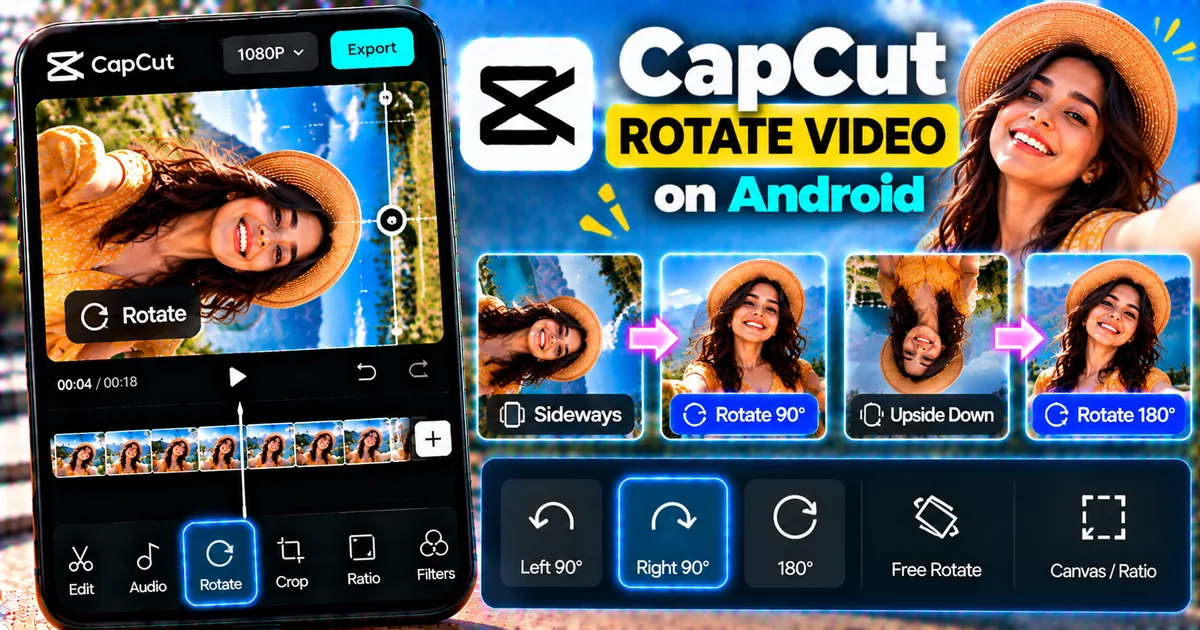
To rotate a video in CapCut on Android, open CapCut, create a new project, select the video, and add it to the timeline. Tap the video clip, open the editing or transform controls, and choose the Rotate option. Tap the rotate control until the video reaches the desired orientation, then export the finished video.
The exact location or name of some controls can vary between CapCut versions, so if you do not see the same menu, look for Rotate or Transform after selecting the clip.
What Does the Rotate Tool Do in CapCut?
The Rotate tool changes the orientation of a video clip.
For example, you can use it when:
- A landscape video was recorded sideways
- A portrait video appears sideways
- A clip is upside down
- You want to turn a horizontal video vertically
- You want to turn a vertical video horizontally
- You want to create a deliberate rotating visual effect
Rotation is different from mirroring.
Rotating turns the video around its center. Mirroring creates a reversed left-to-right version of the footage.
If you want to learn about reversing a video's playback direction, see our guide on [how to reverse a video in CapCut on Android].
How to Rotate a Video in CapCut on Android
Follow these steps to correct the orientation of a video.
Step 1: Open CapCut
Launch CapCut on your Android phone.
From the home screen, create a new project.
Step 2: Select Your Video
Choose the video you want to rotate from your phone's gallery.
Tap the video to add it to your project.
The selected clip should appear on the editing timeline.
Step 3: Select the Video Clip
Tap the video clip on the timeline.
This opens the editing controls for that particular clip.
Make sure the clip is selected before looking for the rotation option.
Step 4: Find the Rotate Control
Look through the editing or transform controls for the Rotate option.
Depending on your CapCut version, the control may appear under an editing or transformation menu.
CapCut's mobile editing interface can change between versions, so the exact location may not look identical on every Android phone.
Step 5: Rotate the Video
Tap the Rotate control until the video reaches the orientation you want.
For example, if your video is sideways, rotate it until the subject appears upright.
If the video is upside down, continue rotating it until it is correctly oriented.
For a normal orientation correction, you will usually be working with 90-degree increments.
Step 6: Check the Frame
After rotating the video, check the preview carefully.
Rotation can change how the video fits inside the project frame.
You may notice empty areas around the video or that parts of the footage do not fill the entire canvas.
If necessary, adjust the video's position or scale.
Step 7: Adjust the Canvas or Aspect Ratio
If the rotated video does not fit the project correctly, check the project's aspect ratio or canvas settings.
For example:
- Vertical social videos commonly use a 9:16 frame
- Landscape videos commonly use a 16:9 frame
- Other projects may use different aspect ratios
Choose the aspect ratio based on where you plan to publish the video.
If rotating the clip creates empty areas, you may need to reposition or scale the video to fit the frame.
Step 8: Preview the Result
Play the video from the beginning.
Check that:
- The subject is upright
- The video is facing the correct direction
- No important parts are accidentally cropped
- The video fits the project frame
- The audio still plays correctly
If everything looks correct, you can export the video.
Step 9: Export the Rotated Video
Tap the Export button when you are satisfied with the edit.
Choose the available resolution and frame-rate settings that suit your project.
Then export the video and wait for CapCut to finish processing it.
Your rotated video can then be saved or shared from your Android device.
How to Rotate a Video 90 Degrees in CapCut
If your video was recorded sideways, a 90-degree rotation is usually enough to correct it.
First, select the video on the timeline and open the rotation control.
Apply the rotation until the video is upright.
Then preview the complete clip before exporting.
If the video still appears sideways, rotate it once more in the appropriate direction.
How to Rotate an Upside-Down Video in CapCut
An upside-down video can usually be corrected by rotating it 180 degrees.
Select the video clip and use the Rotate control.
Continue rotating the clip until the subject and surroundings appear correctly oriented.
After that, check the entire timeline because the correction should apply consistently to the selected clip.
How to Rotate Only Part of a Video in CapCut
You don't necessarily have to rotate an entire video.
If only one section has the wrong orientation, you can separate that section from the rest of the footage first.
Step 1: Find the Section
Move the playhead to the beginning of the section that needs rotation.
Step 2: Split the Clip
Use the Split function to separate the section from the rest of the video.
Then move to the end of that section and split the clip again.
You should now have a separate clip containing the portion you want to rotate.
Step 3: Select the Separate Clip
Tap that individual clip.
Step 4: Rotate It
Use the Rotate control and choose the required orientation.
The rest of the video can remain unchanged.
This method is useful when a single recording contains multiple shots and only one section was captured incorrectly.
For more precise editing, see our guide on [how to cut and trim videos in CapCut on Android].
How to Rotate a Video Without Losing the Original
It is a good idea to keep your original recording unchanged.
Instead of replacing or deleting your source video, import it into CapCut and create your edited version as a separate export.
This gives you a backup of the original footage if you later decide to use a different orientation.
Keeping the original file is especially useful when you are experimenting with rotation, cropping, effects, or other edits.
Why Does My Rotated Video Have Black Bars?
Black or empty areas can appear when the video's orientation does not match the project's aspect ratio.
For example, rotating a landscape clip into portrait orientation can leave unused space depending on the canvas settings.
You can try:
- Adjusting the aspect ratio
- Scaling the video
- Repositioning the video
- Using a background
- Using a blurred background
- Cropping the footage
Be careful when increasing the scale too much because excessive cropping can remove important parts of the original footage.
How to Rotate a Video Without Cropping It
If keeping the entire video visible is more important than filling the screen, avoid excessive zooming after rotation.
Instead, choose an appropriate canvas or aspect ratio and allow some background space around the video if necessary.
You can then use a suitable background to make the empty areas look intentional.
This is often preferable to zooming in so far that faces, text, or other important details are cut off.
Rotate vs Mirror vs Reverse in CapCut
These three editing actions do different things.
Rotate
Rotation changes the physical orientation of the video.
Example:
A sideways video becomes upright.
Mirror
Mirroring reverses the image horizontally.
Example:
A person who originally appears on the left may appear on the right.
Reverse
Reverse changes the playback direction.
Example:
A person walking forward can appear to walk backward.
These tools can sometimes be combined to create creative effects, but they should not be confused with one another.
For reverse playback, see our guide on [how to reverse a video in CapCut on Android].
How to Rotate a Video for Instagram Reels or YouTube Shorts
If you're preparing a video for a vertical platform, check the project's aspect ratio before exporting.
A sideways landscape recording may need to be rotated first and then positioned inside a vertical frame.
After rotation:
- Select the appropriate project ratio.
- Position the video correctly.
- Scale it only as much as necessary.
- Check that important subjects remain visible.
- Preview the entire video.
- Export using suitable quality settings.
Don't automatically zoom a rotated video to fill every pixel of the screen. Keeping the important content visible is more important than eliminating every empty area.
How to Rotate Multiple Clips in CapCut
If a project contains several clips that all need the same orientation correction, select and edit them according to the controls available in your current CapCut version.
For projects with many clips, it can also be easier to correct the footage before adding everything to the final timeline.
Always preview the result after making changes because clips recorded in different orientations may require different adjustments.
Tips for Better Results
Keep the original footage
Save your original recording before making major edits.
Check the entire video
Don't only check the first few seconds. A rotation or framing problem can become noticeable later in the clip.
Watch for cropping
Rotating and scaling can change which parts of the original frame remain visible.
Match the project to the destination
Think about whether the final video is intended for a vertical, square, or landscape platform.
Don't over-scale
Zooming in too much can reduce framing quality and remove important details.
Preview before exporting
A quick preview can catch orientation, cropping, and framing problems before you spend time exporting the final file.
Common Problems When Rotating a Video in CapCut
I can't find the Rotate option
First select the video clip on the timeline.
Some editing controls only appear after a clip has been selected.
If the interface looks different from an older tutorial, check the current editing or transform controls for a Rotate option.
My video is still sideways
Make sure you actually applied the rotation to the selected clip.
Then preview the video again.
If necessary, rotate it another 90 degrees.
My rotated video doesn't fill the screen
This is usually related to the project's aspect ratio and the original video's dimensions.
Try adjusting the canvas, aspect ratio, position, or scale.
Rotating the video cuts off part of the image
Check whether the video has been enlarged after rotation.
Reduce the scale or change the project framing if you want to preserve more of the original footage.
The video has empty space after rotation
This can happen when the video's dimensions don't match the project frame.
You can use a background, adjust the canvas, or carefully scale the footage.
CapCut is behaving differently from a tutorial
CapCut's interface can change as the app is updated.
If a tutorial shows a different menu layout, look for the same function under the current editing or transform controls rather than relying on an exact button location.
Frequently Asked Questions
Can I rotate a video 90 degrees in CapCut?
Yes. CapCut's mobile editing workflow provides a rotation control that can be used to change the orientation of a video clip.
Can I rotate a video 180 degrees in CapCut?
Yes. Repeated rotation can be used to turn an upside-down clip into the correct orientation.
Can I rotate only part of a video?
Yes. Split the video around the section that needs correction, then rotate the separated clip.
Does rotating a video change its audio?
Rotation changes the visual orientation of the video. It does not inherently reverse the audio or change the playback direction.
Is rotating the same as mirroring?
No. Rotation turns the video around its orientation, while mirroring creates a reversed left-to-right image.
Is rotating the same as reversing?
No. Reverse changes the playback direction. Rotate changes the visual orientation.
Can I rotate a video on Android for free?
Basic video rotation can be performed using Android video-editing tools, including CapCut's mobile editor. The exact features and interface available can depend on the current app version and device.
Final Thoughts
Rotating a video in CapCut on Android is useful when footage was recorded sideways, upside down, or in an orientation that doesn't match your final project.
The basic workflow is simple: add the video to a new project, select the clip, find the Rotate control, correct the orientation, check the framing, and export the finished video.
For better results, always check the project aspect ratio after rotating and preview the complete video before exporting.
If you are continuing to build a CapCut editing workflow, you can also learn [how to add transitions in CapCut on Android] or [how to export 4K videos in CapCut on Android].
Related Articles

How to Fix CapCut Video Lagging After Export on Android
Fix CapCut video lagging after export on Android. Learn how to troubleshoot choppy playback, frame-rate mismatches, heavy effects, storage issues, and export settings.
GetApkFree Team

How to Fix CapCut Preview Not Matching Export on Android
Fix CapCut preview not matching the exported video on Android. Troubleshoot missing effects, text, transitions, timing, colors, and rendering differences.
GetApkFree Team

How to Fix Couldn't Apply AI Background in CapCut on Android
Getting "Couldn't Apply AI Background" in CapCut on Android? Check usage limits, clip selection, video quality, app updates, and practical troubleshooting steps.
GetApkFree Team

How to Fix CapCut Effects Not Applying on Android
CapCut effects not working on Android? Check clip selection, effect layers, timeline timing, conflicting adjustments, and app performance with these practical fixes.
GetApkFree Team