
This article is about
CapCut - Download
ByteDance Pte. Ltd. · Education
How to Make Slow Motion Videos in CapCut on Android
GetApkFree Team
Learn how to make slow motion videos in CapCut on Android using Speed, Curve, and Smooth Slow-Mo, plus tips for smoother results.
- Version
- Latest
- Source
- Google Play
- Package
- external.capcut.en.softonic.com.capcut-download
How to Make Slow Motion Videos in CapCut on Android
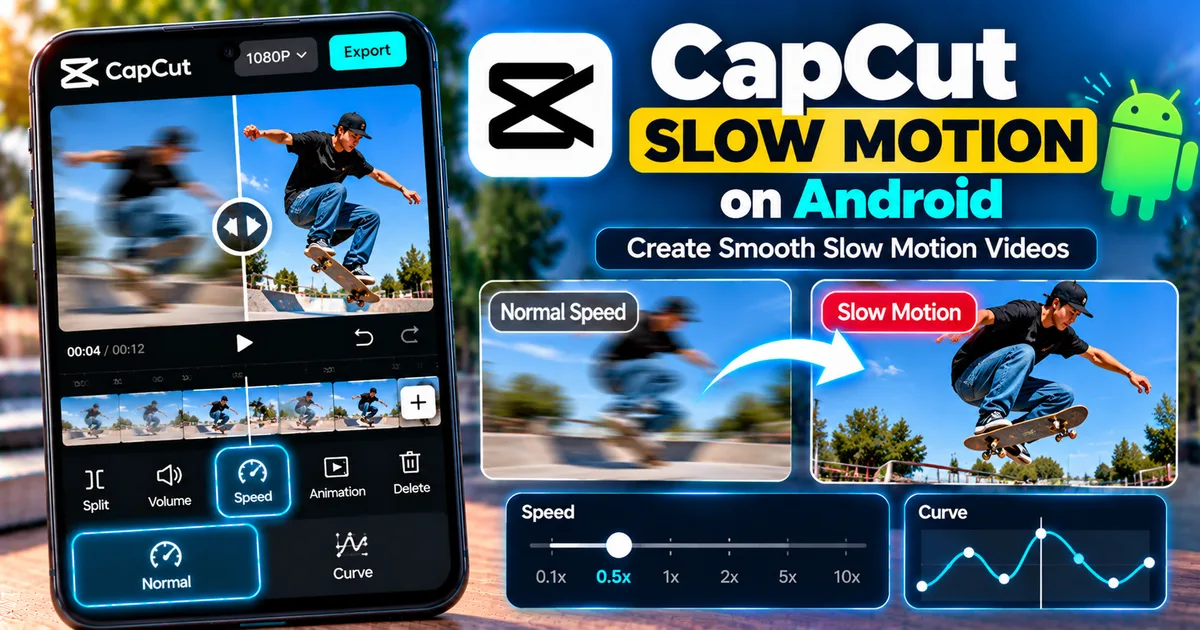
Want to turn a normal Android video into a slow-motion clip? CapCut makes it possible directly from your phone using its Speed controls. You can slow down an entire clip with Normal speed or use Curve to create slow-motion only at specific moments.
CapCut also provides options for smoother slow-motion results, which can be useful when ordinary footage becomes choppy after being slowed down.
In this guide, you'll learn how to make slow-motion videos in CapCut on Android, use speed curves, create smooth slow motion, and avoid common problems.
Quick Answer
To make a slow-motion video in CapCut on Android, create a new project, add your video, select the clip, tap Speed, and choose Normal. Move the speed control below the original speed to slow the video down.
For a more dramatic effect, choose Curve instead. A speed curve lets you slow down selected parts of a clip while keeping other sections at normal or faster speed.
What Is Slow Motion in CapCut?
Slow motion reduces the playback speed of a video so that movement appears to happen more slowly.
For example, you can use slow motion to emphasize:
- Sports movements
- Dancing
- Jumping
- Water splashes
- Travel footage
- Product demonstrations
- Action shots
- Cinematic moments
- Facial expressions
- Fast movements that are difficult to see at normal speed
CapCut's Speed tool gives you control over how quickly or slowly your footage plays.
How to Make a Slow Motion Video in CapCut on Android
Step 1: Open CapCut
Launch CapCut on your Android phone.
From the home screen, start a new project and select the video you want to edit.
Tap Add to place the video on the timeline.
Step 2: Select Your Video Clip
Once your video appears in the timeline, tap the clip.
CapCut will display editing controls for the selected footage.
Look for the Speed option.
Step 3: Choose Speed
Tap Speed.
Depending on the current version of CapCut, you may see options such as:
- Normal
- Curve
Choose Normal if you want the entire selected clip to play more slowly.
Step 4: Reduce the Video Speed
With Normal speed selected, move the speed control toward the slower side.
A value below the original playback speed creates a slow-motion effect.
CapCut's current documentation describes mobile slow-motion editing using the Speed controls and notes that the Normal option can be used to reduce the playback speed.
Preview the video after changing the speed.
Don't automatically choose the slowest setting. The best result depends on the original footage and its frame rate.
Step 5: Preview the Result
Play the edited clip from the beginning.
Watch for:
- Choppy movement
- Sudden jumps
- Blurry frames
- Unnatural motion
- Audio distortion
If the result doesn't look smooth, try a less aggressive speed reduction or use CapCut's available smooth slow-motion option.
How to Make Slow Motion With CapCut Speed Curve
Normal speed changes the playback speed of the selected clip.
Curve gives you more control.
With Curve, you can keep most of the video at normal speed and slow down only an important moment.
For example:
Normal → Slow Motion → Normal
This is useful when you want to emphasize a particular action without slowing down the entire video.
Step 1: Select the Clip
Open your project and tap the video clip in the timeline.
Step 2: Open Speed
Tap Speed and select Curve.
Step 3: Choose a Curve
CapCut provides preset speed curves, while some versions also provide a custom curve option.
Presets can give you a quick starting point.
If you want precise control, choose the custom option when available.
Step 4: Adjust the Slow Section
The speed curve represents changes in playback speed throughout the clip.
Move the curve points so the important part of the footage becomes slower.
You can create an effect such as:
Fast → Normal → Slow → Normal
This technique is sometimes called a speed ramp or velocity edit.
Step 5: Preview and Adjust
Play the entire clip several times.
The transition into slow motion should feel intentional rather than abrupt.
If the slow section starts too early or ends too late, adjust the curve points.
How to Make Smooth Slow Motion in CapCut
Simply lowering the speed doesn't always produce smooth results.
If your original video was recorded at a relatively low frame rate, slowing it down significantly can make movement appear choppy because there are fewer original frames available.
CapCut provides a Smooth slow-mo feature in its current editing documentation for improving the appearance of slowed footage.
If the option is available in your version:
- Select your video clip.
- Open the Speed controls.
- Reduce the playback speed.
- Look for the Smooth slow-mo option.
- Enable it when appropriate.
- Preview the result.
- Export after checking the final video.
Processing can take longer when additional processing is required.
What Speed Should You Use for Slow Motion?
There isn't one speed setting that works for every video.
A small speed reduction can make ordinary footage feel more cinematic without dramatically changing the motion.
A stronger reduction can create a dramatic slow-motion effect, but it can also make footage look less smooth if the original recording doesn't contain enough frames.
A practical approach is to:
- Start with a moderate reduction.
- Preview the clip.
- Try a slower setting if the motion still looks natural.
- Use Smooth slow-mo if available.
- Compare the result before exporting.
Slow Motion vs Speed Curve in CapCut
The two tools serve different purposes.
Normal Speed
Use Normal when:
- You want the entire clip slowed down.
- You are creating a simple slow-motion video.
- You don't need different speeds within the clip.
Curve Speed
Use Curve when:
- You want only part of the video slowed down.
- You want normal speed before and after the slow section.
- You want a speed-ramp effect.
- You want more control over the timing of the effect.
If you're making a simple slow-motion video, Normal is usually the easier place to start.
How to Make a Cinematic Slow-Motion Effect
Slow motion becomes more effective when it emphasizes something important rather than being applied randomly.
For example, imagine a skateboarder performing a jump.
Instead of slowing the entire video, you could:
- Keep the approach at normal speed.
- Slow down as the jump begins.
- Keep the main movement in slow motion.
- Return to normal speed when the skateboarder lands.
This creates a more dynamic result than slowing the entire clip equally.
You can combine the effect with transitions, music, sound effects, keyframes, and other editing tools when appropriate.
Why Does CapCut Slow Motion Look Choppy?
Choppy slow motion can happen for several reasons.
Low Frame-Rate Source Video
If the original footage was recorded at a relatively low frame rate, slowing it down can make the individual frames more noticeable.
Excessive Speed Reduction
The more aggressively you slow footage, the more difficult it can be to maintain natural-looking motion.
Heavy Editing
Large projects containing many effects, overlays, filters, and long clips can put more processing pressure on your phone.
Preview Performance
Sometimes the editing preview can appear less smooth than the final exported video.
Always check the exported file before deciding that the effect has failed.
Can You Slow Down Only Part of a Video?
Yes.
The Curve speed controls are useful when you want different playback speeds within the same clip.
You can emphasize one moment while leaving the rest of the footage at normal speed.
This is particularly useful for:
- Sports clips
- Dance videos
- Travel videos
- Action videos
- Product demonstrations
- Social media edits
Does Slow Motion Affect Audio?
Yes.
Changing playback speed can also affect the original audio associated with the footage.
When you slow down a clip, the original sound may no longer fit the visual timing or may sound unnatural.
For this reason, many creators replace, mute, or supplement the original audio with music and sound effects.
Preview both the video and audio before exporting.
Tips for Better Slow-Motion Videos
Record at a Higher Frame Rate When Possible
Higher-frame-rate footage generally gives you more frames to work with when creating slow motion.
If your phone's camera provides higher frame-rate recording options, consider using them for footage you already know you may want to slow down.
Don't Slow Everything Down
Slow motion works best when it has a purpose.
Use it to draw attention to an important movement or moment.
Avoid Excessive Speed Changes
Too many rapid speed changes can make a video difficult to follow.
Use speed curves where they improve the story or emphasize an action.
Preview Before Exporting
Always watch the complete video before exporting.
Look for unnatural transitions, choppy movement, audio problems, and unwanted timing changes.
Keep the Original Video
Before making major edits, keep your original footage.
This lets you return to the source if you want to create another version later.
How to Export Your Slow-Motion Video
When you're satisfied with the edit, use CapCut's export option.
Depending on your version and device, you can select available output settings such as resolution and frame rate.
Before exporting, check:
- Video resolution
- Frame rate
- Audio
- Video duration
- Slow-motion timing
- Available storage space
Then export the finished video and review the saved file.
Slow Motion on CapCut: Common Problems
Slow Motion Is Too Choppy
Try reducing the amount of speed reduction or using Smooth slow-mo if available.
Also check the original video's frame rate.
Slow Motion Doesn't Apply to the Part I Want
If you need different speeds within the same clip, use Curve rather than applying one Normal speed setting to the entire clip.
CapCut Takes a Long Time to Process
Slow-motion processing and other effects can require additional processing.
Long videos and projects containing multiple effects may take longer.
Try editing a shorter section first to see whether the result improves.
The Audio Sounds Strange
Changing video speed can affect the original audio.
Try lowering or muting the original audio and adding music or sound effects that match the edited footage.
The Exported Video Looks Different From the Preview
Check the exported file itself rather than relying only on the editing preview.
Also review the selected export settings and make sure the final file has finished processing.
Frequently Asked Questions
How do I make a video slow motion in CapCut on Android?
Open a project, add your video, select the clip, tap Speed, choose Normal, and reduce the playback speed. You can use Curve when you want only certain parts of the video to become slow motion.
Can I slow down only one part of a video in CapCut?
Yes. Use the Curve option to create different speed levels within the same clip.
What is the difference between Normal and Curve speed in CapCut?
Normal applies a consistent speed adjustment to the selected clip. Curve allows the speed to change throughout the clip.
Why is my CapCut slow motion not smooth?
The original frame rate, the amount of speed reduction, and processing conditions can all affect smoothness. Try a smaller speed reduction and use Smooth slow-mo when available.
Can I make cinematic slow motion in CapCut?
Yes. A speed curve can create a controlled transition from normal speed to slow motion and back to normal speed. Combining that timing with suitable music, transitions, and other edits can create a more cinematic effect.
Is CapCut slow motion available on Android?
Yes. CapCut's current documentation describes slow-motion editing on its mobile app using the Speed controls.
Final Thoughts
Making slow-motion videos in CapCut on Android is straightforward once you understand the difference between Normal and Curve speed controls.
Use Normal when you want a simple slow-motion effect across a clip. Use Curve when you want to slow down specific moments or create a speed-ramp effect.
For the smoothest results, pay attention to the original footage, avoid excessive speed reductions, preview your edit carefully, and use Smooth slow-mo when it is available and appropriate for the clip.
Related Articles

How to Fix CapCut Video Lagging After Export on Android
Fix CapCut video lagging after export on Android. Learn how to troubleshoot choppy playback, frame-rate mismatches, heavy effects, storage issues, and export settings.
GetApkFree Team

How to Fix CapCut Preview Not Matching Export on Android
Fix CapCut preview not matching the exported video on Android. Troubleshoot missing effects, text, transitions, timing, colors, and rendering differences.
GetApkFree Team

How to Fix Couldn't Apply AI Background in CapCut on Android
Getting "Couldn't Apply AI Background" in CapCut on Android? Check usage limits, clip selection, video quality, app updates, and practical troubleshooting steps.
GetApkFree Team

How to Fix CapCut Effects Not Applying on Android
CapCut effects not working on Android? Check clip selection, effect layers, timeline timing, conflicting adjustments, and app performance with these practical fixes.
GetApkFree Team