This article is about
CapCut Premium
capcutdownload.com.pk · Tools
How to Fix CapCut Exported Video Not Showing in Gallery
GetApkFree Team
CapCut exported video not showing in your Android Gallery? Find saved videos, check permissions, refresh media, and fix missing exports step by step.
- Source
- Developer
- Package
- CapCut Premium
How to Fix CapCut Exported Video Not Showing in Gallery
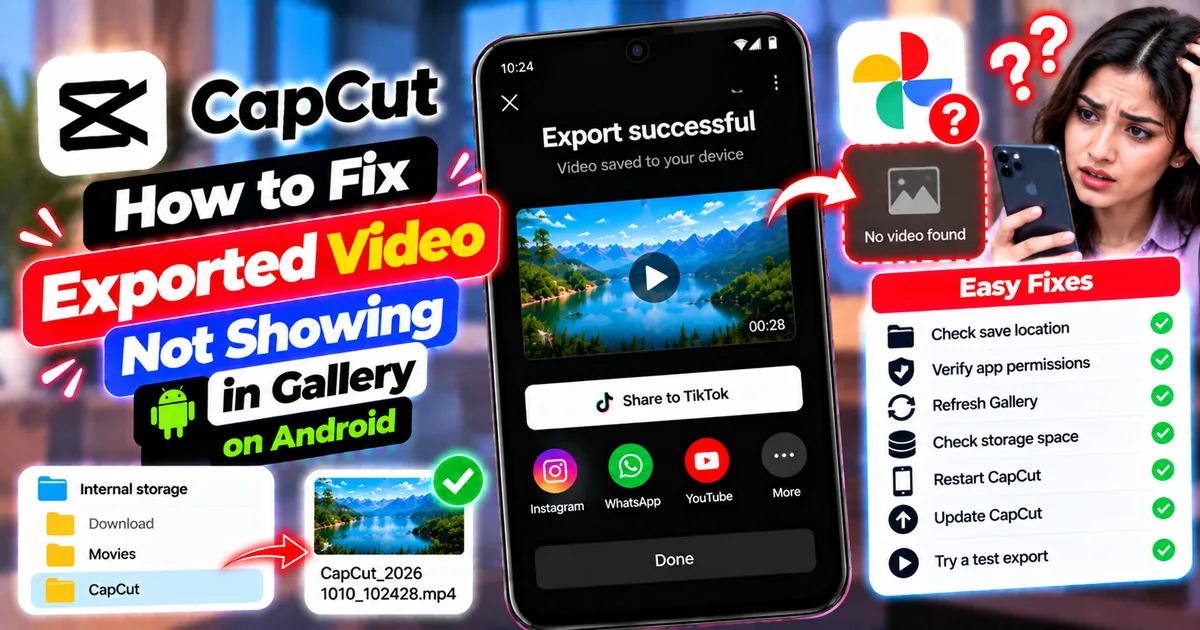
Have you exported a video from CapCut on Android, only to discover that it is missing from your phone's Gallery? The export may appear to finish successfully, but you cannot find the video in Photos, Gallery, or your usual media folders.
This problem does not always mean that CapCut failed to export the video. Sometimes the file has been saved to a different folder, Android has not refreshed its media library, or the app does not have the necessary access to save or display media correctly.
In other cases, the export may not have completed, the file may be incomplete, or the video may be present in your file manager but hidden from your gallery application.
This guide explains how to fix a CapCut exported video that is not showing in Gallery on Android. You will learn how to locate the saved file, check permissions, refresh your media library, and determine whether you need to export the video again.
Quick Answer: How to Find a Missing CapCut Export
If your CapCut video is not showing in your Android Gallery, follow these steps:
- Confirm that CapCut finished exporting the video.
- Open your phone's file manager and search for the exported file.
- Check folders such as Movies, Download, and CapCut if they exist on your device.
- Open the video directly from the file manager.
- Review CapCut's available photo and video permissions.
- Check whether the folder or album is hidden.
- Close and reopen your Gallery app.
- Restart your phone if the media library still does not update.
- Check available storage and the exported file's size.
- Update CapCut if an update is available.
- Export a short test video if you cannot locate a valid file.
Important: Do not immediately clear CapCut's app data or uninstall the app. You could lose locally stored drafts or project information.
Why Is My CapCut Exported Video Not Showing in Gallery?
Several issues can cause a video to disappear from your Gallery after export.
1. The Video Was Saved to a Different Folder
The exported video may exist on your phone but be stored in a location that your Gallery does not display prominently.
The file manager may reveal a video that is missing from the main Gallery screen.
2. Your Gallery Has Not Refreshed
Android's media library and gallery applications may not display a newly saved file immediately.
The export may have succeeded even though the thumbnail has not appeared yet.
3. CapCut Does Not Have the Required Media Access
Android permissions can affect how applications access or save media. The available permissions depend on your Android version and device.
4. The Export Did Not Complete
If the export stopped unexpectedly, the finished video may not exist or may be incomplete.
A progress indicator alone is not enough to confirm that a usable video was saved.
5. The Album Is Hidden
Some phones support hidden albums or folders. A video stored in one of these locations may not appear in the main Gallery view.
6. Your Phone Has Limited Free Storage
A lack of storage can interfere with video processing or saving. Check the available space before attempting repeated exports.
7. The Gallery App Has a Temporary Problem
The Gallery app may fail to display newly saved media correctly until it refreshes or restarts.
8. You Are Looking at a Draft Instead of an Export
A CapCut draft is an editable project, not the same thing as a finished video file.
Opening a project inside CapCut does not automatically mean a final video has been saved to your phone's Gallery.
Step 1: Confirm That the Export Finished Successfully
Before searching through your phone, make sure CapCut actually completed the export.
What to Check
- Open CapCut.
- Open the project you wanted to export.
- Check whether the previous export reached completion.
- Look for any error message or interrupted progress.
- If the app reported a failure, investigate the export problem before assuming the video exists.
If the export completed successfully, continue to the file manager.
If it stopped before completion, try a short test export after checking your available storage and project settings.
For a separate guide to export failures, see How to Fix CapCut Export Stuck at 99% on Android.
Step 2: Find the Exported Video in Your File Manager
This is one of the most useful steps because it helps distinguish a missing Gallery entry from a missing file.
How to Search for the Video
- Open Files, My Files, or your phone's file manager.
- Open the Videos or Recent files section if available.
- Search for the filename you used, if you know it.
- Look for recently created video files.
- Check folders such as Movies, Download, or CapCut if they exist.
- Open any likely match to confirm that it is the correct export.
Folder names and export locations can vary between devices and app versions. Do not assume every phone uses the same CapCut folder.
What If You Find the Video?
Open it directly from the file manager.
If the video plays normally, the export probably succeeded. The remaining issue is more likely related to the Gallery app, the folder's visibility, or media indexing.
If the file is present but will not play, check its size and whether the export completed properly.
What If You Cannot Find the Video?
Continue with the permission, storage, and export checks below.
Do not export the entire project repeatedly before checking whether a usable copy already exists.
Step 3: Check CapCut's Media Permissions
If CapCut cannot access the media library correctly, reviewing its permissions may help.
How to Check Permissions on Android
- Open Settings.
- Tap Apps or App Management.
- Select CapCut.
- Open Permissions.
- Review the available photo, video, or file-access permissions.
- Allow the access required for your intended workflow.
- Return to CapCut and test a short export.
The permission names and available options depend on your Android version and phone manufacturer.
You may see options such as Photos and videos, Files and media, or other device-specific controls.
Grant only the permissions needed for the features you use. If your phone offers a limited-access option, make sure it covers the relevant media.
Note: Permission settings can differ across Android versions. Do not expect every device to display the same menu.
Step 4: Refresh Your Gallery App
If the video exists in your file manager and plays normally, your Gallery may simply not have updated its media library.
Try These Steps
- Close the Gallery or Photos app.
- Open it again.
- Wait briefly for recent media to load.
- Check the Videos, Recent, or Albums section.
- Look for the exported video again.
If it remains missing, restart your phone and check once more.
A restart may help the device refresh its media library, although it is not guaranteed to resolve every Gallery issue.
Check Another Gallery App
If your phone has another trusted media viewer, open it and check whether the video appears there.
If one app displays the video and another does not, the file may be fine while the original Gallery app has a display or indexing problem.
Step 5: Check Hidden Albums and Folder Visibility
Some Android devices allow users to hide albums or folders.
A video can be present in storage but absent from the main Gallery screen because of album settings.
How to Check
- Open your Gallery app.
- Look for Hidden Albums, Hidden Folders, or a similar option.
- Check whether the folder containing your export is hidden.
- Review any album visibility settings.
- Make the album visible if that is what you want.
The exact steps depend on your phone's Gallery app.
Do not delete unfamiliar files or change system folders just to make a video appear. First establish where the file is stored.
Step 6: Check Whether the Exported File Is Valid
If you locate a possible export but it does not appear in Gallery or play correctly, inspect the file.
Check the File Size
Open the file's details in your file manager.
A valid video usually occupies some storage, but size alone cannot prove that an export is complete. Very small files may be incomplete, while short or low-resolution videos can legitimately be small.
Try Playing the File
Open the video in a compatible media player.
- If it plays normally, the issue may be Gallery visibility or indexing.
- If it cannot be opened, the file may be incomplete, damaged, or incompatible with the player.
- If only part of the video plays, the export may have been interrupted.
If you cannot find a usable file, proceed to a short test export.
Step 7: Check Your Available Storage
Video export can require storage for the final file and temporary processing.
If your phone is nearly full, CapCut may have difficulty completing an export.
How to Check
- Open Android Settings.
- Find Storage.
- Review how much space is available.
- Remove unnecessary files if needed.
- Preserve important recordings and project files.
- Return to CapCut and test the export again.
Avoid deleting important drafts or original media simply to free space. Start with files you no longer need and other safe cleanup options.
Step 8: Export a Short Test Video
If you cannot find the original export, create a small test to determine whether CapCut can save a new video.
How to Test
- Open a project that contains a short, working clip.
- Confirm that the timeline plays correctly.
- Export a short section or a simple test project.
- Wait for the export process to finish.
- Open your file manager.
- Search for the new video.
- Check whether it plays and appears in Gallery.
If the test video saves and appears normally, the original export may have failed or involved a project-specific problem.
If the test file exists but remains missing from Gallery, focus on media indexing, folder visibility, and Gallery behavior.
If no valid file is created, investigate CapCut's export process and available storage.
Step 9: Restart CapCut
A temporary app problem may affect exporting or media handling.
How to Restart CapCut
- Save your work if the app provides a save option.
- Open Android's recent-apps screen.
- Close CapCut.
- Open CapCut again.
- Reopen the project.
- Run a short test export if necessary.
If the problem continues, you can try Android's Force stop option under the CapCut app settings, then reopen the app.
Force stop is different from clearing app data or uninstalling the app.
Step 10: Update CapCut
An outdated version may have bugs that affect exporting or saving media.
How to Update
- Open the Google Play Store if that is where you installed CapCut.
- Search for CapCut.
- Open its app listing.
- Check whether an update is available.
- Install it if appropriate.
- Reopen your project and test a short export.
If you installed CapCut from another source, use a trusted source and check that the version is compatible with your existing installation.
Updating may help with app-related problems, but it will not fix a hidden album or a Gallery app that is failing to refresh.
Step 11: Try Re-Exporting the Video
If you cannot find a valid exported file and the original export appears to have failed, try exporting again.
Before repeating the export:
- Check your phone's available storage.
- Confirm that the project still opens correctly.
- Preview the timeline.
- Use reasonable export settings for your device.
- Wait for the export to complete.
- Check the file manager before deciding whether the Gallery is still the problem.
If a video is already present and plays normally, you usually do not need to export it again simply because its Gallery thumbnail is missing.
Repeated exports can consume additional storage and create duplicate files.
Step 12: Clear Temporary Cache Only if Needed
If the file cannot be found after checking storage and the app continues to behave unexpectedly, clearing temporary cache may be worth trying.
Depending on your version, a Clear Cache option may be available in CapCut's settings or Android's app storage settings.
A common Android path is:
Settings → Apps → CapCut → Storage → Clear Cache
Menu names may vary by device.
Avoid Clearing App Data
Clearing app data is different from clearing cache and can reset app information. It may put locally stored drafts or project data at risk.
Do not select Clear Data or uninstall CapCut as a routine Gallery fix. Protect important drafts and local media first.
Step 13: Contact CapCut Support if the Problem Continues
If a short export repeatedly fails to create a usable file, or CapCut reports successful exports that cannot be located anywhere, contact CapCut Support.
Provide useful details such as:
- Your phone model
- Your Android version
- Your CapCut version
- Whether the export reaches completion
- Whether the file appears in your file manager
- Whether the exported file plays in another app
- Any error message you see
These details help distinguish a saving problem from a Gallery display issue.
You can start with the official CapCut Help Center:
Common CapCut Gallery Problems and Their Fixes
| Problem | What to check first |
|---|---|
| Exported video is missing from Gallery | Search the file manager |
| Video is in the file manager but not Gallery | Refresh Gallery and check hidden albums |
| Video does not exist anywhere | Confirm export completion and test a new export |
| Exported file will not play | Check file size and export completion |
| Gallery does not show recent videos | Restart Gallery or the phone |
| Only one project fails to export | Check the project and export process |
| Every export fails | Check storage, app version, and export behavior |
| CapCut cannot save media correctly | Review the app's available permissions |
| Video appears after a delay | Check again after refreshing the media library |
| Video is visible inside CapCut but missing elsewhere | Confirm that a final export was completed and saved |
Tips to Prevent Missing CapCut Exports
1. Confirm Every Export Completes
Do not assume a video is saved merely because the export process has started. Wait for the completion confirmation.
2. Check the File Manager Before Exporting Again
A missing Gallery thumbnail does not necessarily mean the file is missing. Confirm the file's location before creating another copy.
3. Keep Enough Storage Available
Maintain sufficient free space for exported videos and temporary processing files.
4. Keep Important Drafts Safe
Preserve your source media and project information. Avoid clearing app data or uninstalling CapCut without understanding the consequences.
5. Check the Exported Video Before Sharing
Open the finished file and verify that it plays correctly before uploading it to YouTube, Instagram, or another platform.
6. Learn the Difference Between Drafts and Exports
A draft is an editable CapCut project. An exported video is a finished media file saved to your device. If you need a standalone video, make sure the export process has actually completed.
Frequently Asked Questions
Why is my CapCut exported video not showing in Gallery?
The file may have been saved in another folder, the Gallery may not have refreshed, or the export may not have completed. Start by searching your phone's file manager.
Where does CapCut save exported videos on Android?
The exact location can vary by version and device. Check your file manager's recent files and video sections, then look in relevant folders such as Movies, Download, or CapCut if present.
Why can I see my exported video in CapCut but not in Gallery?
You may be looking at a project or draft rather than a finished export. If a final file exists, Android's media library or your Gallery app may not have updated yet.
Will restarting my phone make the video appear?
It may help if the Gallery has not refreshed its media library, but it is not guaranteed. First confirm that the exported file exists and plays in your file manager.
Does CapCut need permission to save videos?
The permissions available depend on your Android version and device. Review CapCut's media permissions if saving or accessing media is not working correctly.
Why does my CapCut export disappear after saving?
Check whether the file was saved to another location, whether it can be opened, and whether your Gallery hides the containing album. If the file is genuinely missing, test a short export and investigate the saving process.
Should I export the video again if it is not in Gallery?
Not immediately. Search the file manager first. If the video exists and plays correctly, refreshing Gallery may be enough. Re-export only when you cannot find a valid file or the original export failed.
Will clearing CapCut cache fix a missing video?
It may help with certain temporary app problems, but it will not necessarily refresh your Gallery or recover a file that was never saved. Check the file manager and Gallery settings first.
Can I move the exported video into another folder?
If you find a valid video file in your file manager, you can generally copy or move it to a suitable folder on your device. Keep a backup if the video is important, and check whether it appears in Gallery afterward.
What should I do if no CapCut exports are saving?
Check storage, confirm that exports finish, restart CapCut, and test a short project. If the problem continues, update the app where appropriate and contact CapCut Support with the details of the failed export.
Final Thoughts
If your CapCut exported video is not showing in Gallery on Android, first determine whether the video file actually exists.
Search your file manager, open any matching file, check the app's available media permissions, and refresh your Gallery. If the export never produced a usable file, check storage and test a short export before repeating the entire project.
Avoid clearing app data or uninstalling CapCut just to refresh your Gallery. Protect your drafts, confirm where your finished video is saved, and make sure the file plays correctly before sharing it.
These steps will help you identify whether the issue involves the export itself, the file's location, Android permissions, or the Gallery app's media library.v
Related Articles

How to Fix CapCut Video Lagging After Export on Android
Fix CapCut video lagging after export on Android. Learn how to troubleshoot choppy playback, frame-rate mismatches, heavy effects, storage issues, and export settings.
GetApkFree Team

How to Fix CapCut Preview Not Matching Export on Android
Fix CapCut preview not matching the exported video on Android. Troubleshoot missing effects, text, transitions, timing, colors, and rendering differences.
GetApkFree Team

How to Fix Couldn't Apply AI Background in CapCut on Android
Getting "Couldn't Apply AI Background" in CapCut on Android? Check usage limits, clip selection, video quality, app updates, and practical troubleshooting steps.
GetApkFree Team

How to Fix CapCut Effects Not Applying on Android
CapCut effects not working on Android? Check clip selection, effect layers, timeline timing, conflicting adjustments, and app performance with these practical fixes.
GetApkFree Team