How to Check APK Architecture on Android: ARM64, ARMv7, x86, and x86_64
GetApkFree Team
Learn how to check your Android phone's CPU architecture and identify whether an APK is built for ARM64, ARMv7, x86, or x86_64 before installing it.
Quick Answer
Learn how to check your Android phone's CPU architecture and identify whether an APK is built for ARM64, ARMv7, x86, or x86_64 before installing it.
You've found an APK, and somewhere in the listing you spot a label like arm64-v8a or armeabi-v7a — but which one actually matches your phone, and where do you even check? This guide walks through identifying your device's architecture, recognizing what an APK supports, and matching the two correctly, without getting lost in the deeper technical differences between them.
What Does APK Architecture Mean?
Many APKs contain native code — code compiled specifically for a particular CPU instruction set rather than written to run generically. That compiled code has to match the processor it's running on, which is why some APKs are offered in multiple builds around specific architectures. Not every APK works this way: plenty of apps contain little or no native code and run the same regardless of architecture, while others bundle support for several architectures in one file. Architecture only becomes something worth checking when an app offers separate architecture-specific builds.
The Main Android APK Architectures
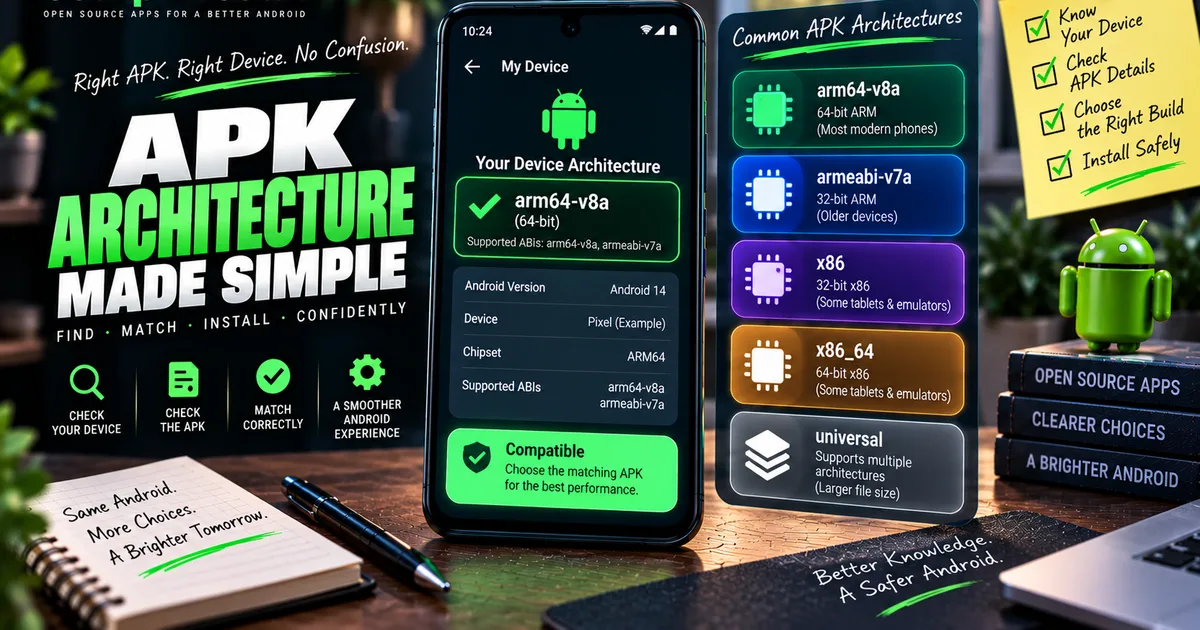
You'll typically encounter four labels:
- ARM64 (also shown as
arm64-v8a) - ARMv7 (also shown as
armeabi-v7a) - x86
- x86_64
These represent different processor instruction-set families, with ARM64 and ARMv7 covering the great majority of phones, and x86/x86_64 showing up mostly on some tablets, Chromebooks, and emulated environments. For the deeper technical comparison between ARM64 and ARMv7 — including their history and why both still exist — our dedicated guide on ARM64 vs ARMv7 covers that ground; this guide focuses specifically on identifying and matching architectures in practice.
32-Bit vs 64-Bit, Briefly
Worth keeping straight: ARM64 refers to a 64-bit ARM architecture, while ARMv7 commonly refers to a 32-bit one. x86 and x86_64 are a separate family entirely, unrelated to ARM. Having a 64-bit phone doesn't mean every APK will run — a build made only for x86 won't run on an ARM device regardless of bit width, and vice versa.
How to Check Your Phone's Architecture
A few practical ways to find out what your device actually supports:
- A reputable device-information app — many system-information utilities display supported ABIs (the technical term for supported instruction sets) directly, rather than just a marketing chipset name.
- Manufacturer specifications — your phone's product page or manual usually states its chipset, which you can look up if the architecture itself isn't listed outright.
- Android's own device information, where exposed — some phones surface relevant details under Settings, though the exact location and what's shown varies significantly by manufacturer and Android version.
Don't rely purely on a marketing CPU name to guess architecture — brand and model names don't always make the underlying architecture obvious, and checking actual reported ABI information is more reliable than assuming. If you use a third-party app for this, apply the same standard you would for any download: get it from a source you trust.
How to Check an APK's Architecture
Identifying what an APK itself supports takes a bit more digging, since there's no single guaranteed format:
- Filenames sometimes include the architecture directly — something like
app-arm64-v8a.apkorapp_armeabi-v7a.apk— but this isn't a universal convention, and plenty of files carry no architecture hint in their name at all. - Download labels or release descriptions on a distribution page often state which architecture a given file targets, when multiple options are offered.
- APK metadata or inspection tools that read a package's manifest can show supported native libraries directly, which is the most reliable method when a filename or label doesn't make it obvious. Combined with a package's version and other details, this gives you a fuller picture of exactly what you're about to install.
- A catalogue that lists architecture per build, such as GetApkFree's app listings, so you're reading a stated fact rather than inferring one from a filename.
Common labels to recognize: arm64-v8a, armeabi-v7a, x86, x86_64, and universal for a build meant to cover several architectures at once.
How to Match Your Phone With an APK
Once you know both sides, matching is straightforward: pick the APK whose architecture label matches what your device reported. If your phone is arm64-v8a and a listing offers arm64-v8a, armeabi-v7a, x86_64, and a universal build, the arm64-v8a file is the direct match and typically the most efficient choice for that hardware. The universal build would also work as an alternative, at the cost of a larger download, if you'd rather not worry about matching precisely.
What Is a Universal APK?
A universal APK is a single file that bundles native code for more than one architecture, so it doesn't require picking a specific match — Android uses whichever portion applies to your device at install time. This doesn't mean every universal build includes every possible architecture, and it isn't automatically larger than every architecture-specific alternative; how much it bundles depends entirely on what the developer chose to include. Our guide on APK variants covers how universal builds relate to architecture-specific ones in more depth.
What Happens When the Architecture Doesn't Match?
Installing a build meant for a different architecture than your device can lead to a few outcomes: the installation may fail outright, certain native components may simply not work even if installation succeeds, or the app may crash when it tries to use incompatible code. Not every mismatch produces the same symptom — it depends on how much of the app's functionality actually relies on the incompatible native code. If you're troubleshooting an install that isn't behaving, a full compatibility check — architecture included — is more reliable than guessing at a single cause.
Architecture vs Android Version
These are two entirely separate checks that are easy to conflate. CPU architecture is about which processor instruction set an APK's native code targets. Android version is about which operating-system release and API level the app requires to run at all. A build can be a perfect architecture match for your device and still fail to install if it requires a newer Android version than you have — and the reverse is equally true. Checking one doesn't tell you anything about the other.
Architecture vs APK Variant
Architecture is one specific reason variants exist, but not the only one — apps can also offer variants split by Android version requirements, screen configuration, bundled language resources, or overall distribution strategy, independent of architecture entirely. It's also worth distinguishing architecture-specific variants, which are separate, independently installable alternatives you choose between, from Android's split-APK approach, where multiple files are installed together as one set rather than being alternatives to pick from. Architecture is a lens you apply within the broader variant question, not a separate topic from it.
Example: Choosing the Correct APK
Say your phone reports arm64-v8a, and a download page lists four files: armeabi-v7a, arm64-v8a, x86_64, and universal. The arm64-v8a file is the obvious match — same label, direct fit. The universal file would also install and run correctly, since it includes ARM64 support among whatever else it bundles; it's a reasonable fallback when you'd rather not think about it further. The armeabi-v7a file may still work on many ARM64 devices, since 64-bit ARM hardware commonly runs older 32-bit ARM code, but it wouldn't take advantage of anything the 64-bit build offers. The x86_64 file doesn't belong on ARM hardware at all and should be skipped.
Now flip the scenario: an x86_64 Android device or emulator, with only an ARM-labeled APK available. Don't assume that file will simply work — x86 and ARM are unrelated instruction-set families, and unlike the ARM64-can-often-run-ARMv7 relationship, x86_64 hardware generally cannot run ARM-only native code without some form of translation layer, which isn't something to count on by default.
Common Architecture Mistakes
- Assuming a phone's marketing name reveals its architecture. Check actual reported information rather than guessing from a model name.
- Assuming every APK is architecture-specific. Many aren't, and checking is only necessary when a listing actually offers multiple builds.
- Assuming 64-bit means everything works. Bit width is one factor; the instruction-set family (ARM vs x86) matters independently.
- Treating architecture as an authenticity signal. It says nothing about who built a file or whether it's trustworthy.
What Architecture Can and Cannot Tell You
Architecture tells you whether an APK's native code is built to run on your specific processor — a real, practical compatibility question. It does not tell you whether the file is safe, official, authentic, unmodified, or free of anything malicious. That's a separate set of questions entirely, resolved by checking the source, package identity, and other details rather than by architecture matching, which addresses only one piece of technical compatibility.
Quick APK Architecture Checklist
- Check your device's actual reported architecture, not just its marketing name.
- Look for an architecture label in the APK's filename, listing, or metadata.
- Match the two directly when a clear label is available.
- Consider a universal build when you're unsure or installing across multiple devices.
- Remember architecture, Android version, and variant are separate checks.
- Don't treat a correct architecture match as evidence of safety.
Frequently Asked Questions
How do I check my Android phone's architecture? A device-information app, your manufacturer's published specifications, or Android's own device details (where exposed) can show your supported architecture.
What does arm64-v8a mean? It's the technical label for the 64-bit ARM architecture used by most modern Android phones.
What does armeabi-v7a mean? It's the technical label for the older, 32-bit ARM architecture still supported by many devices and apps.
How do I know which APK architecture to download? Match the label on the APK to your device's actual reported architecture, or choose a universal build if one is available and you'd rather not match precisely.
Can a 64-bit Android phone run a 32-bit APK? Often yes, for ARM devices specifically — ARM64 hardware commonly runs ARMv7 code. This isn't guaranteed for every device or every app.
What happens if I install the wrong APK architecture? Outcomes vary: the install may fail, parts of the app may not work, or it may crash when it hits incompatible native code.
Is a universal APK always the best choice? Not automatically — it's a broadly compatible fallback, but a well-matched architecture-specific build can work just as well.
Does APK architecture tell me whether an APK is safe? No. It only addresses processor compatibility — check the source and other details separately for anything related to trust.
Final Thoughts
Matching architecture comes down to two simple steps: know what your device actually supports, and know what the APK you're considering actually targets. Everything else — filenames, labels, universal builds, the occasional mismatch — is just detail around that core comparison. Keep architecture separate from Android version and from any judgment about safety, and you'll avoid the most common mistakes people run into when picking between APK options.
Related Articles

Roblox Not Loading Games on Android? How to Fix It
Roblox games not loading on Android? Fix endless loading screens, failed connections, and games that close unexpectedly with practical checks for your network.
GetApkFree Team
Reddit Notifications Not Working on Android? How to Fix It
Reddit notifications not working on Android? Fix missing replies, comment alerts, chat notifications, and delayed updates by checking Reddit settings,
GetApkFree Team

Snapchat Camera Not Working on Android? How to Fix It
Is Snapchat’s camera showing a black screen or refusing to take photos on Android? Check camera permissions, update the app, clear its cache, and follow these practical troubleshooting steps.
GetApkFree Team

Pinterest Images Not Loading on Android? How to Fix It
Pinterest images not loading on Android? Fix blank Pins, missing pictures, endless loading, and feed problems with these practical troubleshooting steps.
GetApkFree Team