This article is about
CapCut Premium
capcutdownload.com.pk · Tools
How to Fix CapCut Template Link Not Opening on Android
GetApkFree Team
CapCut template links not opening on Android? Fix links that open the wrong template, redirect to the home screen, or fail to launch CapCut.
- Source
- Developer
- Package
- CapCut Premium
How to Fix CapCut Template Link Not Opening on Android
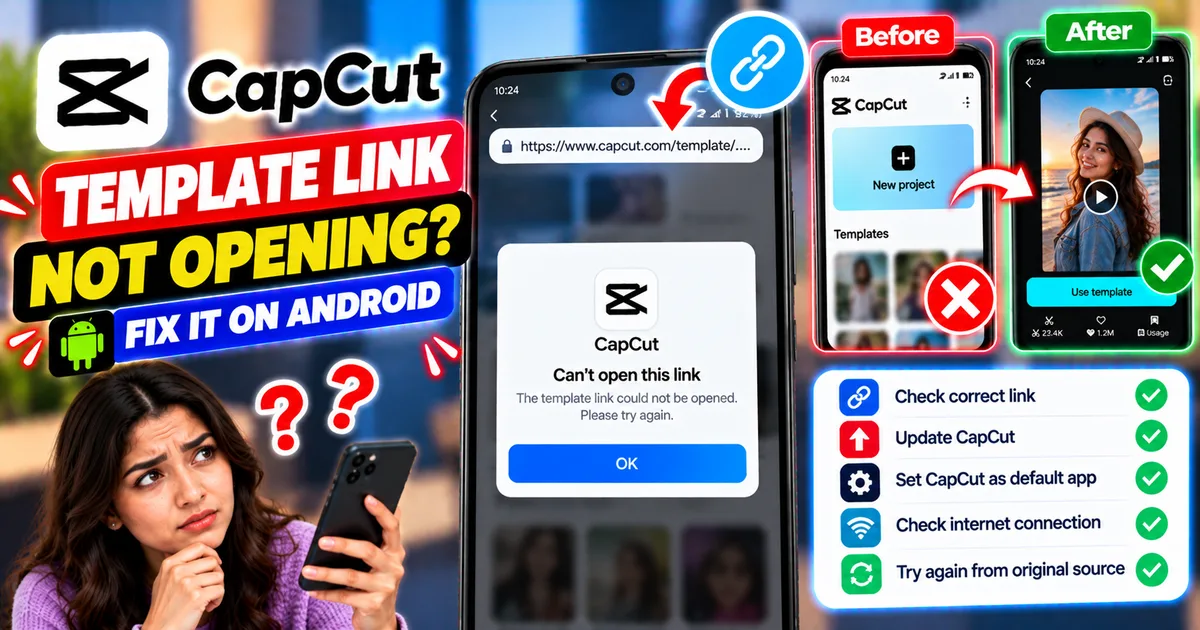
You find a CapCut template you like on TikTok, Instagram, or another website. You tap the link, expecting CapCut to open the template, but nothing happens. Sometimes CapCut opens to its home screen instead. In other cases, it launches but displays a different template from the one you selected.
These problems can interrupt your video-editing workflow, especially when you want to recreate a particular trend or use a shared editing template.
A CapCut template link that does not open correctly does not necessarily mean the app is broken. The problem may involve an outdated app, Android's link-handling settings, an unstable internet connection, or a template that is no longer available.
This guide explains how to troubleshoot CapCut template links on Android, including links that do nothing, open the wrong template, or redirect to the CapCut home screen.
Quick Answer: How to Fix a CapCut Template Link That Won't Open
Try these troubleshooting steps in order:
- Confirm that the link is a genuine CapCut template link.
- Check whether CapCut is installed and opens normally.
- Update CapCut and the app containing the shared link, if applicable.
- Open the template link again from its original source.
- Check CapCut's supported-link settings in Android.
- Clear the relevant link-opening defaults if the link launches incorrectly.
- Switch between Wi-Fi and mobile data.
- Restart CapCut and the phone.
- Try another template link to determine whether the problem affects every template.
- Check whether the original template is still available.
Do not uninstall CapCut as your first troubleshooting step. Uninstalling may remove local drafts and unfinished projects.
Why Is My CapCut Template Link Not Working?
Understanding the symptoms can help you choose the right fix instead of changing unrelated settings.
1. CapCut Opens but Shows the Home Screen
This can happen when Android or the link-handling process fails to open the specific template. The app launches, but the template information is not passed through correctly.
2. Tapping the Link Does Nothing
The link may not be recognized as a CapCut link, CapCut may not be configured to handle it, or the source app may not open it correctly.
A network problem or an unavailable link can also contribute to the issue.
3. CapCut Opens the Wrong Template
If CapCut opens but displays a different template, the link may not be resolving correctly. It is also possible that the original template was changed, removed, or made unavailable.
4. The Template Opens but Keeps Loading
Templates often require an internet connection to retrieve online content. A weak connection, temporary app issue, or unavailable template can prevent loading from finishing.
For network-specific troubleshooting, read our guide on how to fix CapCut no internet connection on Android.
5. The Template Is No Longer Available
A creator may remove a template, make it private, or stop sharing it. Regional availability and app-version differences can also affect which templates you can access.
Updating the app cannot restore a template that is no longer available to you.
Step 1: Confirm That CapCut Opens Normally
First, determine whether the problem affects template links or the app itself.
- Open CapCut directly from your Android home screen or app drawer.
- Wait for the home screen to load.
- Check whether the app responds normally.
- Look for the Templates section if it is available in your version.
- Try opening a template from inside CapCut.
If CapCut works normally but external links fail, focus on link handling rather than reinstalling the app.
If CapCut itself will not open, troubleshoot the app separately before testing template links again.
Step 2: Open the Original Template Link Again
A link copied from a social media post or messaging app may be incomplete or may have been altered when shared.
Try this process:
- Return to the original post or message containing the template.
- Tap the template link again.
- If a menu appears, choose the option that opens the link in CapCut.
- Wait for the app to finish loading.
- Check whether the correct template appears.
If you copied the link, make sure you copied the complete address rather than only part of it.
When possible, test the original link instead of a shortened or modified version shared by another person.
Step 3: Update CapCut
An older version of CapCut may have compatibility problems with newer template links or app features.
To check for an update:
- Open Google Play Store, if CapCut is available to you there.
- Search for CapCut.
- Open its official app listing.
- If an Update option is available, install the update.
- Open CapCut and test the template link again.
If you installed CapCut through another legitimate distribution channel, check that source for an official update.
Important: Update the app without uninstalling it first. Uninstalling can put locally stored drafts at risk.
Step 4: Update the App Containing the Template Link
If you are opening a template from TikTok or another social platform, update that app too.
An outdated source app may have trouble handing a shared link to CapCut.
Follow these steps:
- Open the relevant app store.
- Find the app where the template link appears.
- Install any available update.
- Reopen the original post.
- Tap the template link again.
If the link was sent through a messaging app, try opening it from the original message rather than a copied preview.
This step is particularly useful when CapCut works normally but links from one specific app fail.
Step 5: Check Android's Supported-Link Settings
Android can control which applications are allowed to open certain types of links.
The exact menu names vary by phone manufacturer and Android version, but the settings are generally found under the application's information page.
How to Check
- Open Android Settings.
- Go to Apps or Applications.
- Find and select CapCut.
- Look for Open by default, Set as default, or a similar option.
- Review whether supported links can open in CapCut.
- If the option is available, enable the appropriate supported-link setting.
The precise controls differ between Android devices, so you may not see every option listed above.
Return to the original template link and test it again.
What If the Wrong App Opens?
If the link repeatedly opens in a browser or another app, review the relevant default-opening settings for that app as well.
Do not reset all application preferences unless necessary. Start by checking the settings related to CapCut and the specific link.
Step 6: Clear Incorrect Link-Opening Defaults
If Android keeps opening the wrong app or fails to send the link to CapCut, clearing the relevant defaults may help.
- Open Settings on your Android phone.
- Go to Apps.
- Select the application that is incorrectly opening the link.
- Open its default or link-handling settings.
- If a Clear defaults option is available, use it only when you understand which preference it resets.
- Return to the template link and open it again.
Some phones handle supported links differently, and the Clear defaults option may not be available.
Do not clear CapCut's app data as a substitute for clearing link-opening defaults. App data can contain information you do not want to lose.
Step 7: Check Your Internet Connection
Template links may require CapCut to retrieve template information from an online service.
If the link opens CapCut but the template remains blank or keeps loading, test your connection.
- Open a website or another app to confirm that the internet works.
- Switch from Wi-Fi to mobile data, or from mobile data to Wi-Fi.
- Reopen the template link.
- Check whether the template loads.
- If other online CapCut features are also failing, troubleshoot the app's connection.
A connection problem is more likely when several online features fail together. If every other CapCut feature works and only one template link fails, the problem may be specific to that link.
Step 8: Restart CapCut and Your Phone
Temporary app or system issues can sometimes interfere with opening a shared template.
Restart CapCut
- Close CapCut.
- Open Android's recent-apps screen.
- Swipe CapCut away to close it.
- Open CapCut again.
- Try the template link.
Restart Your Phone
If restarting CapCut does not help:
- Open the phone's power menu.
- Select Restart.
- Wait for Android to start.
- Open the source app again.
- Tap the original template link.
These steps may resolve temporary problems, but they cannot restore a deleted or unavailable template.
Step 9: Clear CapCut's Cache Carefully
Temporary cached files can sometimes contribute to loading or display problems.
If the template link still fails, you can consider clearing CapCut's cache.
- Open Android Settings.
- Go to Apps.
- Select CapCut.
- Open Storage or Storage and cache.
- Choose Clear cache, if available.
- Open CapCut again and test the template link.
Menu names vary by device.
Do not select Clear storage or Clear data by mistake. These options are different from clearing temporary cache and may remove locally stored application information or affect drafts.
Clearing cache is not guaranteed to fix a broken template link, so try it only after the simpler checks.
Step 10: Test a Different Template Link
One of the most useful troubleshooting tests is to open another known-working template link.
Try a different template from a trusted source.
- If the second template opens correctly, the original template may have been removed, changed, or restricted.
- If every template link fails, the problem is more likely to involve CapCut, Android link handling, the source app, or your connection.
- If links from one app fail but links from another source work, focus on the app that is sharing the link.
This simple comparison can prevent you from making unnecessary changes to your phone.
Step 11: Check Whether the Template Is Still Available
Even a correctly formatted link may stop working if the template is no longer accessible.
Look for another post or share link from the same creator. If the creator has published an updated version, use the new link.
Also consider whether the template is available in your region and current version of CapCut.
CapCut's official help guidance explains that some template and feature availability varies by region or app version. If a template is unavailable, changing Android settings may not make it accessible.
You can review CapCut's official guidance on template links that fail to open correctly.
Step 12: Contact CapCut Support if the Problem Continues
If several valid template links fail even after the troubleshooting steps, contact CapCut through its official Help Center or available in-app support option.
Provide the following information:
- Your phone model.
- Your Android version.
- Your CapCut app version.
- The app or website containing the template link.
- What happens when you tap the link.
- Whether other template links work.
- A screenshot or screen recording of the issue, if practical.
If you can safely share the template URL with support, include it so they can understand which template is affected.
Never send your account password or verification codes to someone claiming to repair your CapCut links.
How to Prevent CapCut Template Link Problems
Keep CapCut Updated
Check for updates through an official source when templates stop opening or the app's interface changes.
Use the Original Link
Open the link from the original creator or post whenever possible. Avoid incomplete URLs or suspicious redirect pages.
Keep the Source App Updated
If you regularly open templates from TikTok or another social platform, keep that app updated too.
Maintain a Stable Connection
Online templates may need to load information from CapCut's servers. A reliable connection can reduce loading problems.
Avoid Unnecessary Reinstallation
Uninstalling and reinstalling the app should not be the first solution. It may put local drafts at risk and does not guarantee that broken or unavailable links will start working.
Save Your Important Editing Work
Keep copies of original media and export finished videos. If you are working on an important project, make sure your drafts are protected before making significant app or device changes.
Frequently Asked Questions
Why does CapCut open but not show the template?
The link may not be passing the correct template information to CapCut, or the template may no longer be available. Check the original link, update the app, and test another template.
Why does my CapCut template link open the home screen?
This can happen when the app launches but does not resolve the shared template link correctly. Check Android's supported-link settings, update CapCut, and retry the original link.
How do I open a CapCut template link directly in the app?
Tap the original template link and choose CapCut if Android presents an app-selection prompt. If the link keeps opening elsewhere, review the relevant supported-link settings in Android.
Why does a CapCut template link work for my friend but not me?
The template may have different availability depending on the account, region, app version, or whether the original link is still valid. Compare the link and app versions before assuming your phone is faulty.
Can I use a CapCut template without opening its link?
If the template is available inside CapCut, you may be able to find it through the Templates section. Availability and navigation vary by version and region.
Should I reinstall CapCut to fix template links?
Not as an initial step. Reinstallation may remove local drafts and does not guarantee that the link will work. Try updating, checking link settings, restarting the app, and testing another template first.
What if the original CapCut template has been deleted?
If the creator removed the template or it is no longer available, there may be no way to open that exact template. Look for a replacement or another version from the creator.
Does clearing cache delete my CapCut drafts?
Clearing temporary cache is different from clearing app data, but it is not a recovery method. Check the exact option before proceeding, and avoid clearing storage or data when you are trying to protect unfinished projects.
Final Thoughts
When a CapCut template link will not open on Android, first check whether the problem affects one template or every template you try.
Update CapCut and the source app, verify Android's link-handling settings, test your internet connection, and reopen the original link. If other links work, the original template may simply be unavailable.
Avoid uninstalling CapCut or clearing app data as an early troubleshooting step. A careful diagnosis can help you fix the link problem without unnecessarily risking your unfinished editing projects.
Related Articles
Truecaller Caller ID Not Showing on Android? How to Fix It
Truecaller Caller ID not showing on Android? Fix missing caller names and caller ID pop-ups by checking permissions, display-over-other-apps settling
GetApkFree Team
Gemini App Not Working on Android? How to Fix It
Gemini not working on Android? Fix “Something went wrong” errors, failed prompts, endless loading, and app problems with practical checks for your connection, app updates, cache, and Google account.
GetApkFree Team
Canva App Keeps Crashing on Android? How to Fix It
Canva keeps crashing, freezing, or closing unexpectedly on Android? Troubleshoot app updates, Android System WebView, internet problems, storage, cache, and device settings with these practical fixes.
GetApkFree Team
ChatGPT App Login Error on Android: How to Fix “Something Went Wrong”
Getting a “Something went wrong” error when logging in to ChatGPT on Android? Check Google Play Store updates, browser sign-in settings, connectivity, and other safe troubleshooting steps.
GetApkFree Team