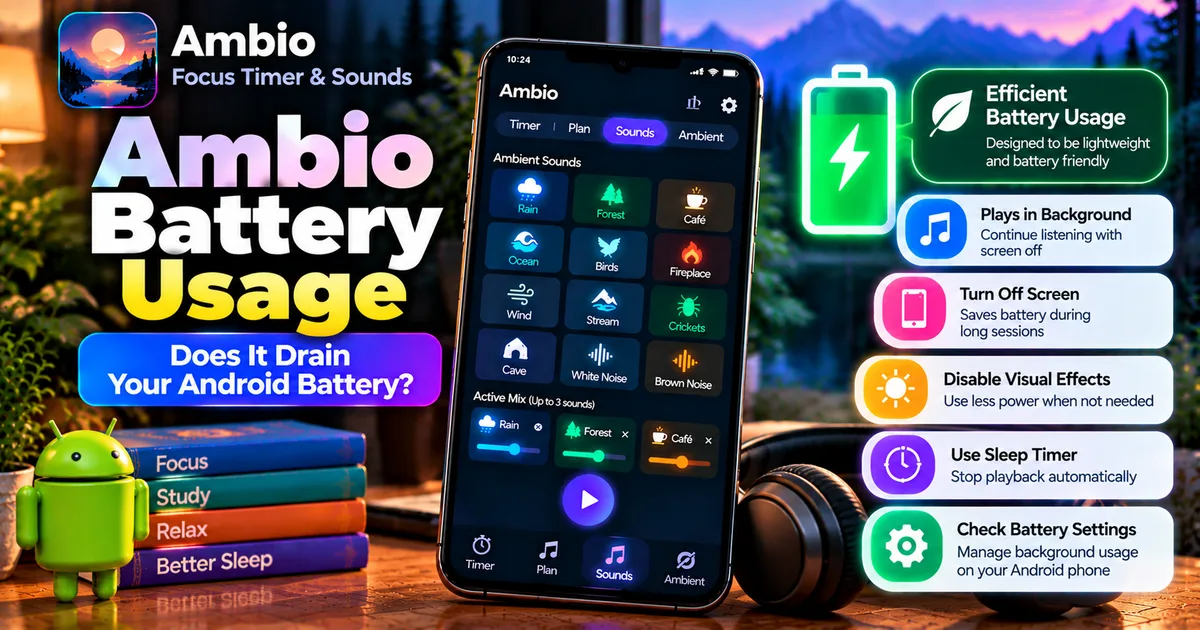

This article is about
Ambio: Focus Timer & Sounds
Jaime Barreto · Multimedia
Ambio Battery Usage: Does It Drain Your Android Battery?
GetApkFree Team
Does Ambio drain battery? Learn how Ambio uses battery during sound playback, what affects usage, and practical ways to reduce battery consumption.
- Version
- 2.0.0
- Requires
- Android 12.0+
- License
- MIT
- Source
- F-Droid
- Package
- com.jbgsoft.ambio
Ambio Battery Usage: Does It Drain Your Android Battery?
If you use Ambio for long study sessions, ambient sounds, reading, relaxation, or sleep, you may wonder how much battery the app uses.
The current Ambio listing describes the app as having efficient battery usage, but actual battery consumption can vary depending on what you are doing, how long playback runs, your phone, screen brightness, Android version, and other system settings.
Ambio can continue playing sounds in the background using Android's media playback system. F-Droid lists a foreground service with the mediaPlayback type and a permission that allows the app to prevent the phone from sleeping.
That means battery use is expected when you leave sounds playing for a long period. It does not, however, mean that Ambio necessarily causes unusually high battery drain.
This guide explains what affects Ambio battery usage and what you can do to keep consumption under control.
Does Ambio Drain Battery?
Like any Android app that continuously plays audio, Ambio uses some battery while it is running.
The amount depends heavily on how you use it.
For example, a short 25-minute focus session with the screen turned off is a very different workload from several hours of continuous playback while the display remains on with animated visual effects.
Ambio's Google Play listing specifically describes the app as having efficient battery usage. However, the listing does not provide a universal battery-consumption figure, so there is no reliable percentage that applies to every Android phone.
Your own phone's battery statistics are therefore more useful than a generic number.
What Uses Battery When Ambio Is Playing?
There are several parts of the Ambio experience that can contribute to battery consumption.
Audio Playback
The most obvious factor is continuous sound playback.
If you create an ambient mix and leave it running for several hours, the phone needs to keep the audio playback system active.
Ambio supports background playback through Android's media playback functionality, allowing sounds to continue when the app is no longer visible on the screen.
Longer playback naturally means more total energy consumption than a short session.
Keeping the App Running in the Background
Ambio is designed to continue playing when you put your phone down.
The current listing says that playback can be controlled from the notification shade, lock screen, and Quick Settings.
This is useful for studying or relaxing, but background audio is still an active workload.
If you play sounds continuously for several hours, you should expect some battery consumption even when the display is off.
The Phone Display
Your display can consume substantially more power than a lightweight audio application, particularly when the screen stays on for a long period.
This is important because Ambio includes animated visual effects that respond to the sound mix.
If you leave the Ambio interface visible throughout an entire study session, the display and the visual effects become part of the overall workload.
For longer sessions, turning the screen off once playback has started is a simple way to avoid unnecessary display power consumption.
Do Ambio Visual Effects Use More Battery?
Ambio uses a dynamic visual background that changes according to the sounds in your mix.
The official listing describes gradients and particles that respond to the sound combination, and it also says that users can turn the effects off.
Visual rendering requires additional work from the phone compared with simply playing audio.
That does not mean the effects will cause a large battery drain on every device. Modern phones differ significantly in display technology and graphics hardware.
However, if your priority is maximum battery life during a long session, disabling visual effects and turning the screen off removes unnecessary visual activity.
You can read more about this feature in our guide to Ambio visual effects.
Does Ambio Use Battery With the Screen Off?
Yes, Ambio can continue playing audio with the screen off.
This is one of the main purposes of its background playback support.
The phone still has to keep the audio playback service active, so turning the display off does not make battery consumption zero.
It simply removes the power required to keep the display illuminated and reduces other screen-related activity.
For example, you could start a focus session, lock your phone, and continue listening to your selected ambient mix.
Ambio's background playback controls are designed specifically for this type of use.
For longer sessions, this is generally a more battery-conscious way to use the app than leaving the display continuously active.
How to Reduce Ambio Battery Usage
You don't have to stop using Ambio to reduce battery consumption.
A few simple changes can help.
1. Turn Off the Screen
After starting your sound mix or focus session, turn the screen off when you don't need to look at the timer.
The display is one of the largest sources of power consumption on many smartphones.
Ambio can continue background playback while you use the phone's media controls when needed.
2. Disable Visual Effects
If you don't need Ambio's animated background, consider turning its visual effects off.
The app provides an option to turn the effects off, so you can keep the sound experience without continuously rendering the visual background.
This can be particularly useful when you're running a long session.
3. Use the Sleep Timer for Nighttime Playback
If you use Ambio while falling asleep, there is little reason to keep playback running until morning if you only want sound for part of the night.
Ambio's Ambient Mode includes a sleep timer that can stop the mix after a selected period.
For example, you could use an ambient sound mix while relaxing before bed and let the sleep timer stop playback after you fall asleep.
This avoids hours of unnecessary playback.
Read our full guide to the Ambio sleep timer.
4. Choose a Reasonable Session Length
If you only need background sound for a 25-minute study session, there is no reason to keep playback running for several hours.
Ambio provides 25-minute and 50-minute Pomodoro presets as well as custom focus and break durations.
Choose a duration that matches what you're actually doing.
5. Check Android Battery Settings
Android provides its own battery-usage information.
The exact menu differs between phones, but you can generally find battery statistics through:
Settings → Battery → Battery usage
Look for Ambio in the list after using it for a while.
This is more useful than relying on a generic claim about battery drain because your phone can show how much energy Ambio actually used on your particular device.
6. Don't Disable Battery Restrictions Without a Reason
Some Android manufacturers apply aggressive background restrictions to applications.
These restrictions can sometimes interfere with continuous media playback.
If Ambio stops playing unexpectedly, check its battery or background settings rather than immediately assuming the app is consuming too much battery.
If your phone offers options such as unrestricted, optimized, or restricted battery usage, the appropriate setting can depend on how you use the app.
Changing battery restrictions should be done only when necessary because allowing unrestricted background activity can increase battery consumption.
For playback problems, see our guide on Ambio not playing sound.
Does Using More Sounds Increase Battery Usage?
Ambio lets you mix up to three of its 12 ambient sounds simultaneously.
It is reasonable to expect that processing a more complex audio mix can require more work than playing a single sound, although the available app listings do not provide a measured battery comparison between one-, two-, and three-sound mixes.
Therefore, it would be misleading to say that using three sounds consumes a specific percentage more battery.
If battery life is particularly important, you can simply use the smallest mix that gives you the soundscape you want and compare the results using Android's own battery statistics.
Does Ambio Drain Battery When You Aren't Playing Sounds?
Continuous battery consumption should not be confused with normal background playback.
The main battery-related workload discussed here is active audio playback.
Ambio's 2.1.1 release also includes fixes related to stopping playback and properly closing the app after playback has stopped. F-Droid notes that going back after stopping a mix should no longer leave the sound playing.
If you believe Ambio is consuming battery when you have stopped playback, first make sure that playback has actually stopped.
You can also check Android's battery screen to see whether Ambio is still appearing as an active battery user.
Is Ambio Suitable for Long Study Sessions?
Yes, Ambio is designed for extended focus and ambient playback.
The app supports focus sessions, background playback, ambient mode, and custom durations.
For a long study session, a battery-conscious setup could be:
- Select your preferred ambient mix.
- Start a 25- or 50-minute focus session.
- Turn off visual effects if you don't need them.
- Turn off the display.
- Let the audio continue in the background.
- Use Android's media controls when you need to pause or stop playback.
- Check your phone's battery statistics after a few sessions.
This gives you a practical way to determine how Ambio behaves on your particular device rather than relying on a generic battery-drain number.
Does Ambio Need Internet While Playing Sounds?
No.
Ambio is designed to work offline, and its current listing states that it works completely offline.
This means you don't need to maintain an internet connection simply to use its built-in ambient sound experience.
Our Ambio offline guide explains the app's offline functionality in more detail.
What About Ambio's Battery Usage on Older Phones?
Battery behavior can vary considerably between devices.
An older phone may have:
- A smaller or degraded battery
- Less efficient audio hardware
- An older Android version
- More aggressive background management
- A less efficient display
- More limited processor efficiency
Because of these differences, an Ambio battery result from one phone shouldn't be treated as a universal result for another.
The most useful approach is to test the app on your own device and check Android's battery statistics.
Ambio Battery Usage: What You Should Know
Ambio does use battery when it is actively playing sounds, particularly during long sessions.
However, the current Google Play listing describes the app as having efficient battery usage, and there is no published universal battery-drain percentage that applies to every Android phone.
For better battery efficiency:
- Turn the screen off during long sessions.
- Disable visual effects when you don't need them.
- Use the sleep timer for nighttime playback.
- Choose a session length appropriate for your activity.
- Check Android's battery statistics on your own device.
- Avoid unnecessarily allowing unrestricted background activity.
- Make sure playback actually stops when you are finished.
Ambio's background playback is intentionally designed to keep sounds running while the app is not on screen, so some battery consumption during active playback is normal.
The best way to understand your actual Ambio battery usage is to use the app normally for a few sessions and compare its usage in Android's Battery settings.
Frequently Asked Questions
Does Ambio drain battery?
Ambio consumes battery while actively playing sounds, as expected from an audio playback application. The developer describes it as having efficient battery usage, but no universal battery-drain percentage is published.
Does Ambio work with the screen off?
Yes. Ambio supports background playback, allowing sounds to continue while the phone is not actively displaying the app.
Does Ambio use battery in the background?
Yes, when it is actively playing audio in the background. Android's media playback system keeps the playback service running.
Can I reduce Ambio battery usage?
Yes. Turn off the display, disable visual effects when unnecessary, use appropriate session lengths, and use the sleep timer for nighttime playback.
Does Ambio have a sleep timer?
Yes. Ambio's Ambient Mode includes a sleep timer that can stop playback after a selected period.
Does using three sounds use more battery?
It may require more audio processing than a simpler mix, but Ambio's published information does not provide a measured comparison. Avoid assuming a specific percentage difference without testing.
How can I check Ambio's battery usage?
Open your Android phone's Settings → Battery → Battery usage or the equivalent battery section on your device and look for Ambio after using it.
Why does Ambio keep running after I leave the app?
Ambio supports background media playback so that your sound mix can continue when the app is no longer visible.
Can Ambio stop playback automatically?
Yes. The sleep timer in Ambient Mode can stop playback automatically.
Related Articles

How to Fix CapCut Video Lagging After Export on Android
Fix CapCut video lagging after export on Android. Learn how to troubleshoot choppy playback, frame-rate mismatches, heavy effects, storage issues, and export settings.
GetApkFree Team

How to Fix CapCut Preview Not Matching Export on Android
Fix CapCut preview not matching the exported video on Android. Troubleshoot missing effects, text, transitions, timing, colors, and rendering differences.
GetApkFree Team

How to Fix Couldn't Apply AI Background in CapCut on Android
Getting "Couldn't Apply AI Background" in CapCut on Android? Check usage limits, clip selection, video quality, app updates, and practical troubleshooting steps.
GetApkFree Team

How to Fix CapCut Effects Not Applying on Android
CapCut effects not working on Android? Check clip selection, effect layers, timeline timing, conflicting adjustments, and app performance with these practical fixes.
GetApkFree Team