
This article is about
Ambio: Focus Timer & Sounds
Jaime Barreto · Multimedia
Ambio Visual Effects: How the Background Changes With Your Sound Mix
GetApkFree Team
Learn how Ambio visual effects work, including dynamic gradients, colors, and particles that change with your ambient sound mix.
- Version
- 2.0.0
- Requires
- Android 12.0+
- License
- MIT
- Source
- F-Droid
- Package
- com.jbgsoft.ambio
Ambio Visual Effects: How the Background Changes With Your Sound Mix
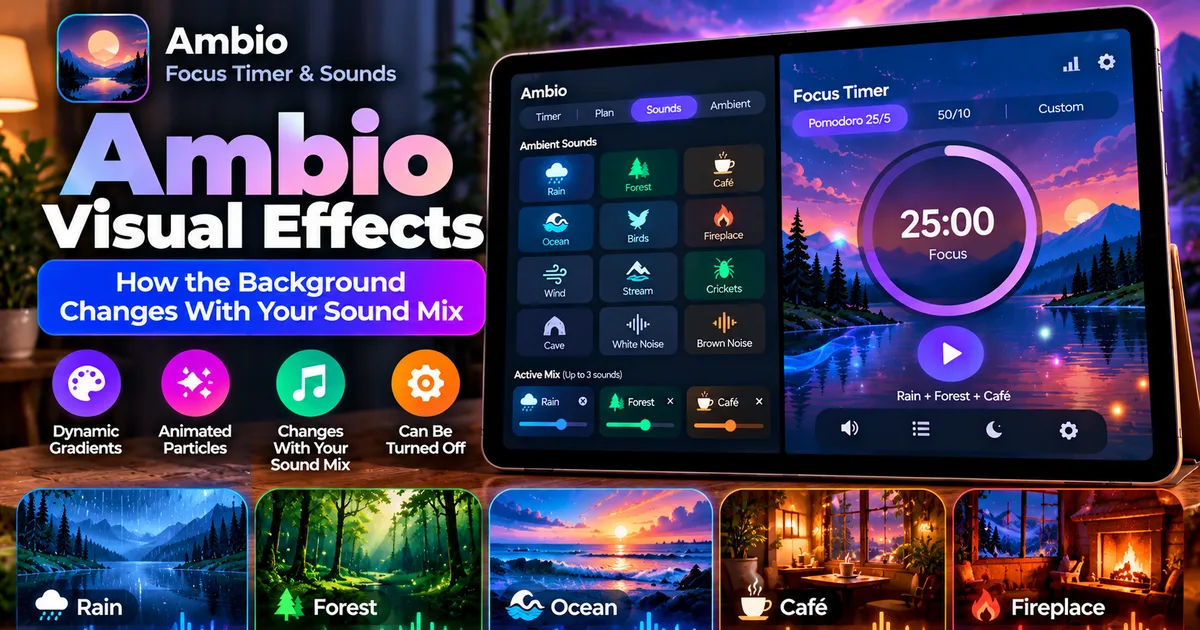
Ambio does something different from a conventional focus timer: the visual appearance of the app responds to the ambient sounds you choose.
Instead of showing the same static background regardless of what you are listening to, Ambio uses your sound mix to influence the colors, gradient, and particle effects behind the timer.
This means a mix built around Rain can create a different visual atmosphere from one built around Fireplace, Forest, or Ocean.
The current Ambio listing describes a living gradient blended from the sounds in your mix, while particles move behind the timer and respond to the complete mix rather than just one selected sound.
What Are Ambio Visual Effects?
Ambio's visual effects are the animated and color-based elements displayed behind the main timer interface.
There are two important parts:
- The dynamic background gradient
- The particle field behind the timer
The colors are influenced by the sounds in your current mix.
For example, Ambio describes:
- Cooler blues for Rain
- Warm amber tones for Fireplace
- Deep green for Forest
The important detail is that Ambio does not simply assign the background according to whichever sound happens to be selected first.
The visual treatment is blended from the sounds in the entire mix.
How Does Ambio's Background Gradient Work?
The background uses a dynamic gradient rather than a single fixed color.
When you select ambient sounds, Ambio combines their visual characteristics into the background.
For example, imagine a mix containing:
Rain + Forest
The resulting background can combine the cooler visual character associated with Rain with the deeper green character associated with Forest.
If you change the mix to:
Fireplace + Wind
the visual atmosphere can change toward warmer tones.
This creates a visual connection between the soundscape and what you see on the screen.
Does Each Sound Have Its Own Color?
Ambio's current description associates different sounds with different visual characteristics.
Rain is described using cool blues, Fireplace with warm amber, and Forest with deep green.
However, it is better to think of these as components of the overall visual palette rather than fixed one-sound color rules.
Ambio combines the sounds in your mix.
So if you use three sounds together, the background responds to the combination rather than simply displaying the color of one sound.
How Multiple Sounds Affect the Visuals
This is one of the more interesting parts of Ambio.
The app allows you to combine up to three of its 12 ambient sounds.
The visual system also considers the complete mix.
For example:
Rain + Café + Forest
is treated as a combined soundscape.
The background is therefore designed to represent the overall mix rather than simply selecting one visual theme because Rain happens to be the first sound.
The current release notes specifically state that the gradient and particles follow the whole mix, not one individual sound.
What Are the Particles Behind the Timer?
Ambio also uses a particle effect behind the timer.
These particles provide subtle movement in the background instead of leaving the interface completely static.
The current app description says that the particles respond to the complete sound mix.
This means the visual layer is connected to the same soundscape you created.
The result is intended to make the focus environment feel more like an atmosphere than a conventional timer screen.
Can You Turn the Visual Effects Off?
Yes.
Ambio's current listing specifically states that users who prefer stillness can turn the effects off.
This is useful if you want the ambient audio without animated visual elements.
For example, you may prefer to:
- Reduce visual movement
- Keep the interface simpler
- Avoid animated distractions
- Focus only on the timer and sounds
- Use the app while studying for a long period
The sound mix continues to serve its normal purpose; turning off visual effects changes the presentation rather than removing the ambient audio feature.
Why Would You Turn Off Ambio's Visual Effects?
Not everyone wants animation while studying or working.
If you are using Ambio for a long focus session, a moving background may be visually interesting at first but unnecessary once you start working.
Turning the effects off can give you a simpler interface.
This is especially relevant if your goal is:
Timer + sound, with minimal visual distraction.
On the other hand, if you enjoy having the screen reflect your selected soundscape, keeping the effects enabled gives Ambio a more atmospheric appearance.
Ambio Visual Effects vs Sound Mixer
These are related but different features.
The sound mixer controls your audio environment.
The visual effects control how Ambio represents that environment on screen.
For example:
Sound Mixer
Rain + Café + Forest
Visual System
A combined color gradient and particle field influenced by those sounds.
So the mixer determines what you hear, while the visual system changes what you see.
Our dedicated sound-mixer article covers the audio side:
https://getapkfree.com/blog/ambio-sound-mixer-ambient-sounds
Does the Visual Background Change When You Change the Mix?
The current Ambio description indicates that the gradient and particles follow the complete sound mix.
Therefore, changing the sounds can change the visual environment associated with the mix.
For example, you might start with:
Rain + Forest
and then replace Forest with:
Fireplace
The visual character can change because the composition of the sound mix has changed.
This is one of the ways Ambio connects its audio and visual interfaces.
Does Volume Affect the Visual Appearance?
Ambio allows each selected sound to have its own level.
However, the published app description does not provide a detailed formula explaining exactly how each individual volume setting changes the visual output.
Therefore, it would be inaccurate to claim that increasing a particular sound to a specific percentage produces a guaranteed specific color.
What Ambio does document is that the visual system responds to the overall mix.
So the safest way to think about it is:
Your selected sounds create the visual palette.
The exact visual result is part of Ambio's dynamic presentation.
Can You Use Visual Effects With the Focus Timer?
Yes.
The visual system is integrated into the main Ambio experience, including the focus timer.
Ambio supports 25-minute and 50-minute Pomodoro presets as well as custom focus and break durations.
That means you can have:
Focus timer + ambient sound mix + dynamic visuals
running together.
For example:
25-minute focus
Rain + Café
Dynamic background
You can then use the timer as your main work-session indicator while the sound and visuals create the surrounding atmosphere.
For a complete guide to the timer, see:
https://getapkfree.com/blog/ambio-focus-timer
Can Visual Effects Be Used in Ambient Mode?
Yes.
Ambient Mode allows the sound mix to run without a conventional focus countdown.
Ambio describes Ambient Mode as suitable for reading, meditation, winding down, or sleep.
The visual system is part of the Ambio experience, so you can use the ambient sound environment without necessarily running a focus timer.
This makes the feature useful when you want:
Sound + atmosphere
rather than:
Sound + countdown.
Our Ambient Mode guide explains that use case separately:
https://getapkfree.com/blog/ambio-ambient-mode
Can You Use Ambio Visual Effects While Studying?
Yes.
This is one of the natural use cases for the feature.
You could create a mix such as:
Rain + Café
and use it during a study session.
The background can provide a subtle visual environment while the timer tracks your focus period.
If the animation becomes distracting, you can turn the effects off while continuing to use the sound mix and timer.
This gives you control over whether Ambio should feel visually dynamic or visually minimal.
Can You Use Ambio Visual Effects for Relaxation?
Ambio is not limited to work sessions.
Its Ambient Mode is also intended for reading, meditation, winding down, and sleep.
That means the visual effects can form part of a more relaxed environment as well.
For example:
Ocean + Wind
can create an ocean-inspired soundscape.
Or:
Forest + Birds
can create a nature-focused environment.
The visual background then adds another layer to the experience.
What Happens if You Turn the Effects Off?
Turning the effects off does not mean you have to stop using Ambio's sound features.
The app's visual effects and audio system serve different purposes.
You can continue using your ambient mix while choosing a more static visual presentation.
This is useful if you want to minimize movement while keeping the audio environment.
In simple terms:
Effects ON: sound + dynamic visual atmosphere
Effects OFF: sound + simpler visual presentation
Does Ambio Have a Traditional Audio Visualizer?
Ambio is better described as having sound-responsive visual effects than a traditional music visualizer.
A conventional music visualizer often displays bars, waves, or frequency patterns that move directly with the audio waveform.
Ambio's documented system works differently.
It uses the sounds in your mix to influence the background gradient and particle field. The developer describes the visual system as responding to the whole mix.
So if you search for an "Ambio visualizer," it is useful to understand that the feature is primarily an ambient visual environment rather than a traditional equalizer-style visualization.
Ambio's Visual Design on Tablets
Ambio also supports a dedicated tablet layout.
On supported tablets, the mixer remains beside the timer in a two-pane interface.
This gives the larger display more room for the timer, mixer, and visual environment.
The underlying visual concept remains connected to the sound mix.
Our tablet-specific guide explains the larger-screen experience:
https://getapkfree.com/blog/ambio-tablet
Does Ambio's Visual System Require Internet?
Ambio's current F-Droid listing states that the app works completely offline.
That means the core ambient sound and visual experience does not depend on an internet connection.
This is useful if you want to use Ambio while:
- Traveling
- Studying offline
- Working without Wi-Fi
- Reading
- Relaxing at home
- Using the app in airplane mode
You can learn more about Ambio's offline behavior here:
https://getapkfree.com/blog/ambio-offline
What Sounds Can Influence the Ambio Background?
Ambio currently provides 12 ambient sounds:
- Rain
- Fireplace
- Café
- Forest
- Birds
- Crickets
- Ocean
- Stream
- Cave
- Wind
- White Noise
- Brown Noise
Up to three can be combined at once, and each has its own level control.
Because the visual system responds to the complete mix, combining different sounds can produce different visual atmospheres.
Examples of Ambio Sound and Visual Combinations
Here are some simple combinations you can try.
Rain + Café
A good option if you want a cozy study atmosphere.
Rain contributes a cooler visual character while Café provides another layer to the soundscape.
Forest + Birds
A nature-focused combination.
This can work well for reading or relaxed background listening.
Ocean + Wind
A simple coastal atmosphere.
This can be useful in Ambient Mode when you want a less structured experience.
Fireplace + Wind
A warmer combination that fits an evening environment.
The important point is not to treat these as guaranteed color presets. Ambio's visual system combines the characteristics of the sounds rather than offering a fixed published color chart for every possible combination.
Is Ambio's Visual System Open Source?
Ambio itself is open source under the MIT License.
The developer's source repository documents both the dynamic theming system and the ambient particle visuals.
The repository describes:
- Three-sound mixing
- Dynamic theming
- Ambient visuals
- Particle field
- Ambient Mode
- Pomodoro timer
- Tablet layout
This provides additional technical context for how the visual system fits into the application.
What Android Version Does Ambio Require?
The current F-Droid release, Ambio 2.1.1, requires Android 12 or newer.
If you are installing Ambio manually, check your Android version before downloading an APK.
The current F-Droid listing also identifies support for:
- arm64-v8a
- armeabi-v7a
- x86
- x86_64
Ambio Visual Effects: Quick Summary
Ambio's visual effects are designed to connect the app's appearance with the ambient soundscape you create.
The app uses a dynamic background gradient and particle field behind the timer. The visual system responds to the complete mix rather than simply choosing one visual theme for one sound.
For example, Rain is associated with cooler blues, Fireplace with warm amber, and Forest with deeper green tones.
The visual environment can therefore change as you build different sound combinations.
If you enjoy an animated atmosphere, you can leave the effects enabled.
If you prefer a calmer, less distracting interface, Ambio also provides an option to turn the visual effects off.
That makes the feature flexible: you can use Ambio as a more immersive ambient experience or simplify the interface and focus primarily on the sounds and timer.
Related Articles

Truecaller Caller ID Not Showing on Android? How to Fix It
Truecaller Caller ID not showing on Android? Fix missing caller names and caller ID pop-ups by checking permissions, display-over-other-apps settling
GetApkFree Team

Gemini App Not Working on Android? How to Fix It
Gemini not working on Android? Fix “Something went wrong” errors, failed prompts, endless loading, and app problems with practical checks for your connection, app updates, cache, and Google account.
GetApkFree Team

Canva App Keeps Crashing on Android? How to Fix It
Canva keeps crashing, freezing, or closing unexpectedly on Android? Troubleshoot app updates, Android System WebView, internet problems, storage, cache, and device settings with these practical fixes.
GetApkFree Team

ChatGPT App Login Error on Android: How to Fix “Something Went Wrong”
Getting a “Something went wrong” error when logging in to ChatGPT on Android? Check Google Play Store updates, browser sign-in settings, connectivity, and other safe troubleshooting steps.
GetApkFree Team