
This article is about
Ambio: Focus Timer & Sounds
Jaime Barreto · Multimedia
Ambio Background Playback: How to Keep Sounds Playing
GetApkFree Team
Learn how Ambio background playback works on Android and how to control your ambient sounds from the lock screen, notifications, and Quick Settings.
- Version
- 2.0.0
- Requires
- Android 12.0+
- License
- MIT
- Source
- F-Droid
- Package
- com.jbgsoft.ambio
Ambio Background Playback: How to Keep Sounds Playing
Ambio is designed to let you build a personal sound environment for studying, working, reading, relaxing, or sleeping. But one practical question comes up quickly when using an ambient sound app: Can Ambio keep playing when you leave the app or turn off your screen?
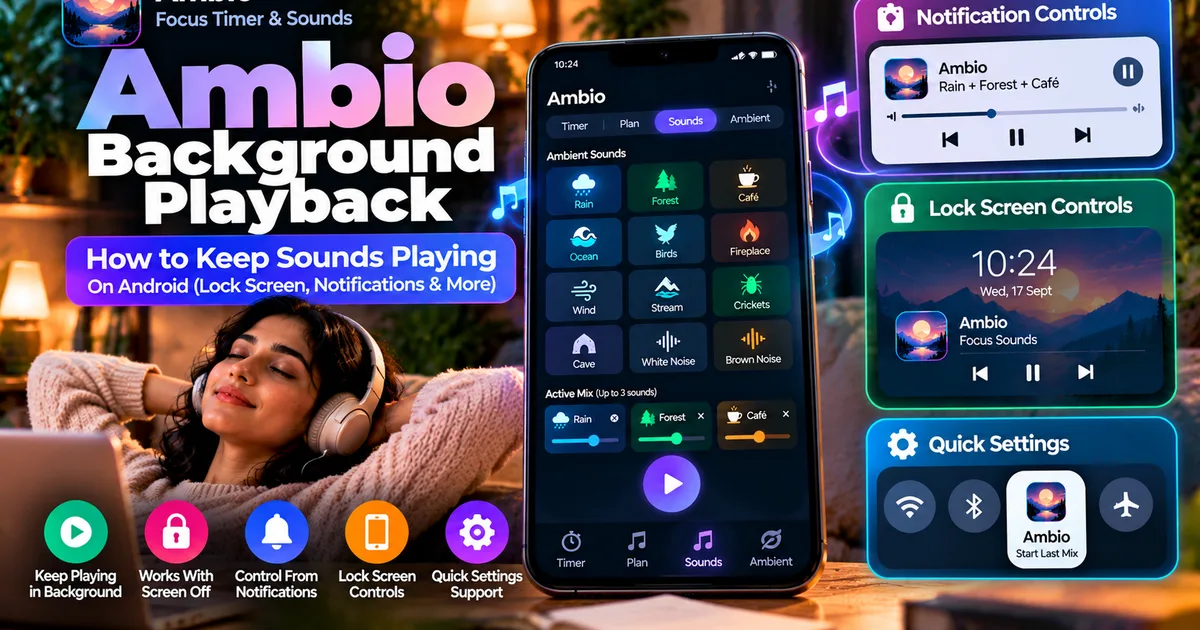
Yes. Ambio supports background playback, allowing an active sound mix or focus session to continue while you use other parts of your Android phone. The app also provides media controls through Android's notification shade, lock screen, and Quick Settings.
This makes Ambio more convenient when you do not want to keep the app open on your screen throughout a focus session or ambient listening session.
What Is Ambio Background Playback?
Background playback means Ambio can continue playing its ambient sounds after you move away from the app's main screen.
For example, you could create a mix of Rain, Forest, and Café sounds, start playback, and then:
- Open another app
- Lock your phone
- Turn off the display
- Put the phone aside while studying
- Control playback from Android's system controls
Ambio's current app listing specifically describes background playback with media controls available from the notification shade, lock screen, and Quick Settings.
This is particularly useful because an ambient sound app does not need to remain visually open while you are working.
How to Start Background Playback in Ambio
Starting background playback is straightforward.
First, open Ambio and choose the sounds you want to use. Ambio currently provides 12 ambient sounds, including Rain, Fireplace, Café, Forest, Birds, Crickets, Ocean, Stream, Cave, Wind, White Noise, and Brown Noise.
You can combine up to three sounds at the same time and adjust their individual levels.
Once your mix is ready, start playback or begin a focus session.
After playback starts, you can leave Ambio and use another application. The sound should continue playing in the background.
For example, you could create:
Rain + Forest + Café
and then open your notes application, browser, ebook reader, or another study tool while the sound mix continues playing.
Can Ambio Play When the Screen Is Off?
Ambio's current listing supports background playback and system media controls, which allows you to put the phone aside rather than keeping the display active.
This can be useful for situations where you want sound without looking at your phone.
Some examples include:
- Reading before bed
- Listening to rain while relaxing
- Studying with the screen turned off
- Using ambient sounds while writing
- Creating background sound while doing household work
- Playing a soundscape during meditation
If you are using Ambio specifically for sleep or relaxation, the app also has an Ambient Mode and a sleep timer. You can learn more in our guide to the Ambio Sleep Timer.
How to Control Ambio From the Notification Shade
One of the useful parts of background playback is that you do not always need to return to the Ambio interface to control your current playback.
When Ambio is actively playing, Android can provide media controls through the notification area.
Depending on your device and Android interface, you can use the system media controls to perform actions such as:
- Pause playback
- Resume playback
- Stop playback
This is useful when Ambio is running in the background and you are currently using another application.
For example, imagine that you are writing an assignment while Ambio is playing a Rain and Café mix. Instead of switching back to Ambio every time you want to pause the sound, you can use the available Android media controls.
Ambio Lock Screen Controls
Ambio also supports media controls from the lock screen.
This can be convenient when your phone is locked and you want to control your current sound mix without unlocking the device and reopening the application.
The exact appearance of the controls can vary depending on the Android version and the phone manufacturer's interface.
On supported devices, you may see the active media session on the lock screen with controls for managing playback.
This means you can start your ambient session, lock your phone, and still have convenient access to playback controls.
Ambio and Quick Settings
Ambio also supports Quick Settings integration.
The current Ambio 2.1 release added a Quick Settings tile that can start your last mix even when the app is closed.
This is slightly different from ordinary background playback.
Background playback is useful when Ambio is already running and you want the audio to continue while you do something else.
The Quick Settings tile is useful when you want a faster way to start your previously used mix.
If you want to learn how that feature works, see our dedicated guide:
Ambio Quick Settings: How to Start Your Last Sound Mix
Background Playback With the Ambio Focus Timer
Background playback is particularly useful when you use Ambio as a focus timer.
Ambio provides 25-minute and 50-minute Pomodoro presets as well as custom focus and break durations.
A typical study session could look like this:
- Open Ambio.
- Choose your preferred ambient sounds.
- Adjust the individual sound levels.
- Select a focus duration.
- Start the session.
- Leave Ambio running in the background.
- Work in another application.
- Use Android's media controls when you need to pause or stop playback.
This allows the sound environment and timer to run without requiring Ambio to remain on the screen.
For more information about the timer itself, see Ambio Focus Timer: How to Use It for Study and Productivity.
Background Playback in Ambient Mode
You do not have to use the focus timer to benefit from background playback.
Ambio also includes Ambient Mode, which is intended for situations where you simply want your selected sound mix to play without running a timed focus session.
This can be useful for:
- Reading
- Meditation
- Relaxation
- Winding down
- Creating background ambience
You can learn more about this mode in our guide to Ambio Ambient Mode.
If you combine Ambient Mode with background playback, you can essentially use Ambio as a continuously available personal soundscape while interacting with other parts of your phone.
What Happens If You Close Ambio?
There is an important distinction between leaving the app and stopping the app's playback.
Moving to another application or turning off the display does not necessarily mean that playback has stopped. Ambio is designed to support background audio playback.
However, if you explicitly stop playback, the audio session will no longer continue.
The current F-Droid release notes also mention changes around stopping playback and exiting the application, including behavior when nothing is playing.
So if you want Ambio to continue playing, use the normal Android navigation controls to leave the app rather than deliberately stopping the playback session.
Why Background Playback Is Useful
The main advantage is simple: you can listen without dedicating your screen to the sound app.
That makes Ambio more practical for multitasking.
For example, a student could run a focus session while using:
- A PDF reader
- A browser
- A note-taking application
- A calculator
- An online learning platform
A writer could keep a Café or Rain mix playing while working in a document editor.
Someone relaxing could start an ambient mix and then lock the phone.
The sound becomes part of the environment rather than something that requires constant interaction.
Does Ambio Need an Internet Connection for Background Playback?
Ambio's current listing states that the app works completely offline.
That means background playback is not described as requiring a continuous internet connection.
This is useful when you are:
- Studying without Wi-Fi
- Traveling
- Using airplane mode
- Working somewhere with poor connectivity
- Trying to minimize network use
For a detailed explanation of the app's offline behavior, see Ambio Offline: Does It Work Without Internet?.
What If Ambio Stops Playing in the Background?
If playback unexpectedly stops, the cause may not be Ambio itself.
Android phones can apply battery-management rules to background applications, and manufacturers sometimes add their own battery-saving systems.
If you experience problems, check the following:
1. Check that playback was actually started
Make sure you pressed the play button and that the sound mix is actively playing before leaving the app.
2. Check the notification controls
If Ambio is playing in the background, look at your Android notification shade and check whether its media controls are available.
3. Check battery-saving settings
Some phones restrict background activity more aggressively than others.
If your phone has a manufacturer-specific battery optimization setting, check whether Ambio is being restricted.
4. Check whether another app is taking audio focus
Music, video, calls, games, or other audio applications may interact with Android's audio system.
If another application starts playing audio, the behavior of the existing audio session can change.
5. Update Ambio
The current F-Droid listing shows version 2.1.1 and notes fixes related to playback and exiting the app.
If you are using an older release, updating may provide a newer playback implementation and bug fixes.
Background Playback vs Keeping Ambio Open
These are two different things.
Keeping Ambio open means its interface remains visible on your screen.
Background playback means the audio can continue while the application is no longer the foreground application.
For everyday use, background playback is usually more convenient because you can dedicate the screen to whatever task you are actually doing.
You can therefore think of Ambio as two things working together:
The Ambio interface → used to build and configure your sound environment.
Background playback → lets that environment continue while you do something else.
Final Thoughts
Ambio's background playback makes its ambient sound system considerably more practical for everyday Android use. You can create a sound mix, start a focus session or Ambient Mode, and then move to another application without needing to keep Ambio visible.
The app provides system media controls through Android's notification shade and lock screen, while its newer Quick Settings integration provides an additional way to start your last mix.
For studying, writing, reading, relaxation, or sleep, this means the sound environment can stay in the background while your phone's screen is used for something else.
If you are building a study routine with Ambio, a simple combination is a custom three-sound mix, a 25- or 50-minute focus session, and background playback while you work.
And when you are finished, you can control playback from Android's system media controls instead of repeatedly opening the app.
Related Articles
Truecaller Caller ID Not Showing on Android? How to Fix It
Truecaller Caller ID not showing on Android? Fix missing caller names and caller ID pop-ups by checking permissions, display-over-other-apps settling
GetApkFree Team
Gemini App Not Working on Android? How to Fix It
Gemini not working on Android? Fix “Something went wrong” errors, failed prompts, endless loading, and app problems with practical checks for your connection, app updates, cache, and Google account.
GetApkFree Team
Canva App Keeps Crashing on Android? How to Fix It
Canva keeps crashing, freezing, or closing unexpectedly on Android? Troubleshoot app updates, Android System WebView, internet problems, storage, cache, and device settings with these practical fixes.
GetApkFree Team
ChatGPT App Login Error on Android: How to Fix “Something Went Wrong”
Getting a “Something went wrong” error when logging in to ChatGPT on Android? Check Google Play Store updates, browser sign-in settings, connectivity, and other safe troubleshooting steps.
GetApkFree Team