
This article is about
Ambio: Focus Timer & Sounds
Jaime Barreto · Multimedia
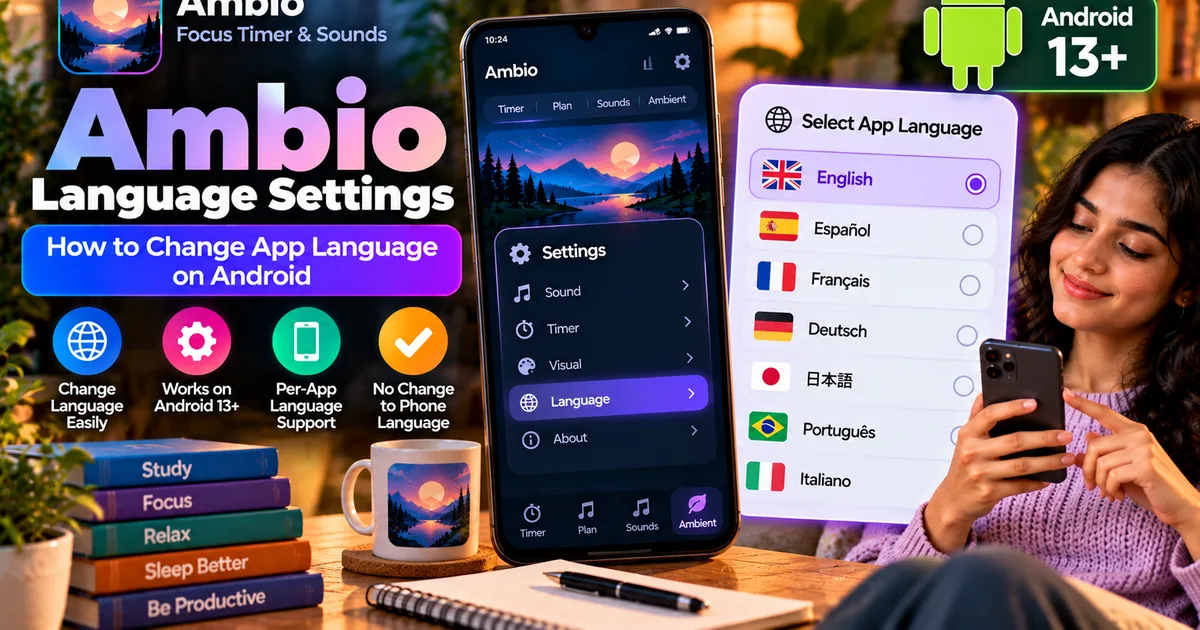
Ambio Language Settings: How to Change App Language on Android
GetApkFree Team
Learn how to change Ambio's app language on Android 13+ without changing the language of your entire phone.
- Version
- 2.0.0
- Requires
- Android 12.0+
- License
- MIT
- Source
- F-Droid
- Package
- com.jbgsoft.ambio
Ambio Language Settings: How to Change the App Language on Android
If you use Ambio: Focus Timer & Sounds but prefer a language other than the one used by your Android phone, you do not necessarily need to change your entire device language.
Ambio supports per-app language settings on Android 13 and newer, allowing its interface language to be changed separately from the rest of the phone. The developer describes this as changing Ambio's language without affecting the language used by the rest of the device.
This is useful if you use your phone in one language but prefer Ambio's menus and controls in another.
What Are Ambio Language Settings?
Ambio's language support uses Android's per-app language capability.
Instead of changing the language for your entire Android device, you can select a language specifically for Ambio.
For example, your phone could remain configured in English while Ambio uses another supported language.
Android introduced per-app language preferences with Android 13. When an application supports the feature, Android can provide a separate language selection for that application.
Ambio's current listing specifically states that on Android 13+, its language can be set independently without changing the rest of the phone.
Which Android Version Do You Need?
The per-app language feature described by Ambio is available on Android 13 and newer.
If you are using an older Android version, you may not see the same system-level app language option.
There is also another important requirement: Android's per-app language menu depends on whether an application supports the relevant language configuration. Android documentation and device guides note that not every application necessarily appears in the per-app language list.
So if you cannot find Ambio in your phone's app-language settings, first make sure you are running Android 13 or later and that you have a current version of Ambio.
How to Change Ambio Language on Android 13+
The exact menu names can vary between Android manufacturers, but the general process is straightforward.
Step 1: Open Android Settings
Open the Settings application on your Android phone.
Do not start by changing the main system language.
The goal is to find the separate language setting for individual applications.
Step 2: Find App Languages
On standard Android interfaces, the setting is generally located under the system language settings.
A common path is:
Settings → System → Languages → App languages
Android guides describe the per-app language feature through the system's language settings.
The exact wording can differ depending on your phone manufacturer and Android interface.
Step 3: Select Ambio
Look through the list of applications that support per-app language selection.
Find:
Ambio: Focus Timer & Sounds
Tap Ambio to open its available language options.
If Ambio does not appear, see the troubleshooting section below.
Step 4: Select Your Preferred Language
Choose the language you want Ambio to use.
Android will apply the selected language specifically to Ambio rather than changing your phone's primary system language.
This means your other applications can continue using your normal device language.
Step 5: Reopen Ambio
After changing the language, return to Ambio.
If the interface does not immediately update, close and reopen the application.
The available behavior can vary depending on the Android version and device interface.
Can You Change Only Ambio's Language?
Yes.
That is the main purpose of Android's per-app language feature.
For example, imagine your phone uses English, but you want Ambio's interface in another supported language.
Instead of changing:
- Phone menus
- Settings
- Notifications
- Other applications
- System interface
you can change the language preference for Ambio specifically.
Android's per-app language system was designed for exactly this type of situation.
Does Changing Ambio's Language Change the Whole Phone?
No.
Changing an application's per-app language does not mean that the entire Android operating system has been switched to that language.
Your phone's main system language remains unchanged.
This is one of the biggest advantages of the feature.
For example:
Phone language: English
Ambio language: Your selected supported language
Other apps: Continue using their existing language preferences
This makes per-app language settings particularly useful for multilingual Android users.
How to Change Ambio Language on a Samsung Galaxy
Samsung devices have their own interface for Android's per-app language feature.
On supported Galaxy devices running Android 13/One UI 5 or later, Samsung documents the following general route:
Settings → General management → App languages
Then select the application and choose an available language.
The exact menu may differ depending on your Galaxy model and One UI version.
If you do not see App languages, check your Android and One UI version and make sure Ambio is updated.
What Languages Does Ambio Support?
Ambio's current listing highlights its multilingual interface with examples including English, Spanish, French, and Japanese.
However, the available choices shown on your device should be treated as the authoritative list for your particular Ambio installation.
Do not assume that every language available through Android is automatically available in Ambio.
Android's per-app language system does not translate an application automatically. The application must provide the relevant language resources.
What If Ambio Does Not Appear Under App Languages?
If you are running Android 13 or newer but cannot find Ambio in the app-language list, try these steps.
Check your Android version
Open:
Settings → About phone → Android version
Make sure your device is running Android 13 or later.
Update Ambio
Make sure you are using a current version of Ambio.
The language feature was added as part of the app's newer releases, and the current listings document per-app language support on Android 13+.
Restart the phone
If the app-language list does not refresh correctly, restarting the device can sometimes cause Android to reload application configuration information.
Check the manufacturer's menu
Different Android manufacturers place the setting in different locations.
For example, Samsung uses:
Settings → General management → App languages
while other Android devices may place it under:
Settings → System → Languages
The names and organization can change between manufacturers and Android versions.
Does Ambio Need Internet to Change Language?
Ambio's current listing states that the application works completely offline.
The language selection itself is an Android/application configuration feature rather than an online translation service.
You therefore should not think of Ambio's language setting as a live translation system.
The application needs to contain the language resources it supports.
Does Changing the Language Translate the Sounds?
No.
The language setting affects the application's interface.
It does not translate or change the actual ambient sounds.
Ambio's core purpose remains the same: creating a soundscape using its collection of ambient sounds.
For example, changing the interface language does not turn Rain into a different audio recording or alter the sound itself.
You can continue using the same sound mixer regardless of the interface language.
If you want to learn more about mixing the available sounds, see our guide to Ambio Sound Mixer.
Does the Language Setting Affect the Focus Timer?
The language setting changes the application's interface, while the focus timer continues to work normally.
You can still use Ambio's focus timer with its available presets and custom durations.
Ambio currently provides 25-minute and 50-minute Pomodoro presets along with custom focus and break durations.
For a detailed guide to the timer, see Ambio Focus Timer: How to Use It for Study and Productivity.
Does Language Change Affect Ambient Mode?
No fundamental feature change is expected from selecting a different interface language.
Ambient Mode remains available for situations where you want your sound mix to continue without using a focus timer.
It can be used for reading, meditation, relaxation, winding down, or sleep.
You can learn more about this feature in our guide to Ambio Ambient Mode.
Does Language Change Affect Background Playback?
No.
The language setting and background playback are separate features.
Ambio can continue playing its sound mix in the background, with media controls available through Android's notification shade, lock screen, and Quick Settings.
Changing the interface language does not turn this feature into a different playback system.
For more information, see our dedicated Ambio Background Playback guide.
Why Per-App Language Settings Are Useful
Per-app language selection can be useful for people who regularly use multiple languages.
You might prefer:
- English for your phone
- Another language for Ambio
- A different language for another application
This avoids repeatedly changing the entire phone's language just because one application feels more comfortable in another language.
It also means your familiar Android system menus can remain unchanged.
Ambio Language Settings: Quick Summary
Here is the basic process:
- Make sure your phone runs Android 13 or newer.
- Open Android Settings.
- Find the language settings.
- Open App languages.
- Select Ambio.
- Choose an available language.
- Reopen Ambio if necessary.
On Samsung Galaxy devices, the typical route is:
Settings → General management → App languages → Ambio → Language.
On other Android devices, the menu may be located under the system language settings.
Final Thoughts
Ambio's per-app language support is a useful feature for Android users who want to customize the application's interface without changing the language of their entire phone.
On Android 13 and newer, Ambio can have its own language preference, separate from the device's main language.
The exact steps depend on the Android manufacturer, but the general process is to open the system language settings, find App languages, select Ambio, and choose one of the languages available for the application.
Once configured, you can continue using Ambio's focus timer, sound mixer, Ambient Mode, background playback, and other features without changing the rest of your phone's language.
Related Articles

How to Fix CapCut Video Lagging After Export on Android
Fix CapCut video lagging after export on Android. Learn how to troubleshoot choppy playback, frame-rate mismatches, heavy effects, storage issues, and export settings.
GetApkFree Team

How to Fix CapCut Preview Not Matching Export on Android
Fix CapCut preview not matching the exported video on Android. Troubleshoot missing effects, text, transitions, timing, colors, and rendering differences.
GetApkFree Team

How to Fix Couldn't Apply AI Background in CapCut on Android
Getting "Couldn't Apply AI Background" in CapCut on Android? Check usage limits, clip selection, video quality, app updates, and practical troubleshooting steps.
GetApkFree Team

How to Fix CapCut Effects Not Applying on Android
CapCut effects not working on Android? Check clip selection, effect layers, timeline timing, conflicting adjustments, and app performance with these practical fixes.
GetApkFree Team