
This article is about
Ambio: Focus Timer & Sounds
Jaime Barreto · Multimedia
Ambio on Tablet: How the Two-Pane Layout Works on Android Tablets
GetApkFree Team
Learn how Ambio works on Android tablets, including its two-pane layout, sound mixer, focus timer, ambient sounds, and tablet-friendly controls.
- Version
- 2.0.0
- Requires
- Android 12.0+
- License
- MIT
- Source
- F-Droid
- Package
- com.jbgsoft.ambio
Ambio on Tablet: How the Two-Pane Layout Works on Android Tablets
Ambio is designed primarily as a focus timer and ambient sound app, but it also supports Android tablets with a layout specifically designed for larger screens.
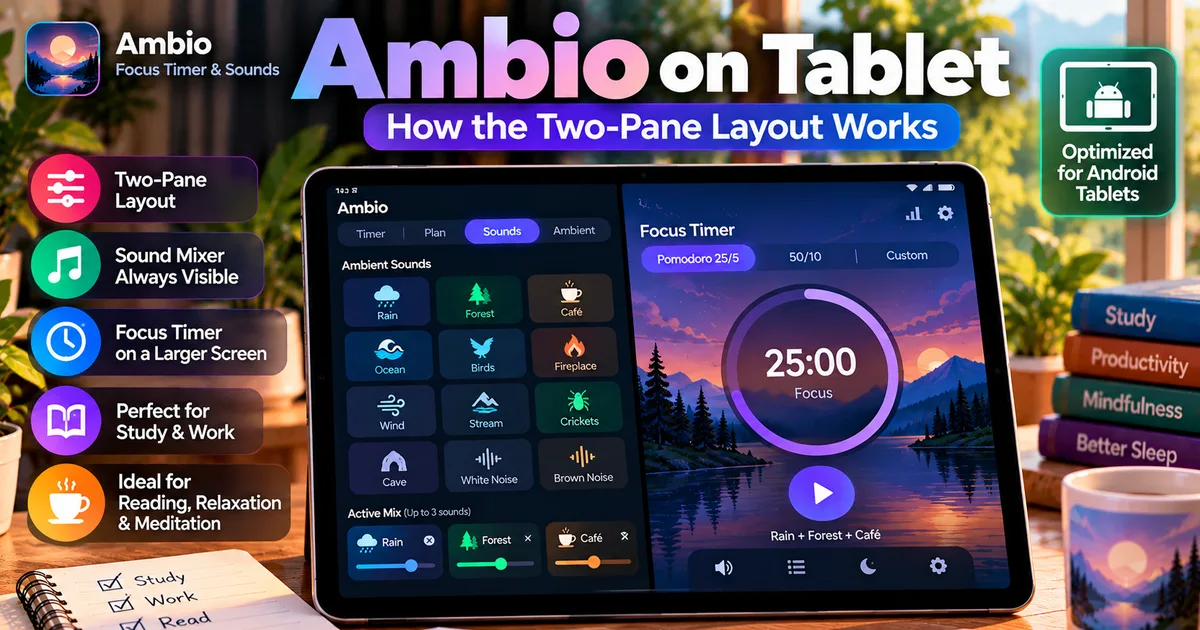
Instead of treating a tablet like a much larger phone, Ambio can display the sound mixer and timer together in a two-pane interface.
This makes it easier to adjust your ambient sound mix while keeping your focus session visible.
The current Ambio listing specifically describes the tablet experience as a two-pane layout where the mixer remains beside the timer instead of sliding over it.
Does Ambio Work on Android Tablets?
Yes. Ambio supports tablets and provides a dedicated larger-screen layout.
The current Google Play listing states that on tablets, the mixer stays permanently beside the timer in a two-pane interface.
This is different from simply stretching a phone interface across a larger display.
The main advantage is that you can see two important parts of Ambio at the same time:
Sound mixer + Focus timer
That can make the app more convenient when using a tablet as a study, reading, or productivity device.
What Is the Ambio Two-Pane Layout?
The two-pane layout divides the tablet display into separate areas.
One area can show the timer while the other keeps the sound mixer available.
On a phone, the smaller display generally requires more movement between different parts of the interface.
On a tablet, the larger screen gives Ambio enough room to keep these functions visible together.
This is particularly useful if you want to adjust your sound environment without losing sight of your current focus session.
Why Is the Tablet Layout Useful?
A tablet can occupy more physical space on a desk than a phone.
That makes it useful as a dedicated study or work screen.
With Ambio's two-pane design, you can use the tablet to:
- Keep the focus timer visible
- View the sound mixer
- Adjust individual sound levels
- Start or control your session
- Build a custom ambient environment
- Keep the interface visible while studying or working
The layout is especially useful if you regularly use Ambio as part of a desk-based study routine.
How the Ambio Mixer Works on a Tablet
Ambio's mixer allows you to combine up to three of its 12 ambient sounds at the same time.
The available sounds include:
- Rain
- Fireplace
- Café
- Forest
- Birds
- Crickets
- Ocean
- Stream
- Cave
- Wind
- White Noise
- Brown Noise
Each selected sound has its own level control.
For example, you could create:
Rain + Café
or:
Forest + Birds + Stream
You can then adjust the relative level of each sound.
On a tablet, the mixer can remain visible beside the timer, making this process easier to manage on the larger display.
Can You Use the Focus Timer on a Tablet?
Yes.
Ambio provides 25-minute and 50-minute Pomodoro presets, along with custom focus and break durations.
This means you can use an Android tablet as a dedicated focus station.
For example:
25 minutes focus → 5-minute break
or create your own duration.
The timer can remain visible while the mixer occupies the other side of the tablet interface.
For a detailed explanation of the timer itself, see:
https://getapkfree.com/blog/ambio-focus-timer
Can You Change Sounds While the Timer Is Visible?
The two-pane design is particularly useful for this type of interaction.
Instead of completely leaving the timer view to access the mixer, the mixer can remain alongside it on supported tablet layouts.
You can therefore work with your sound environment while keeping the session information available.
This is one of the main differences between the tablet experience and a traditional phone-oriented layout.
Can You Use Ambio on a Tablet for Studying?
Yes.
Ambio's focus timer and ambient sounds make it suitable for study sessions.
A tablet can be placed on a desk while you study from books, notes, or another device.
For example, you could configure:
Focus mix: Rain + Café
Timer: 50 minutes
Then use the tablet as a dedicated focus display.
During the session, the timer remains visible while the sound environment is available through the mixer.
If you prefer shorter sessions, you can use the 25-minute preset instead.
Can You Use Ambio on a Tablet for Reading?
Yes.
Ambio also provides Ambient Mode for situations where you do not want to run a conventional focus timer.
The app's current listing describes Ambient Mode as suitable for reading, meditation, winding down, and sleep.
This can make a tablet useful as a larger ambient-sound display.
For example, you could start a Rain + Fireplace mix and use Ambient Mode while reading.
You can learn more about this feature here:
https://getapkfree.com/blog/ambio-ambient-mode
Can You Use Ambio on a Tablet Without a Timer?
Yes.
The Ambient Mode feature is designed for exactly this type of use.
If you do not want a countdown, you can switch to Ambient Mode and let your selected sound mix play.
This is useful for:
- Reading
- Meditation
- Relaxation
- Background ambience
- Winding down
- Sleep
A sleep timer can also be used with Ambient Mode when you want playback to stop automatically.
Does Ambio Support Session Plans on Tablets?
Ambio's Session Plans feature can organize multiple focus and break steps.
The current release documentation says the Plan preset can arrange focus and break steps, loop them, or end after the sequence.
This can be useful on a tablet because the larger screen provides more room for viewing and controlling the session.
For example, you could create a routine such as:
Focus → Break → Focus → Break → Focus
Rather than manually starting each timer, the plan can manage the sequence.
Our separate Session Plans guide covers this feature:
https://getapkfree.com/blog/ambio-session-plans
Can Ambio Play Sounds in the Background on a Tablet?
Yes.
Ambio supports background playback with media controls.
The current listing says playback can be controlled through the notification shade, lock screen, and Quick Settings tile.
This means you do not necessarily need to keep Ambio in the foreground for the audio to continue.
You can start your session and then use the tablet for other activities.
Android's own background and battery-management behavior can still vary between manufacturers and devices.
Does Ambio Require an Internet Connection on a Tablet?
Ambio's current F-Droid listing states that it works completely offline and does not require an account.
This is useful if you want to use a tablet in situations where Wi-Fi or mobile data is unavailable.
The ambient sounds are part of the app rather than requiring an online streaming service.
That means Ambio can be used as a local ambient sound and focus tool.
Our dedicated offline guide explains this in more detail:
https://getapkfree.com/blog/ambio-offline
What Android Version Does Ambio Require?
The current F-Droid release is Ambio 2.1.1 and requires Android 12 or newer. It supports arm64-v8a, armeabi-v7a, x86, and x86_64 architectures.
Therefore, before installing Ambio on an older tablet, check the Android version first.
A tablet having a large screen does not automatically mean it meets the app's minimum Android requirement.
Is Ambio Better on a Tablet Than a Phone?
The answer depends on how you use the app.
A phone is convenient when you want a portable focus timer and sound player.
A tablet can provide more screen space for the two-pane interface.
The main documented tablet advantage is that the mixer remains beside the timer rather than replacing it on screen.
So a tablet can be particularly convenient if you frequently:
- Adjust sound mixes
- Use longer focus sessions
- Keep the timer visible on your desk
- Use Ambio while studying
- Use the device as a dedicated productivity screen
The phone remains useful when portability is more important.
Can You Use Ambio on a Tablet With Headphones?
Yes.
Ambio's audio playback can be used through the tablet's available audio output, including compatible headphones or earbuds.
This can be useful in libraries, shared rooms, offices, or other environments where you do not want ambient sounds playing through the tablet's speakers.
You can create a mix and keep the timer visible while listening privately.
Can You Use Ambio on a Large Tablet Display?
The purpose of Ambio's tablet layout is to make use of the additional screen space.
The current app description specifically calls out a real two-pane layout rather than simply describing general tablet compatibility.
This means the larger screen is used to keep the mixer and timer together.
The exact appearance can vary depending on the tablet's screen size, orientation, Android version, and display settings.
Ambio Tablet vs Phone
Here is the basic difference:
| Feature | Phone | Tablet |
|---|---|---|
| Focus timer | Yes | Yes |
| Ambient sounds | Yes | Yes |
| Sound mixing | Yes | Yes |
| Up to 3 sounds | Yes | Yes |
| Ambient Mode | Yes | Yes |
| Session Plans | Yes | Yes |
| Background playback | Yes | Yes |
| Two-pane mixer + timer | Smaller-screen interface | Designed for larger screens |
| Best suited to | Portable use | Desk, study, reading, larger-screen use |
The important distinction is not that the tablet receives completely different Ambio features. The main difference is how the interface uses the larger display.
Is Ambio Open Source on Tablets?
Ambio itself is open source under the MIT License, according to its F-Droid listing.
The tablet layout is part of the same application rather than a separate tablet-only app.
F-Droid currently lists Ambio 2.1.1 as the suggested release.
Ambio Tablet: What to Know Before Installing
If you want to use Ambio on an Android tablet, check these points first:
Android version: Android 12 or newer for the current F-Droid release.
Tablet layout: Ambio provides a two-pane interface where the mixer can remain beside the timer.
Sound mixing: Up to three of 12 ambient sounds can be combined.
Focus timer: 25- and 50-minute presets plus custom durations.
Ambient Mode: Available when you want sounds without a focus countdown.
Background playback: Supported with Android media controls.
Offline use: The current F-Droid listing states that Ambio works completely offline.
Account: No account is required according to the current listing.
Final Thoughts
Ambio's tablet support is more than simply making the phone interface larger.
The app provides a dedicated two-pane experience where the sound mixer remains beside the timer.
That arrangement can be particularly useful if you use Ambio as a study or work companion and want to see your timer while adjusting your ambient sound environment.
The same core features remain available, including the 12 ambient sounds, three-sound mixing, focus timer, Session Plans, Ambient Mode, and background playback.
If you already have an Android tablet running Android 12 or newer, Ambio's current tablet layout gives you a larger-screen way to use the app without requiring a separate tablet version.
Related Articles

How to Fix CapCut Video Lagging After Export on Android
Fix CapCut video lagging after export on Android. Learn how to troubleshoot choppy playback, frame-rate mismatches, heavy effects, storage issues, and export settings.
GetApkFree Team

How to Fix CapCut Preview Not Matching Export on Android
Fix CapCut preview not matching the exported video on Android. Troubleshoot missing effects, text, transitions, timing, colors, and rendering differences.
GetApkFree Team

How to Fix Couldn't Apply AI Background in CapCut on Android
Getting "Couldn't Apply AI Background" in CapCut on Android? Check usage limits, clip selection, video quality, app updates, and practical troubleshooting steps.
GetApkFree Team

How to Fix CapCut Effects Not Applying on Android
CapCut effects not working on Android? Check clip selection, effect layers, timeline timing, conflicting adjustments, and app performance with these practical fixes.
GetApkFree Team