
This article is about
Ambio: Focus Timer & Sounds
Jaime Barreto · Multimedia
ambio-not-playing-sound
GetApkFree Team
Ambio not playing sound on Android? Try these practical fixes for volume, audio focus, background playback, sound mixes, and playback controls.
- Version
- 2.0.0
- Requires
- Android 12.0+
- License
- MIT
- Source
- F-Droid
- Package
- com.jbgsoft.ambio
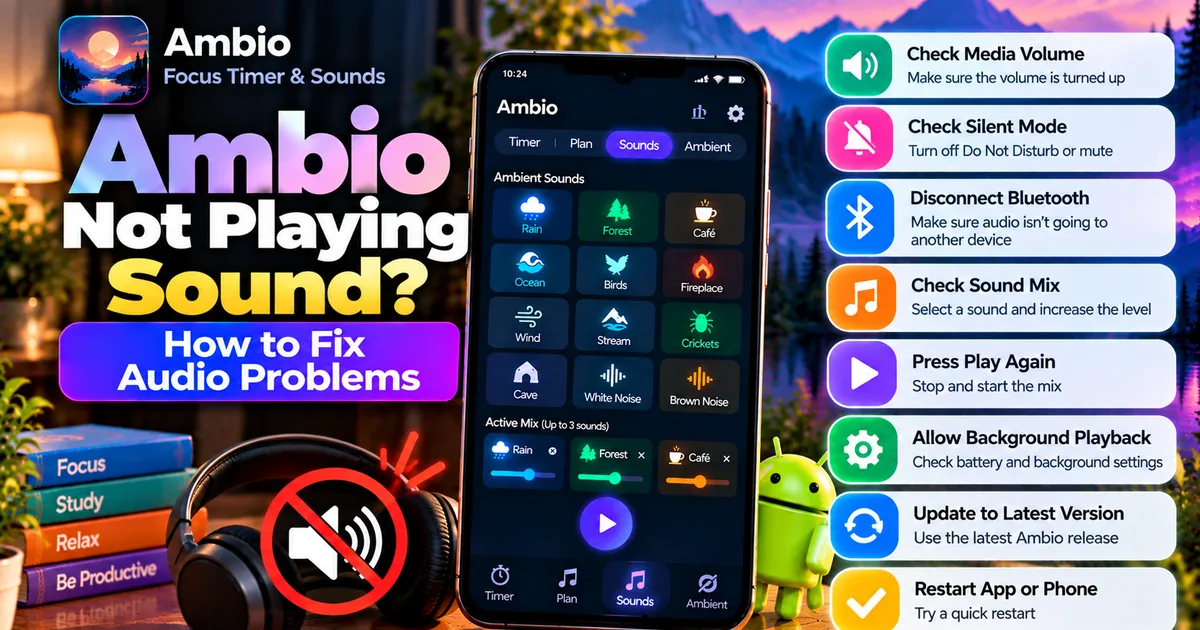
Ambio Not Playing Sound? How to Fix Audio Problems
If Ambio is not playing sound on your Android phone, the problem may be caused by something simple such as muted media volume, an inactive sound mix, audio focus, background restrictions, or an issue with the current app version.
Ambio is designed around ambient audio playback, so when the sound doesn't start or suddenly stops, checking the playback setup is the first step.
The current F-Droid release is Ambio 2.1.1. Recent releases have included several playback-related fixes, while Ambio 2.0 also included audio-focus and saved-mix fixes.
This guide walks through the most useful things to check when Ambio has no sound.
Why Is Ambio Not Playing Sound?
There isn't necessarily one single cause.
Common possibilities include:
- Media volume is turned down.
- The selected sound mix isn't active.
- The individual sound level is too low.
- Another application has taken audio focus.
- Bluetooth audio is connected to another device.
- Android has restricted background playback.
- Ambio's playback service has stopped.
- The application needs to be restarted.
- You're using an older Ambio release with a playback-related bug.
- The APK installation is incomplete or problematic.
The best approach is to work through the checks from the simplest to the more specific ones.
1. Check Your Media Volume
Start with the Android media volume.
Press the volume buttons while Ambio is open and playing.
Make sure you are changing media volume, not just ringtone or notification volume.
Android normally separates different types of audio volume, so increasing your ringtone volume doesn't necessarily increase the volume of Ambio's ambient sounds.
If you see a volume panel with separate controls, make sure the media slider is turned up.
2. Check Whether Your Phone Is Muted
Some Android devices have additional sound controls that can affect media playback.
Check:
- Silent mode
- Do Not Disturb
- Media volume
- Bluetooth audio
- Connected headphones
- External speakers
Silent mode does not necessarily disable every type of media playback on every Android device, but device-specific audio settings can affect how sound is routed.
If you're troubleshooting, temporarily disconnect Bluetooth headphones or speakers and test Ambio through the phone's own speaker.
3. Check the Ambio Sound Mix
Ambio lets you combine up to three of its twelve ambient sounds and adjust the level of each sound independently.
That means you can have a sound selected but still hear nothing if its individual level is effectively turned down.
Open Ambio and check the active mix.
Make sure:
- At least one sound is selected.
- The sound's individual level is turned up.
- Playback has actually been started.
- You haven't accidentally stopped the mix.
For example, if you selected Rain but its mixer level is at the lowest setting, the app may appear configured correctly while producing little or no audible sound.
For a detailed explanation of creating mixes, see our Ambio Sound Mixer guide.
4. Press Play Again
If the sound appears configured correctly but nothing is playing, stop and restart the mix.
Try this sequence:
Stop → wait a moment → Play
Then listen for the ambient sound.
This is especially useful if the application was recently resumed from the background or if another application was using audio.
The current 2.1.1 release includes fixes for situations involving playback state and the playback service. F-Droid's release notes specifically mention fixes involving going back when a mix is paused or stopped and a situation where sound could continue playing after pressing Stop.
5. Check Whether Another App Is Using Audio
Android applications can interact with the device's audio system through audio focus.
If another application is currently playing music, video, navigation instructions, a call, or another audio source, Ambio's playback may behave differently.
Try closing or pausing other audio applications temporarily.
For example:
- Pause YouTube.
- Stop music playback.
- Close another ambient-sound app.
- End an active media session.
- Disconnect Bluetooth headphones if they're not being used.
Then return to Ambio and start the sound mix again.
This is particularly relevant because Ambio 2.0 included an audio-focus fix in its release notes.
6. Check Your Bluetooth Connection
Sometimes Ambio is playing correctly but the sound is being sent somewhere you aren't expecting.
Check whether your phone is connected to:
- Bluetooth headphones
- Wireless earbuds
- A Bluetooth speaker
- A car audio system
- Another external audio device
Temporarily turn Bluetooth off and test Ambio through the phone speaker.
If Ambio works after disconnecting Bluetooth, the problem is more likely related to audio routing than Ambio itself.
7. Check Ambio's Background Playback
Ambio supports background playback and provides media controls through Android's notification shade, lock screen, and Quick Settings.
If sound works while Ambio is open but stops after you leave the application, check whether Android is restricting the app in the background.
Look under your phone's battery or app-management settings for Ambio.
Depending on your Android manufacturer, the available options may be named differently.
Look for settings related to:
- Battery optimization
- Background activity
- Background usage
- Battery restrictions
- Sleeping apps
- Auto-start
Avoid changing unrelated system settings unless necessary.
For more information, see our Ambio Background Playback guide.
8. Check the Notification Controls
When Ambio is playing in the background, Android can provide playback controls through the notification system.
Pull down the notification shade and look for the Ambio media controls.
If you can see Ambio's playback controls, try:
Pause → Play
or:
Stop → Play
If the controls respond but there is still no audio, check your media volume and audio output.
If the Ambio notification has disappeared unexpectedly, restarting the application may restore the playback service.
9. Try the Quick Settings Tile
Recent Ambio versions include a Quick Settings tile that can start the last sound mix even when the application is closed.
If you have configured the tile, pull down Android's Quick Settings panel and try starting your last mix.
This can help determine whether the problem is limited to the Ambio interface or affects playback itself.
For more information, see our Ambio Quick Settings guide.
10. Restart Ambio
If the sound suddenly stopped, completely close Ambio and open it again.
Then:
- Open Ambio.
- Select a sound.
- Check the sound level.
- Start playback.
- Wait a few seconds.
- Test the audio.
A restart can clear a temporary playback-state problem without requiring you to change any Android settings.
11. Restart Your Android Phone
If restarting Ambio doesn't help, restart the phone.
This can reset:
- Audio routing
- Bluetooth connections
- Background services
- Media sessions
- Temporary system states
After restarting, open Ambio before launching other audio applications and test a simple single-sound mix.
Using one sound initially makes troubleshooting easier because there are fewer variables.
12. Test With One Sound
If you're using three sounds at once and Ambio isn't producing audio, simplify the setup.
Try:
Rain only
or another single sound.
Set its level to a clearly audible position and press Play.
If one sound works, add another sound.
Then add the third.
This helps determine whether the problem is associated with your particular saved mix rather than general audio playback.
Ambio supports up to three simultaneous sounds, with individual levels for each one.
13. Check Whether Ambient Mode Works
Ambio has two different types of use that can help with troubleshooting:
- Focus sessions
- Ambient Mode
Ambient Mode lets you run the sound mix without a normal focus timer. It is designed for uses such as reading, meditation, winding down, and sleep.
If sound doesn't play during a normal focus session, try Ambient Mode.
If it works there, the problem may be related to the particular session configuration rather than basic audio playback.
14. Check the Ambio Version
If you're using an older Ambio APK, consider checking whether a newer release is available.
This is important because Ambio's recent versions have included playback-related changes.
Ambio 2.0 included an audio-focus fix.
Ambio 2.1 included changes related to playback services and stopping behavior.
Ambio 2.1.1 includes additional playback-state fixes.
The current F-Droid listing shows version 2.1.1, requiring Android 12 or newer.
If you're using an older APK, don't assume that a problem present in that version also exists in the current release.
15. If You Installed an APK, Check the Source
If Ambio was installed manually from an APK, consider where the file came from.
An APK with a misleading name, incomplete download, modified package, or incompatible version can cause installation or runtime problems.
Check:
- Application name
- Package name
- Version
- Android requirement
- Developer
- APK source
- File integrity
The official Ambio package name is:
com.jbgsoft.ambio
F-Droid currently lists version 2.1.1 and states that its build is built and signed by the original developer and corresponds to the published source.
For a general APK safety checklist, see How to Check if an APK Is Safe.
16. Check Android Compatibility
The current Ambio F-Droid release requires Android 12 or newer.
If you're using an older Android version, the current release may not be compatible.
Check:
Settings → About phone → Android version
The exact location can vary by manufacturer.
If you're installing an older APK, check the Android requirement for that specific version instead of assuming that all Ambio releases have identical requirements.
You can also read our Ambio Android Requirements guide.
17. Check Ambio's Permissions and System Access
Ambio's current F-Droid listing includes permissions associated with foreground services, media playback, notifications, vibration, and keeping the phone awake.
If you've manually changed application permissions or system settings, review them.
Don't grant unrelated permissions simply because an app isn't playing sound.
Instead, compare the permissions with the application's actual functionality.
Our Ambio Permissions guide explains the permissions listed for the app in more detail.
18. Test Ambio Offline
Ambio is designed to work completely offline. Its ambient sounds are built into the application rather than requiring online streaming for normal playback.
If you suspect a network-related issue, turn off Wi-Fi and mobile data temporarily and test a built-in sound.
If the sound works offline, the issue wasn't caused by Ambio requiring an internet connection.
You can read more in Does Ambio Work Without Internet?.
19. Reinstall Ambio as a Last Resort
If none of the previous steps work, you can consider reinstalling Ambio.
Before doing this, remember that uninstalling an application can remove locally stored application data.
If you have important settings or session information you want to retain, check what the current version stores locally before uninstalling.
After reinstalling:
- Install a trusted Ambio build.
- Open the app.
- Create a simple one-sound mix.
- Turn the volume up.
- Press Play.
- Test playback before changing other settings.
If the fresh installation works, the previous installation or local application state may have been responsible.
Ambio Sound Troubleshooting Checklist
If you want the shortest possible troubleshooting process, try these steps in order:
1. Turn up media volume.
2. Disconnect Bluetooth.
3. Pause other audio applications.
4. Open Ambio.
5. Select one sound.
6. Increase its individual level.
7. Press Play.
8. Stop and start playback again.
9. Check the notification media controls.
10. Try Ambient Mode.
11. Restart Ambio.
12. Restart Android.
13. Check background/battery restrictions.
14. Check the Ambio version.
15. Verify the APK source if manually installed.
What If Ambio Still Has No Sound?
If you've completed the steps above and Ambio still doesn't produce audio, try to identify exactly where playback fails.
For example:
Does the Play button respond?
If not, the issue may involve the app state or configuration.
Does the notification media control appear?
If yes, Ambio may be running while the audio output is being routed elsewhere.
Does another Android app produce sound?
If no, the problem may be system-wide rather than specific to Ambio.
Does Ambio work after disconnecting Bluetooth?
If yes, investigate the selected audio output.
Does a fresh installation work?
If yes, the previous application state or installation may have been involved.
This information is much more useful than simply saying that "Ambio doesn't work."
Ambio Not Playing Sound: Frequently Asked Questions
Why is Ambio not playing any sound?
Check media volume, the selected sound mix, individual sound levels, audio output, Bluetooth, other applications using audio, and Ambio's playback state.
Why does Ambio show that it is playing but I hear nothing?
Check whether audio is being routed to Bluetooth or another output device. Also check media volume and whether another application currently has audio focus.
Why does Ambio stop playing when I leave the app?
Check Android's background and battery restrictions. Ambio supports background playback, but Android device manufacturers can apply their own battery-management rules.
Does Ambio support background playback?
Yes. Ambio supports background playback with Android media controls and a Quick Settings option in current releases.
Can Ambio play without internet?
Yes. The current listing states that Ambio works completely offline.
How many sounds can Ambio play at once?
Ambio can combine up to three of its twelve ambient sounds simultaneously, with separate levels for each selected sound.
Does updating Ambio help with playback problems?
It can, particularly if you're using an older release. Recent Ambio releases have included fixes related to audio focus and playback behavior.
What is the current Ambio F-Droid version?
F-Droid currently lists Ambio 2.1.1 as the suggested release, requiring Android 12 or newer.
Should I download another APK if Ambio has no sound?
Not immediately. First troubleshoot volume, audio output, playback state, background restrictions, and compatibility. If you do reinstall, use a trustworthy source and verify the application details.
Final Thoughts
When Ambio is not playing sound, start with the simple checks: media volume, sound selection, individual sound levels, Bluetooth, and other applications using audio.
If those aren't the problem, restart playback, test a single sound, check background playback, and verify that you're using a compatible and current Ambio release.
The recent Ambio releases contain several playback-related fixes, so version information matters when troubleshooting older APK installations.
For most troubleshooting cases, you don't need to change many Android settings at once. Test one variable at a time so you can identify what actually fixed the problem.
Related Articles

How to Fix CapCut Video Lagging After Export on Android
Fix CapCut video lagging after export on Android. Learn how to troubleshoot choppy playback, frame-rate mismatches, heavy effects, storage issues, and export settings.
GetApkFree Team

How to Fix CapCut Preview Not Matching Export on Android
Fix CapCut preview not matching the exported video on Android. Troubleshoot missing effects, text, transitions, timing, colors, and rendering differences.
GetApkFree Team

How to Fix Couldn't Apply AI Background in CapCut on Android
Getting "Couldn't Apply AI Background" in CapCut on Android? Check usage limits, clip selection, video quality, app updates, and practical troubleshooting steps.
GetApkFree Team

How to Fix CapCut Effects Not Applying on Android
CapCut effects not working on Android? Check clip selection, effect layers, timeline timing, conflicting adjustments, and app performance with these practical fixes.
GetApkFree Team