
This article is about
Ambio: Focus Timer & Sounds
Jaime Barreto · Multimedia
Ambio for Meditation: How to Create a Calming Soundscape
GetApkFree Team
Learn how to use Ambio for meditation with Ambient Mode, calming sound mixes, adjustable volume levels, and visual effects controls on Android.
- Version
- 2.0.0
- Requires
- Android 12.0+
- License
- MIT
- Source
- F-Droid
- Package
- com.jbgsoft.ambio
Ambio for Meditation: How to Create a Calming Soundscape
If you like having gentle background sounds while meditating, Ambio can be used to create a customizable soundscape on Android.
Ambio: Focus Timer & Sounds is primarily built around focus sessions and ambient audio, but its current listing specifically includes meditation among the uses for Ambient Mode. Instead of running a productivity countdown, you can let an ambient mix play continuously while you meditate.
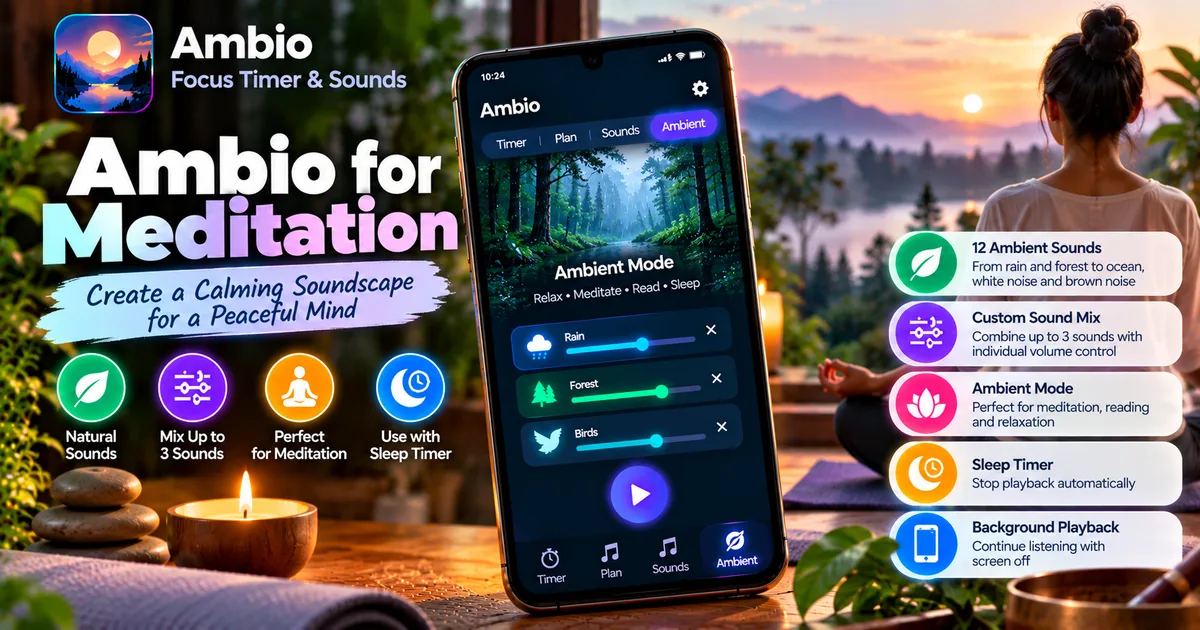
The app provides 12 built-in ambient sounds, lets you combine up to three at once, and gives each selected sound its own level control. That makes it possible to create a quieter, simpler mix instead of relying on one fixed audio track.
This guide explains how to use Ambio for meditation and how to build a soundscape that fits your own routine.
What Is Ambio's Ambient Mode?
Ambient Mode is the part of Ambio designed for situations where you don't need a focus countdown.
The official Ambio description specifically mentions reading, meditation, winding down, and sleep as examples of how Ambient Mode can be used.
Instead of setting a 25-minute or 50-minute focus session, you can switch to Ambient Mode, choose your sounds, adjust their levels, and let the mix play.
This makes Ambient Mode a natural starting point if your goal is meditation rather than timed productivity.
You can learn more about the feature in our guide to Ambio Ambient Mode.
How to Use Ambio for Meditation
Setting up Ambio for meditation is straightforward.
1. Open Ambio
Start Ambio on your Android phone.
The app combines a focus timer, sound mixer, Ambient Mode, session history, and other playback features.
For meditation, you don't need to start a normal focus session.
2. Open Ambient Mode
Switch to Ambient Mode when you want continuous sound without a productivity countdown.
Ambient Mode is intended for listening situations where you're not necessarily trying to complete a timed work session. Ambio's official listing specifically identifies meditation as one of its uses.
3. Choose Your Sounds
Ambio currently provides 12 ambient sounds:
- Rain
- Fireplace
- Café
- Forest
- Birds
- Crickets
- Ocean
- Stream
- Cave
- Wind
- White Noise
- Brown Noise
You can use one sound by itself or combine up to three sounds into a mix. Each selected sound has its own level control.
For meditation, you may want to start with a simple mix rather than immediately combining three sounds.
4. Adjust the Volume
Once you've selected your sounds, adjust each sound's level individually.
This is useful when one sound becomes too noticeable.
For example, you could keep rain as the primary sound and add a quieter forest layer underneath it.
The objective is not to find a technically perfect combination. The useful mix is simply the one that doesn't distract you.
5. Start Playback
Start your ambient mix and place the phone somewhere that doesn't require your attention.
If you don't need to look at the screen, you can turn the display off while continuing playback.
Ambio supports background playback and Android media controls, so playback can continue when the app is no longer actively displayed.
Which Ambio Sounds Can You Use for Meditation?
There is no single Ambio sound that everyone needs to use for meditation.
Different people may prefer different levels of consistency, natural ambience, or deeper background noise.
Here are some combinations you can try.
Rain
Rain provides a relatively consistent background sound.
You can use it alone if you want the simplest possible soundscape.
A single rain layer also makes it easy to adjust the volume without having to balance several sounds.
Forest
Forest ambience can provide a more varied natural background.
You can use Forest alone or combine it with Rain for a broader outdoor soundscape.
Ocean
Ocean sounds can create a continuous coastal-style background.
If you prefer a relatively simple mix, Ocean can be used by itself.
Birds
Bird sounds provide more noticeable variation than continuous noise.
They may work better for people who enjoy natural outdoor ambience and don't mind occasional changes in the sound.
Brown Noise
Brown Noise provides a deeper continuous background sound.
You can try it alone or combine it with another quieter sound.
Because preferences differ, treat these suggestions as starting points rather than a universal meditation formula.
Example Ambio Meditation Mixes
The mixer makes it possible to experiment with different combinations.
Here are a few starting ideas.
Simple Rain
Rain
Use a single sound at a comfortable level.
This is the simplest setup if you don't want multiple layers.
Rain and Forest
Rain + Forest
Keep Rain as the main sound and use Forest at a lower level.
This creates a natural outdoor-style background.
Ocean and Wind
Ocean + Wind
Use Ocean as the main layer and add a quieter Wind layer.
This can create a broader coastal ambience.
Forest and Birds
Forest + Birds
This combination creates a more varied outdoor soundscape.
If you find the bird sounds distracting, reduce their individual level or remove them.
Brown Noise
Brown Noise
For people who prefer a consistent background rather than identifiable environmental sounds, Brown Noise can be used alone.
You can find the complete list in our Ambio sounds guide.
Should You Use Ambio Visual Effects During Meditation?
Ambio includes visual effects that respond to the sound mix.
The official description says that the background gradient and particles respond to the sounds selected in the mix, and it also provides an option to turn the effects off.
Whether you want them on or off depends on your meditation environment.
If you are meditating with your eyes closed, the visual effects obviously aren't important.
If you're using Ambio as a background soundscape while sitting comfortably, you may prefer to disable the visual effects so the screen isn't part of the experience.
You can read more about this feature in our Ambio visual effects guide.
Does Ambio Need a Timer for Meditation?
No.
You don't have to use the focus timer when using Ambio for meditation.
Ambient Mode is specifically designed for continuous sound playback without the normal focus-session countdown.
This can be useful if you prefer to decide yourself when your meditation session ends.
If you do want automatic stopping, Ambio's Ambient Mode also includes a sleep timer in current releases.
The sleep timer isn't limited to sleeping; the automatic-stop behavior can also be useful if you want playback to end after a predetermined period.
Can You Meditate With the Ambio Screen Off?
Yes.
Ambio supports background playback, allowing an ambient mix to continue while the application isn't actively displayed.
The current listing says playback can be controlled from Android's notification shade, lock screen, or Quick Settings.
This means you can start your soundscape, turn off the display, and continue listening without keeping the Ambio interface visible.
Turning the screen off can also help keep your phone from becoming a visual distraction.
Can Ambio Be Used Offline for Meditation?
Yes.
The current Ambio listing states that the application works completely offline.
That means you can use its built-in ambient sound experience without depending on an online streaming service.
This can be useful if you meditate while traveling, in a location with poor connectivity, or simply prefer to keep your phone offline.
For a more detailed explanation, see Does Ambio work without internet?.
How Long Should You Use Ambio for Meditation?
There isn't one required meditation duration built into Ambio.
You can use Ambient Mode without a focus countdown and decide when to stop.
If you prefer a fixed period, you can use the available timer functionality or the sleep timer depending on the type of session you want.
The important distinction is that Ambio itself doesn't determine how long a meditation session needs to be.
A shorter session and a longer session can both use the same soundscape.
How to Make Your Ambio Meditation Setup Less Distracting
The main advantage of Ambio's mixer is that you can simplify your soundscape.
Consider these practical adjustments:
Use Fewer Sounds
You don't have to use all three available sound slots.
One sound may be enough.
If two sounds work well together, there is no reason to add a third simply because the option exists.
Lower the Volume
Meditation audio doesn't have to be loud.
Start at a comfortable level and reduce the volume if you find yourself paying more attention to the sound than your meditation.
Turn Off Visual Effects
If the animated background is distracting, turn it off.
Ambio provides a setting for disabling the visual effects.
Put the Phone Away
Once your mix is running, place the phone somewhere outside your immediate line of sight.
You can still use Android's playback controls when necessary.
This can reduce the temptation to check notifications or interact with the screen.
Use a Consistent Mix
If you find a combination that you like, you can reuse it rather than rebuilding your soundscape every time.
Ambio is designed to remember your mix for later use.
Our Ambio saved mix guide explains this feature in more detail.
Ambio Meditation Without Internet or an Account
One of the practical aspects of Ambio is that its core experience doesn't depend on an online account.
The current listing says Ambio works offline and doesn't require an account. It also states that the developer reports no data collection, no third-party data sharing, and no tracking or analytics. These are developer-provided disclosures rather than an independent privacy certification.
For someone who simply wants to create an ambient soundscape and listen to it locally, this keeps the basic setup relatively simple.
Is Ambio a Meditation App?
Ambio is better described as a focus timer and ambient sound application rather than a dedicated meditation-training application.
Its official listing identifies meditation as one use for Ambient Mode, but Ambio's feature set is centered on customizable ambient sounds, focus timing, playback, and related productivity features.
It doesn't need to replace a dedicated meditation application if you're specifically looking for guided meditation courses, meditation instruction, or a structured meditation program.
Instead, Ambio can provide the background sound environment while you follow whatever meditation practice you already use.
Ambio for Meditation: Simple Setup
If you want a straightforward setup, try this:
- Open Ambio.
- Switch to Ambient Mode.
- Select one or two sounds.
- Adjust each sound's level.
- Turn off visual effects if you find them distracting.
- Start playback.
- Turn off the phone display.
- Place the phone somewhere nearby but out of sight.
- Meditate for your chosen period.
- Stop playback manually or use the available timer when appropriate.
You can change the sound combination later as you discover what works best for you.
Frequently Asked Questions
Can I use Ambio for meditation?
Yes. Ambio's official description specifically lists meditation as one of the uses for Ambient Mode.
Does Ambio have meditation sounds?
Ambio doesn't provide a separate category called "meditation sounds." Instead, it provides 12 ambient sounds that you can combine into a custom soundscape.
Which Ambio sound is best for meditation?
There is no universally best sound. Rain, Forest, Ocean, Wind, and Brown Noise are examples you can try individually or in combinations.
Can I use Ambio without the focus timer?
Yes. Ambient Mode allows you to run an ambient mix without using a normal focus-session countdown.
Can Ambio play with the screen off?
Yes. Ambio supports background playback and Android media controls.
Does Ambio need internet for meditation?
No. The current listing states that Ambio works completely offline.
Can I mix multiple sounds?
Yes. Ambio allows up to three of its 12 ambient sounds to be combined, with individual level controls.
Can I turn off Ambio's visual effects?
Yes. The app provides an option to turn the visual effects off.
Can Ambio automatically stop playing?
Yes. Current Ambio releases include a sleep timer in Ambient Mode that can stop the mix after a period of time.
Is Ambio a guided meditation app?
No. Ambio is primarily a focus timer and ambient sound application. It can provide background sound for meditation, but it isn't presented as a guided meditation course or meditation instruction platform.
Final Thoughts
Ambio can be used as a simple Android soundscape for meditation without requiring a dedicated meditation mode.
Its Ambient Mode lets you run sounds without a productivity countdown, while the mixer allows you to combine up to three of its 12 built-in sounds and adjust their levels individually.
For a distraction-free setup, start with one or two sounds, keep the volume comfortable, disable visual effects if necessary, turn off the screen, and place the phone out of sight.
The important part is experimentation. Try different combinations such as Rain + Forest, Ocean + Wind, or a single Brown Noise layer and keep the setup that fits your own meditation routine.
Related Articles

How to Fix CapCut Video Lagging After Export on Android
Fix CapCut video lagging after export on Android. Learn how to troubleshoot choppy playback, frame-rate mismatches, heavy effects, storage issues, and export settings.
GetApkFree Team

How to Fix CapCut Preview Not Matching Export on Android
Fix CapCut preview not matching the exported video on Android. Troubleshoot missing effects, text, transitions, timing, colors, and rendering differences.
GetApkFree Team

How to Fix Couldn't Apply AI Background in CapCut on Android
Getting "Couldn't Apply AI Background" in CapCut on Android? Check usage limits, clip selection, video quality, app updates, and practical troubleshooting steps.
GetApkFree Team

How to Fix CapCut Effects Not Applying on Android
CapCut effects not working on Android? Check clip selection, effect layers, timeline timing, conflicting adjustments, and app performance with these practical fixes.
GetApkFree Team