
This article is about
Ambio: Focus Timer & Sounds
Jaime Barreto · Multimedia
Ambio Media Controls: Pause, Resume and Stop Playback on Android
GetApkFree Team
Learn how to use Ambio media controls on Android to pause, resume, and stop ambient sounds from the notification shade, lock screen, and Quick Settings.
- Version
- 2.0.0
- Requires
- Android 12.0+
- License
- MIT
- Source
- F-Droid
- Package
- com.jbgsoft.ambio
Ambio Media Controls: Pause, Resume and Stop Playback on Android
If you use Ambio to play ambient sounds while studying, working, reading, relaxing, or meditating, you don't always need to keep the app open on your screen.
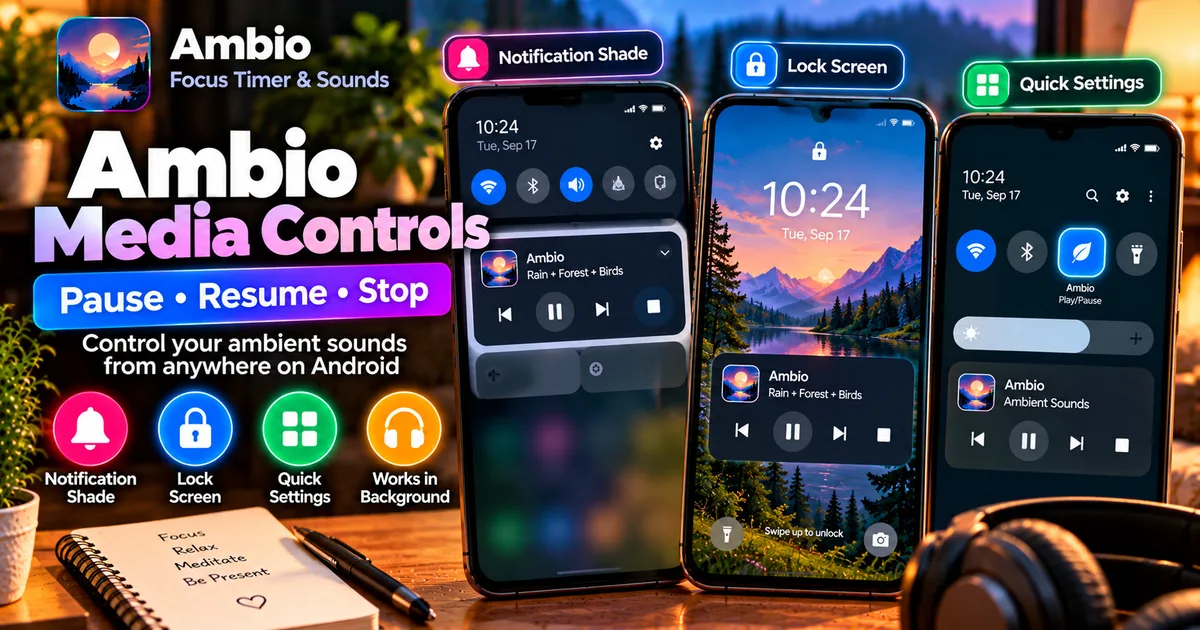
Ambio supports Android media controls that let you control playback from outside the main app interface. The current listing says you can pause, resume, or stop Ambio playback from the notification shade, lock screen, or Quick Settings tile.
This makes background listening more convenient because you can control your sound mix without repeatedly opening Ambio.
In this guide, we'll explain how Ambio's media controls work, where to find them, and what to do if the controls don't appear.
What Are Ambio Media Controls?
Ambio media controls are Android playback controls connected to the app's background audio system.
When Ambio is actively playing an ambient mix, Android can provide playback controls outside the main Ambio interface.
Depending on your phone and Android version, you can access these controls through places such as:
- The notification shade
- The lock screen
- Quick Settings
The current Ambio listing specifically identifies pause, resume, and stop controls through these Android interfaces.
This means you don't have to return to Ambio every time you want to temporarily pause or stop your soundscape.
What Can You Control?
The main playback actions available through Ambio's media controls are:
Pause
Pause the currently playing ambient mix.
This is useful when you need silence temporarily but don't want to completely end the playback session.
Resume
Resume the paused sound mix.
You can use the Android media control rather than reopening Ambio.
Stop
Stop playback completely.
This is useful when you have finished listening or want to end the current sound session.
The exact appearance of these controls depends on Android and the device manufacturer.
How to Use Ambio Controls From the Notification Shade
The notification shade is one of the easiest places to control Ambio playback.
Step 1: Start Ambio Playback
Open Ambio and select your preferred sound mix.
Ambio can combine up to three of its 12 ambient sounds, with individual level controls for the selected sounds.
Start playback.
Step 2: Leave the Ambio App
Once the sound starts playing, you don't need to keep the Ambio interface open.
Ambio supports background playback through Android's media system. The project's technical information identifies Media3 and a MediaSessionService for background audio.
Step 3: Open the Notification Shade
Swipe down from the top of your Android screen.
Depending on your phone, the media player may appear directly in the notification area or after expanding the notification shade.
Step 4: Use the Playback Controls
Look for the Ambio media player.
You should be able to use the available playback controls, such as:
Pause → Resume → Stop
The exact buttons and layout can vary between Android versions and manufacturers.
How to Control Ambio From the Lock Screen
Ambio can also expose playback controls on the Android lock screen.
This is particularly useful when your phone is sitting on a desk while you study or when you're listening without actively using the device.
Start playback first
Begin your Ambio sound mix normally.
Lock your phone
Press the power button or allow the screen to turn off.
Check the lock screen
If your Android device displays media controls on the lock screen, the Ambio playback controls can appear there while audio is active.
You can then use the available controls without unlocking the phone.
The current Ambio listing specifically mentions lock-screen media controls as part of its background playback experience.
Does Ambio Keep Playing When the App Is Closed?
There is an important distinction between leaving the app screen and stopping playback.
Ambio is designed for background playback.
You can start a session and put the phone down while Ambio continues playing. The official listing says the app keeps playing with full media controls.
Closing the visible Ambio interface therefore does not necessarily mean that playback has stopped.
If you want to end the audio completely, use the Stop control or stop playback from inside Ambio.
For a more detailed explanation of background playback, see:
Ambio Background Playback: How to Keep Sounds Playing
Ambio Media Controls and Quick Settings
Ambio also integrates playback control with Android's Quick Settings system.
The current listing says playback can be controlled from a Quick Settings tile, while the app's feature documentation describes a Quick Settings tile for starting playback.
This is slightly different from the notification media player.
A media notification represents currently active playback.
A Quick Settings tile provides a faster way to access Ambio functionality from Android's system controls.
Our dedicated guide explains this feature in more detail:
Ambio Quick Settings: How to Start Your Last Sound Mix
Can You Pause Ambio Without Opening the App?
Yes.
When Ambio playback is active and Android displays its media controls, you can pause playback directly from the notification shade or lock screen.
This is particularly useful when:
- You're studying
- You're writing
- You're coding
- You're reading
- You're meditating
- You're relaxing
- Your phone is connected to headphones
- Your phone is across the room
You don't need to interrupt what you're doing just to open the application.
Can You Resume Ambio Without Opening the App?
Yes, when Android continues to show the Ambio media session.
If you paused the sound using the media controls, use the Play or Resume button shown by Android.
The exact icon may vary depending on the Android version and device manufacturer.
If the media notification has disappeared completely, you may need to reopen Ambio or use another available playback entry.
Can You Stop Ambio From the Notification?
Yes.
The current Ambio listing explicitly mentions the ability to pause, resume, or stop playback through Android's media controls.
Using Stop is different from Pause.
Pause temporarily stops the audio and allows you to resume it.
Stop ends the current playback.
If you have finished your study session or no longer want the ambient mix running, Stop is the more appropriate action.
What Happens When You Stop Ambio Playback?
Ambio's recent versions include fixes related to stopping and exiting playback.
The F-Droid project information and release information describe improvements to playback behavior, including making sure playback properly stops when the user exits after stopping a mix.
If you use an older release, playback behavior may differ.
For this reason, if you're experiencing unusual playback behavior, check the Ambio version installed on your phone.
You can also read our troubleshooting guide:
Ambio Not Playing Sound? How to Fix Audio Problems
Why Are Ambio Media Controls Useful?
The main benefit is convenience.
Imagine you're studying with a Rain + Forest sound mix.
Your phone is on the desk, the screen is off, and you're working through your notes.
If you suddenly need silence, you don't have to:
- Unlock the phone.
- Find Ambio.
- Open the application.
- Find the playback control.
- Stop the sound.
Instead, Android's media controls can provide direct access from the notification shade or lock screen.
The same applies when you want to resume playback.
Using Ambio With Headphones
Ambio's media controls can be particularly convenient when you're listening through headphones.
You can start your soundscape and then put the phone away.
If your Android device provides the Ambio media controls on the lock screen or notification shade, you can manage playback without constantly opening the app.
The exact behavior of physical headphone buttons can vary by device, headphone model, Bluetooth implementation, and Android configuration, so you shouldn't assume that every headphone button will perform the same action.
Ambio Media Controls and Battery Usage
Background playback still uses some battery because the phone needs to maintain audio playback.
Ambio's official listing describes the app as having efficient battery usage, but actual consumption varies by device and usage.
For long listening sessions, you can turn off the display instead of leaving the Ambio interface visible.
You can also use the sleep timer when appropriate so playback stops automatically.
For more information, see:
Ambio Battery Usage: Does It Drain Your Android Battery?
What If Ambio Media Controls Don't Appear?
If you start Ambio playback but don't see a media notification or lock-screen control, several Android settings may be involved.
Check that playback is actually running
First, make sure an Ambio sound mix is actively playing.
The media controls are associated with active playback.
Check notification settings
Some Android phones allow users to control which applications can display notifications.
If Ambio's media notification is disabled or restricted, its playback controls may not appear normally.
Check:
Settings → Apps → Ambio → Notifications
The exact menu names vary by Android manufacturer.
Check lock-screen media controls
Some Android devices provide separate settings for showing media controls on the lock screen.
If notifications work but the lock-screen controls don't appear, check your device's lock-screen notification settings.
Check battery restrictions
Some manufacturers apply aggressive background restrictions.
These can interfere with applications that need to continue playing audio.
If Ambio stops unexpectedly rather than simply hiding its controls, check its battery and background-activity settings.
Don't automatically disable battery optimization unless necessary.
Update Ambio
If you're using an older Ambio release, update to a current compatible version.
The current project has continued to improve playback behavior, including changes related to stopping playback.
Does Android Show Ambio on Every Lock Screen?
Not necessarily.
Android manufacturers can customize lock-screen behavior.
The Ambio listing confirms support for lock-screen media controls, but whether and how they appear can depend on your Android version and device settings.
Therefore, if the controls look different on Samsung, Pixel, Xiaomi, OnePlus, Motorola, or another Android device, that doesn't necessarily mean Ambio is malfunctioning.
The Android system controls the presentation of media sessions.
Ambio Media Controls vs Quick Settings
These two features are related but serve different purposes.
| Feature | Main purpose |
|---|---|
| Media notification | Control currently playing audio |
| Lock-screen controls | Control playback without unlocking |
| Quick Settings tile | Quickly access Ambio playback functionality |
| Ambio app interface | Create and manage the sound mix |
The media notification is most useful when Ambio is already playing.
The Quick Settings tile can be useful when you want faster access without navigating through the full application.
Ambio Media Controls With Ambient Mode
Media controls aren't limited to one particular Ambio use case.
You can use Ambient Mode for:
- Reading
- Meditation
- Relaxation
- Winding down
- Sleep
- Background ambience
Ambio's current official description specifically lists these uses for Ambient Mode.
Once your sound mix is playing, Android's media controls can help you manage playback without keeping the Ambient Mode screen open.
For more information about Ambient Mode:
Ambio Ambient Mode: How to Use Ambient Sounds Without a Timer
Ambio Media Controls for Study Sessions
For a study session, you could use the following setup:
- Open Ambio.
- Create your preferred sound mix.
- Start a focus session.
- Put the phone down.
- Turn the display off.
- Continue listening through background playback.
- Use the notification shade or lock screen if you need to pause or resume.
- Stop playback when you're finished.
Ambio's focus timer supports 25-minute and 50-minute Pomodoro presets as well as custom focus and break lengths.
This allows the playback controls to remain secondary to the actual study session.
Ambio Media Controls for Meditation and Relaxation
Media controls can also be useful outside productivity.
Suppose you create a Rain + Forest mix for meditation.
You can start playback, put the phone somewhere nearby, and avoid interacting with the screen.
If you need to stop the audio, use the available Android media control rather than opening the application.
This can make the phone less intrusive during a session.
Does Ambio Need Internet for Media Controls?
No internet connection is required for Ambio's core playback experience.
The current listing describes Ambio as completely offline, and its ambient sounds are bundled with the application.
The Android media controls are part of the device's local playback experience.
You therefore don't need a streaming connection just to pause or resume an Ambio sound mix.
Ambio Media Controls and Privacy
Ambio is described by the developer as an offline application with no account required, no ads, no tracking or analytics, and no data leaving the device. The app is also open source under the MIT License.
These are developer-provided claims and should not be treated as an independent security certification.
The media controls themselves are part of Android's local media playback system.
Frequently Asked Questions
What are Ambio media controls?
They are Android playback controls that allow you to manage an active Ambio sound mix without repeatedly opening the main application.
Can I pause Ambio from the notification shade?
Yes. Ambio's current listing says its playback can be paused from Android's media controls.
Can I resume Ambio from the lock screen?
Yes, when the Ambio media session is being displayed by your Android device. The exact lock-screen interface varies between devices.
Can I stop Ambio without opening the app?
Yes. The current listing specifically mentions stopping playback through its media controls.
Does Ambio have a media notification?
Ambio supports Android media controls for background playback, including notification-shade controls.
Can I control Ambio from Quick Settings?
Yes. Ambio provides Quick Settings integration for playback functionality.
Why can't I see Ambio controls on my lock screen?
Lock-screen media controls can depend on your Android version, manufacturer settings, and notification configuration.
Does Ambio continue playing when I leave the app?
Yes. Ambio is designed to support background playback.
Does Ambio work offline?
Yes. The current listing states that Ambio works completely offline.
Can I use media controls while using Ambient Mode?
Yes. Ambient Mode is one of the app's playback use cases, and Ambio supports background media controls for active playback.
Final Thoughts
Ambio's media controls make its background audio experience easier to use.
Instead of reopening the application whenever you need to change playback, Android can provide controls through the notification shade, lock screen, and Quick Settings.
You can pause a sound mix when you need silence, resume it when you're ready, or stop playback when your session is finished.
For people who use Ambio during study, work, reading, meditation, or relaxation, these controls let the app stay in the background while Android handles the basic playback actions.
If the controls don't appear, check Ambio's notification settings, lock-screen media settings, battery restrictions, and the version of the app installed on your device.
Related Articles

How to Fix CapCut Video Lagging After Export on Android
Fix CapCut video lagging after export on Android. Learn how to troubleshoot choppy playback, frame-rate mismatches, heavy effects, storage issues, and export settings.
GetApkFree Team

How to Fix CapCut Preview Not Matching Export on Android
Fix CapCut preview not matching the exported video on Android. Troubleshoot missing effects, text, transitions, timing, colors, and rendering differences.
GetApkFree Team

How to Fix Couldn't Apply AI Background in CapCut on Android
Getting "Couldn't Apply AI Background" in CapCut on Android? Check usage limits, clip selection, video quality, app updates, and practical troubleshooting steps.
GetApkFree Team

How to Fix CapCut Effects Not Applying on Android
CapCut effects not working on Android? Check clip selection, effect layers, timeline timing, conflicting adjustments, and app performance with these practical fixes.
GetApkFree Team