
This article is about
Ambio: Focus Timer & Sounds
Jaime Barreto · Multimedia
Ambio Timer Chime: What Happens When a Focus Session Ends?
GetApkFree Team
Learn how the Ambio timer chime works when a focus session ends, including Pomodoro sessions, custom timers, Session Plans, and break transitions.
- Version
- 2.0.0
- Requires
- Android 12.0+
- License
- MIT
- Source
- F-Droid
- Package
- com.jbgsoft.ambio
Ambio Timer Chime: What Happens When a Focus Session Ends?
If you use Ambio as a focus timer, you don't have to keep checking the screen to know when your session is finished.
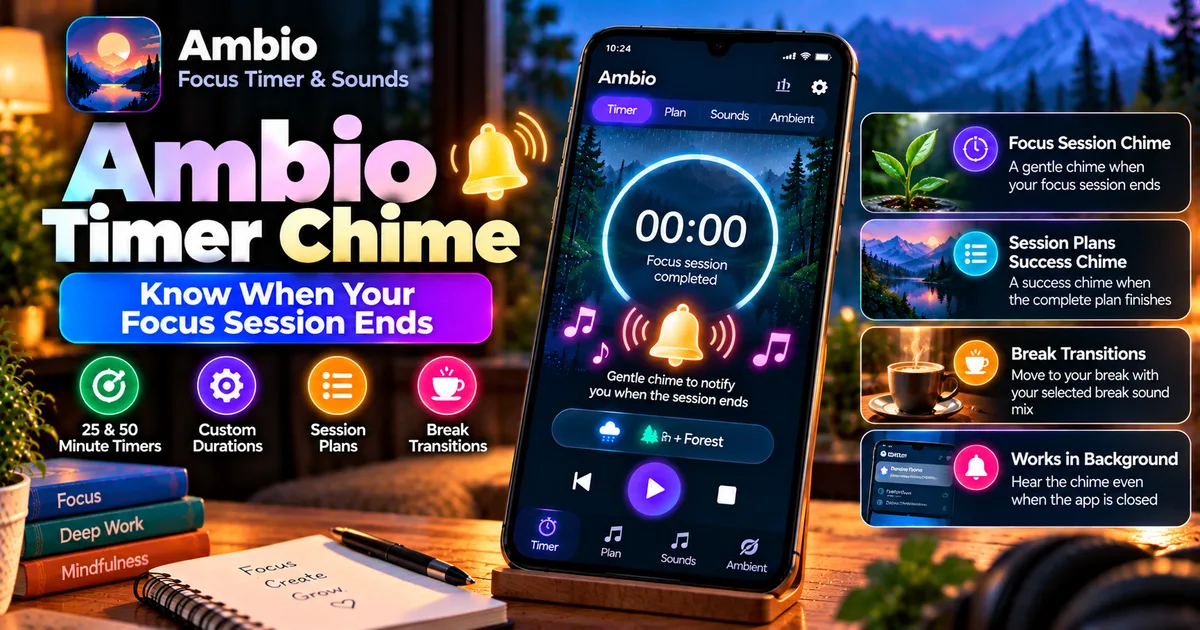
Ambio includes a gentle timer chime that signals the end of a focus session. The current app description says the chime is designed to close the session without pulling you out of your work.
The same idea is also used with Ambio's newer Session Plans, where a success chime marks the end of the complete plan.
This guide explains what the Ambio timer chime does, when you hear it, and how it fits together with focus sessions, breaks, and Session Plans.
What Is the Ambio Timer Chime?
The Ambio timer chime is an audio notification that signals the completion of a focus session.
Instead of requiring you to watch the countdown until it reaches zero, Ambio can notify you with a sound when the session finishes.
The official Ambio description calls it a gentle chime intended to signal the end of a session without being disruptive.
This fits the app's overall approach of combining a timer with ambient sounds.
You can focus on your work while Ambio handles the countdown in the background.
When Does the Ambio Chime Play?
The chime is associated with the completion of a focus session.
Ambio supports:
- 25-minute Pomodoro sessions
- 50-minute Pomodoro sessions
- Custom focus durations
- Custom break durations
- Session Plans
The current listing confirms the 25- and 50-minute presets as well as custom focus and break lengths.
For example, if you start a 25-minute focus session, the timer counts down while you work. When the focus period finishes, the session-completion chime can signal that it is time to move on.
Ambio Chime With a 25-Minute Focus Session
The 25-minute preset is one of Ambio's Pomodoro options.
A typical workflow looks like this:
- Open Ambio.
- Select the 25-minute focus preset.
- Choose an ambient sound or sound mix.
- Start the session.
- Put the phone aside.
- Work until the timer reaches the end.
- Listen for the completion chime.
The advantage is simple: you don't need to repeatedly look at the countdown.
You can learn more about the timer itself in our Ambio Focus Timer guide.
Ambio Chime With a 50-Minute Session
Ambio also provides a 50-minute Pomodoro preset.
This can be useful when you want a longer uninterrupted work period.
Once the session starts, your selected ambient sounds can continue playing while the timer counts down.
When the focus period ends, the timer chime provides an audible indication that the session has completed.
The exact behavior of Android audio and notifications can still depend on your device's system settings.
What Happens After the Focus Chime?
The chime tells you that the current focus period has ended.
What happens next depends on the type of session you created.
With a simple focus session, you can decide what to do next.
You might:
- Take a break
- Start another focus session
- Stop playback
- Change your sound mix
- Switch to Ambient Mode
- Continue with another task
If you're using a Session Plan, Ambio can automatically move through the sequence of focus and break steps you've configured.
Ambio Chime and Custom Focus Sessions
The timer isn't limited to the two Pomodoro presets.
Ambio also lets you set your own focus and break durations.
For example, you might create:
40-minute focus → 10-minute break
or:
90-minute focus → 15-minute break
The important part is that the timer can work around your chosen duration rather than forcing every session into a standard Pomodoro length.
The completion chime then provides an audible indication when the focus period reaches its end.
Ambio Session Plans and the Success Chime
Ambio's Session Plans extend the timer beyond a single focus period.
The current F-Droid information describes the Plan preset as a way to arrange focus and break steps, loop them, or finish after the configured sequence. A success chime marks the end of the plan.
This is different from simply completing one focus session.
For example, a plan might contain:
Focus → Break → Focus → Break → Focus
When an individual focus period finishes, the workflow can continue to the next step.
When the entire plan reaches its end, the success chime provides a signal that the complete sequence is finished.
Read our detailed Ambio Session Plans guide.
Timer Chime vs Session Plan Success Chime
These two sounds serve different purposes.
| Feature | Purpose |
|---|---|
| Focus timer chime | Signals the end of a focus session |
| Session Plan success chime | Signals completion of the complete plan |
| Break sound | Provides ambient audio during a break |
| Media controls | Control active playback |
| Sleep timer | Stops Ambient Mode playback after the selected period |
Ambio's current documentation specifically distinguishes the session-completion chime from the success chime used at the end of a Session Plan.
Does the Chime Replace the Ambient Sound?
The chime is a notification for the timer event.
It shouldn't be confused with the ambient sound mix itself.
Ambio's main sound system can combine up to three of its 12 ambient sounds, with separate level controls for the selected sounds.
For example, you could be listening to:
Rain + Forest
while completing a focus session.
The ambient mix provides the background sound.
The timer chime indicates that the timed focus period has ended.
These serve different purposes.
Can You Hear the Chime While Ambio Is Playing Sounds?
Ambio is designed to combine its timer and ambient audio features.
The official description specifically says that the focus timer uses a gentle chime when the session closes.
However, the exact volume you hear can depend on your Android device's audio settings and the volume level being used.
If the chime is difficult to hear, check your phone's notification and media-volume settings.
Android manufacturers can also handle notification and media audio differently.
What If You Don't Hear the Ambio Chime?
If a session reaches its end but you don't hear the expected sound, check a few things.
Check the phone volume
Make sure your phone isn't muted and that the relevant audio volume is high enough.
Check Do Not Disturb
Android's Do Not Disturb or notification settings can affect audible notifications depending on the device configuration.
Check whether playback is working
If Ambio's other audio isn't playing correctly either, the issue may be broader than the timer chime.
You can use our troubleshooting guide:
Ambio Not Playing Sound? How to Fix Audio Problems
Check the app version
Ambio is actively updated.
The current F-Droid listing shows version 2.1.1 and documents recent playback-related fixes.
If you're using an older APK, behavior can differ from the current release.
Does the Chime Work With Background Playback?
Ambio supports background playback, allowing you to put the phone down while the app continues playing.
The current listing says Ambio provides media controls through the notification shade, lock screen, and Quick Settings.
This means the app isn't designed around keeping its timer screen constantly visible.
For a longer study session, you can start the timer and then turn the display off.
See our Ambio Background Playback guide for more information.
Can You Use the Chime While Studying?
Yes.
The timer chime is particularly relevant to study sessions because it lets you work without constantly checking the clock.
For example:
25-minute session
Study until the chime.
Break
Take a short break.
Next session
Start another focus period.
You can also use longer or custom durations depending on the subject and task.
For exam preparation, this can be useful when you want to divide a long study period into clearly defined blocks.
Ambio Chime for Writing and Coding
The feature isn't limited to studying.
Ambio's current description specifically identifies studying, writing, and coding as use cases for its focus timer.
For writing, you could start a 50-minute session and concentrate on drafting without repeatedly checking the clock.
For coding, you could use a custom focus duration and continue working until the timer signals completion.
The chime becomes a simple transition point between work periods.
Ambio Chime With Break Sounds
Ambio 2.1 introduced a separate sound mix for breaks.
The feature lets you enable sound during breaks and select a second mix that plays while you rest. The focus mix returns when the break ends.
This creates a useful distinction:
Focus period
Your main work sound mix.
Break period
Your separate break sound mix.
Next focus period
Your focus mix returns.
The timer chime can therefore act as an audible transition between these parts of the routine.
Read our Ambio Break Sound Mix guide.
Does Ambient Mode Use the Timer Chime?
Ambient Mode is different from a normal focus session.
Ambio describes Ambient Mode as a way to let your sound mix run without timing a focus session. It is intended for uses such as reading, meditation, winding down, and sleep.
Because Ambient Mode isn't a standard focus countdown, you shouldn't treat it like a normal Pomodoro session.
For Ambient Mode, Ambio instead provides a sleep timer that can stop the mix after a selected period.
If you're using Ambio specifically for meditation or relaxation, see our Ambio for Meditation guide.
Timer Chime vs Sleep Timer
These features solve different problems.
Timer chime
Tells you that a timed focus period has finished.
Sleep timer
Stops Ambient Mode playback after the selected period.
The timer chime is therefore primarily an audible session-completion signal, while the sleep timer is an automatic playback-stop feature.
Our Ambio Sleep Timer guide covers the latter in detail.
Does the Ambio Chime Need Internet?
No internet connection is required for Ambio's core timer and sound functionality.
The current listing describes Ambio as completely offline.
This means you can use the focus timer in situations where Wi-Fi or mobile data isn't available.
The timer chime is part of the app's local focus-session experience rather than an online notification service.
Does the Chime Work Without an Account?
Yes.
Ambio does not require an account according to its current listing.
You can therefore use the timer and its session-completion behavior without creating an online profile.
Ambio Timer Chime and Battery Usage
The chime itself isn't the main reason a long Ambio session uses battery.
The larger consideration is continuous audio playback and, when enabled, keeping the display active.
Ambio describes itself as having efficient battery usage, while background playback is supported through Android's media system.
For longer sessions:
- Turn the screen off when you don't need it.
- Use background playback.
- Avoid unnecessary visual effects.
- Use the sleep timer when appropriate for Ambient Mode.
- Stop playback when your session is finished.
You can read our dedicated Ambio battery usage guide.
A Simple Ambio Focus Routine
If you want to use the timer chime as part of a daily routine, try this setup:
- Open Ambio.
- Select a sound mix.
- Choose 25 or 50 minutes, or create a custom duration.
- Start the focus session.
- Put your phone aside.
- Work until the session finishes.
- Use the chime as your transition signal.
- Take your break.
- Start another session when you're ready.
If you need multiple rounds, use Session Plans instead.
Ambio Timer Chime: What You Should Know
The Ambio timer chime is a small feature, but it fits closely with the app's focus workflow.
The current app provides:
- 25-minute Pomodoro sessions
- 50-minute Pomodoro sessions
- Custom focus durations
- Custom break durations
- A gentle focus-session completion chime
- Session Plans
- A success chime when a complete plan finishes
- Separate break sound mixes
- Background playback
- Android media controls
These features are documented in the current Ambio listing and F-Droid information.
The main purpose of the chime isn't to add another complicated feature to the timer. It simply gives you an audible indication that a timed period has ended so you don't have to keep watching the countdown.
Frequently Asked Questions
What is the Ambio timer chime?
It is a gentle sound that signals the completion of a focus session.
Does Ambio have a Pomodoro chime?
Yes. Ambio's focus timer uses a gentle chime when a focus session finishes.
Does Ambio have a 25-minute timer?
Yes. The app provides a 25-minute Pomodoro preset.
Does Ambio have a 50-minute timer?
Yes. A 50-minute Pomodoro preset is also available.
Can I use a custom timer?
Yes. Ambio allows custom focus and break durations.
Does Ambio have a success chime?
Yes. Session Plans use a success chime to mark completion of the full plan.
Is the timer chime the same as the break sound?
No. The timer chime signals a timer event, while a break sound is an ambient mix that can play during a break.
Does the Ambio chime work offline?
Ambio's core functionality is designed to work offline, so an internet connection isn't required for the focus timer experience.
Can Ambio play sounds while the timer is running?
Yes. The app combines its focus timer with customizable ambient sound mixes.
Can I use Ambio without watching the timer?
Yes. Background playback and the completion chime allow you to put the phone aside while working.
What if I can't hear the Ambio chime?
Check your phone's audio, notification, Do Not Disturb, and app settings. If other Ambio sounds are also failing, troubleshoot playback first.
Final Thoughts
Ambio's timer chime is designed to make focus sessions easier to follow without requiring constant attention to the screen.
Start a 25-minute, 50-minute, or custom focus session, put your phone aside, and let the completion sound tell you when the period is over.
For more structured routines, Ambio's Session Plans add focus and break sequences and use a success chime when the complete plan finishes.
Combined with ambient sounds, background playback, and break mixes, the chime becomes a simple transition signal within Ambio's broader focus workflow.
Related Articles

How to Fix CapCut Video Lagging After Export on Android
Fix CapCut video lagging after export on Android. Learn how to troubleshoot choppy playback, frame-rate mismatches, heavy effects, storage issues, and export settings.
GetApkFree Team

How to Fix CapCut Preview Not Matching Export on Android
Fix CapCut preview not matching the exported video on Android. Troubleshoot missing effects, text, transitions, timing, colors, and rendering differences.
GetApkFree Team

How to Fix Couldn't Apply AI Background in CapCut on Android
Getting "Couldn't Apply AI Background" in CapCut on Android? Check usage limits, clip selection, video quality, app updates, and practical troubleshooting steps.
GetApkFree Team

How to Fix CapCut Effects Not Applying on Android
CapCut effects not working on Android? Check clip selection, effect layers, timeline timing, conflicting adjustments, and app performance with these practical fixes.
GetApkFree Team