
This article is about
Ambio: Focus Timer & Sounds
Jaime Barreto · Multimedia
Ambio Not Stopping Sound? How to Stop Playback on Android
GetApkFree Team
Ambio won't stop playing sound? Learn how to stop playback, close Ambio correctly, check media controls, and fix sound that keeps playing on Android.
- Version
- 2.0.0
- Requires
- Android 12.0+
- License
- MIT
- Source
- F-Droid
- Package
- com.jbgsoft.ambio
Ambio Not Stopping Sound? How to Stop Playback on Android
If Ambio keeps playing sound after you press Stop or leave the app, the problem can be confusing because Ambio is specifically designed for background audio playback.
Ambio supports continuous playback through Android's media system, including controls from the notification shade, lock screen, and Quick Settings. However, the current Ambio 2.1.1 release specifically includes fixes for playback not stopping correctly in certain situations. F-Droid's release notes say that going back immediately after Stop no longer leaves the sound playing, and that going back with playback paused or stopped now closes Ambio completely, including its notification.
This guide explains what to do if Ambio won't stop playing sound and how to check whether the issue is related to the app version, Android media controls, or background playback.
Why Does Ambio Keep Playing After I Press Stop?
Ambio is built to continue audio playback when you leave the main app screen.
Its background playback system uses Android's media playback functionality, allowing sounds to continue when the application isn't visible.
That is normally expected behavior.
The problem occurs when you intentionally stop playback but the audio continues afterward.
The current 2.1.1 release addresses a specific stopping issue where going back immediately after pressing Stop could leave the sound playing.
Therefore, the first thing to check is which Ambio version you are using.
First Check Your Ambio Version
If you're experiencing a playback-stopping problem, check whether you're running Ambio 2.1.1 or newer.
F-Droid currently lists Ambio 2.1.1 as the suggested release, added on September 20, 2026. It requires Android 12 or newer.
Version 2.1.1 specifically includes:
- A fix for stopping playback when going back
- Improved closing behavior when a mix is paused or stopped
- A fix for sound continuing after pressing Stop and then going back
- A themed icon fix
If you're using an older Ambio build, updating may resolve the particular playback behavior described in the release notes.
How to Stop Ambio Sound Normally
The simplest method is to stop playback from inside Ambio.
Step 1: Open Ambio
Open Ambio: Focus Timer & Sounds.
Step 2: Find the active playback
If a sound mix is currently playing, return to the relevant Ambio playback interface.
Step 3: Press Stop
Use the Stop control to end the current sound mix.
After playback stops, the audio should no longer continue in the background.
Step 4: Check the notification
If Ambio's media notification is still visible, check whether playback is actually paused or stopped.
You can also use Android's media controls to stop the playback.
How to Stop Ambio From the Notification Shade
You don't always need to reopen the application.
Ambio supports Android media controls through the notification shade, allowing playback to be controlled outside the main app.
Try this:
- Swipe down from the top of the screen.
- Find the Ambio media player.
- Tap the Stop control if available.
- Wait a moment.
- Check whether the sound has stopped.
If the notification disappears and the audio stops, the playback session has ended.
For a complete explanation of Android playback controls, see:
Ambio Media Controls: Pause, Resume and Stop Playback on Android
Try Stopping Ambio From the Lock Screen
Ambio also supports media controls from the Android lock screen.
If the sound is playing while your phone is locked:
- Wake the display.
- Look for the Ambio media controls.
- Select Stop.
- Check whether the audio ends.
The exact appearance of lock-screen controls varies between Android devices.
Ambio's current listing confirms support for playback controls through Android's notification and lock-screen interfaces.
What If the Sound Continues After Pressing Stop?
If the sound continues after you press Stop, wait a few seconds before taking additional action.
If it still continues:
- Open the notification shade.
- Find Ambio's media controls.
- Press Stop again.
- Check whether the audio ends.
- If necessary, reopen Ambio and stop the mix again.
- Check your Ambio version.
If you're using an older version, updating is particularly important because Ambio 2.1.1 specifically addresses a case where sound could continue after Stop followed by Back.
Ambio 2.1.1 Fixes a Stop-Playback Problem
This is one of the most relevant changes in Ambio 2.1.1.
According to the current F-Droid release information, version 2.1.1 fixes the behavior where:
Going back right after Stop no longer leaves the sound playing.
The same release also changes what happens when you go back with a mix already paused or stopped: Ambio can now close completely, including its notification.
This means an older version may behave differently from the current release.
If your problem specifically happens after pressing Stop → Back, updating should be one of the first troubleshooting steps.
What If Ambio Keeps Playing After You Close the App?
Closing an Android app's visible interface doesn't always mean that its background media service has stopped.
Ambio is designed to support background playback.
Its current listing says that you can start a session and put the phone down while Ambio continues playing, with controls available through Android's media interfaces.
So there is an important difference between:
Leaving Ambio
and:
Stopping Ambio playback
If you simply leave the application, the sound may continue by design.
If you press Stop and the sound continues, that's when you should troubleshoot the playback state.
Check the Android Media Player
Sometimes the easiest way to determine whether Ambio is actually still playing is to check Android's media controls.
Open the notification shade and look for the Ambio media player.
If it still shows active playback, use the Stop control there.
If the media player has disappeared but sound is still coming from the phone, check whether another application is producing audio.
This is particularly important if you have several audio applications installed.
Check Whether Another App Is Playing Sound
If you hear audio after stopping Ambio, don't automatically assume Ambio is responsible.
Another application may be playing:
- Music
- Video
- Podcast audio
- Browser audio
- Notification sounds
- Game audio
- Another ambient sound application
Stop Ambio and then check Android's media controls.
If the Ambio media player disappears and another player remains, the remaining audio is likely coming from another application.
Restart Ambio
If Ambio appears stuck, completely leave the application and open it again.
Then check whether any sound is still active.
If playback has stopped, you can start a new mix and test Stop again.
If the problem happens repeatedly, continue with the next troubleshooting steps.
Restart Your Android Phone
A device restart can reset Android's active media and foreground-service state.
If Ambio appears to have stopped but some audio state remains active, restart the phone and test playback again.
This isn't a specific Ambio fix, but it can help distinguish a temporary Android media-service problem from an application-specific problem.
Update Ambio Before Trying Older APKs
If you're troubleshooting a playback issue, don't immediately switch to an older APK.
The current Ambio 2.1.1 release specifically contains playback-stop fixes.
Installing an older version could reintroduce behavior that has already been corrected.
If you manually install APKs, check the version and Android requirements carefully.
F-Droid currently lists Ambio 2.1.1 as requiring Android 12 or newer.
What If Ambio's Notification Doesn't Disappear?
A notification remaining visible does not necessarily mean that audio is still playing.
Ambio 2.1.1 specifically changed behavior around paused and stopped mixes so that going back can close Ambio completely and remove the notification.
If you're using 2.1.1 and the notification remains unexpectedly:
- Open the notification shade.
- Check the media controls.
- Confirm whether playback is active.
- Stop playback if necessary.
- Reopen Ambio.
- Stop the mix again.
- Check whether the notification disappears.
If the issue remains consistently reproducible, recording the exact sequence of actions can help when reporting the problem to the developer.
Ambio Stop vs Pause
It's important to understand the difference.
Pause
Pause temporarily stops the current audio.
The playback session remains available so you can resume it.
Stop
Stop ends the active playback.
If your goal is to completely finish listening, use Stop rather than simply pausing.
Ambio's current 2.1.1 fixes specifically mention behavior after a mix is paused or stopped and after using Back.
Ambio and Quick Settings
Ambio also provides Quick Settings integration.
The current release information says the Quick Settings tile can start the last mix even when the app is closed.
This is useful for quickly starting playback, but it also means you should know where your Android media controls are when you want to stop the audio.
If you accidentally start the last mix from Quick Settings, use the Ambio media controls or open the application and stop playback.
See:
Ambio Quick Settings: How to Start Your Last Sound Mix
Ambio Background Playback Is Not the Same as a Playback Bug
Background playback is an intentional Ambio feature.
The app is designed to continue playing sounds when you leave the main screen.
The current listing describes background playback with pause, resume, and stop controls through the notification shade, lock screen, and Quick Settings.
Therefore:
Sound continues after leaving the app: Usually expected.
Sound continues while the app is in the background: Expected.
Sound continues after Stop: Potential playback issue.
Sound continues after Stop → Back on an older release: A known behavior addressed by Ambio 2.1.1.
Does the Sleep Timer Stop Ambio?
Yes.
Ambio's Ambient Mode includes a sleep timer designed to stop the mix after a selected period. The feature was introduced in Ambio 2.1.
This can be useful if you want playback to stop automatically rather than manually stopping the sound.
For example:
Ambient Mode → Start Rain → Set Sleep Timer → Playback stops automatically
Read the complete guide:
Ambio Sleep Timer: How to Use Ambio for Sleep and Relaxation
What If Ambio Stops Playing Instead?
This is the opposite problem.
If Ambio stops unexpectedly rather than continuing after Stop, use our separate troubleshooting guide:
Ambio Not Playing Sound? How to Fix Audio Problems
That article covers situations such as:
- No audio
- Playback problems
- Bluetooth issues
- Volume problems
- Background playback issues
The two problems should be treated separately because the troubleshooting steps are different.
Check Battery Restrictions
Android manufacturers sometimes restrict background applications.
These restrictions can affect media playback.
If Ambio stops unexpectedly, battery optimization may be relevant.
If Ambio continues playing when you want it to stop, however, battery restrictions are less likely to be the main cause.
The important distinction is whether the problem is:
Playback won't stop
or:
Playback won't stay running.
For the latter, check our playback troubleshooting guide.
What If Ambio Keeps Playing After a Session Ends?
A focus-session completion doesn't necessarily mean that every audio component of the app immediately behaves like a completely closed application.
Ambio combines timed sessions with background sound playback.
When the focus timer reaches the end, the session-completion chime signals the event.
Depending on your configuration, the audio experience may continue into the next part of the routine, particularly when using Session Plans or break sound mixes.
Ambio 2.1 introduced Session Plans and separate sound mixes for breaks.
If your goal is to completely stop all audio, use the Stop playback control rather than relying only on the focus timer reaching zero.
Ambio Not Stopping Sound: Quick Fix Checklist
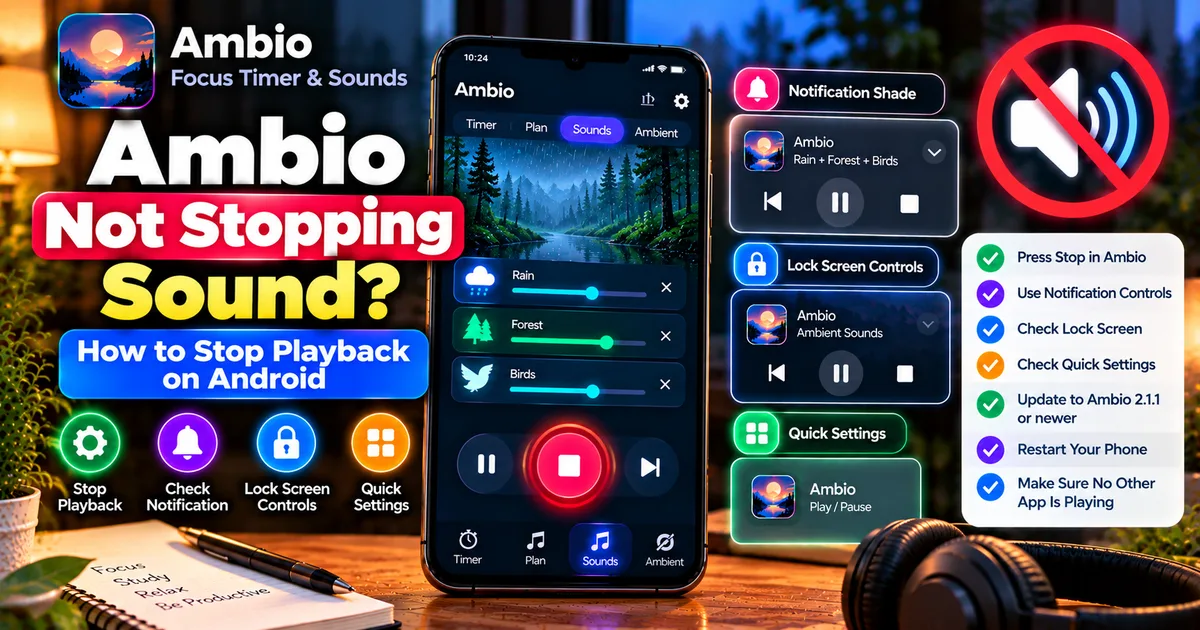
Try these steps in order:
- Press Stop inside Ambio.
- Open the Android notification shade.
- Stop Ambio from the media controls.
- Check whether another application is producing audio.
- Reopen Ambio and stop playback again.
- Check your Ambio version.
- Update to Ambio 2.1.1 or a newer compatible version.
- Restart the phone if the playback state appears stuck.
- Test playback again.
- If the problem remains reproducible, report the exact steps to the developer.
The 2.1.1 release is particularly relevant because it contains fixes for playback remaining active after Stop and Back.
Should You Install an Older Ambio Version?
Usually, an older version isn't the first troubleshooting choice for a problem that has already received a fix.
Ambio 2.1.1 specifically addresses the Stop → Back playback behavior described above.
If you're using an older APK because of compatibility or another specific reason, verify its Android requirements and behavior before changing versions.
For normal troubleshooting, test the current compatible release first.
Ambio Not Stopping Sound: Frequently Asked Questions
Why won't Ambio stop playing?
Ambio is designed for background playback, so leaving the app doesn't necessarily stop audio. If audio continues after pressing Stop, check the media controls and your app version.
Does Ambio 2.1.1 fix playback that continues after Stop?
Yes. F-Droid's 2.1.1 release notes specifically state that going back immediately after Stop no longer leaves the sound playing.
Why does Ambio keep playing after I close the app?
Background playback is an intentional feature. Closing the visible app screen isn't necessarily the same as stopping media playback.
How do I completely stop Ambio?
Use Ambio's Stop control or the Android media controls. Then check that the audio and active media session have stopped.
Can I stop Ambio from the notification shade?
Yes. Ambio supports Android media controls from the notification shade.
Can I stop Ambio from the lock screen?
Yes, when Android displays the Ambio media controls on the lock screen. The exact interface depends on your device.
Does Ambio have a sleep timer?
Yes. Ambient Mode includes a sleep timer that can stop playback automatically.
Why does Ambio still show a notification after I stop?
Older releases could behave differently. Ambio 2.1.1 specifically improves closing behavior for paused and stopped mixes and can remove the notification when the app closes.
What if another app is playing sound?
Check Android's media controls to identify which application currently owns the active media session.
Should I reinstall Ambio?
Reinstallation isn't the first step. Check playback controls and update the application first, especially because 2.1.1 contains relevant playback fixes.
Final Thoughts
Ambio is intentionally designed for background audio, so sound continuing after you simply leave the application is normal.
The situation is different when you press Stop and the audio continues.
Ambio 2.1.1 specifically includes fixes for playback behavior around Stop and Back, including a case where sound could remain playing after pressing Stop and then going back.
If Ambio won't stop playing, first use the Stop control, check Android's media controls, determine whether another app is producing the sound, and verify that you're running a current compatible version.
For Ambio users experiencing this particular issue, checking the 2.1.1 playback fixes should be one of the first steps.
Related Articles

How to Fix CapCut Video Lagging After Export on Android
Fix CapCut video lagging after export on Android. Learn how to troubleshoot choppy playback, frame-rate mismatches, heavy effects, storage issues, and export settings.
GetApkFree Team

How to Fix CapCut Preview Not Matching Export on Android
Fix CapCut preview not matching the exported video on Android. Troubleshoot missing effects, text, transitions, timing, colors, and rendering differences.
GetApkFree Team

How to Fix Couldn't Apply AI Background in CapCut on Android
Getting "Couldn't Apply AI Background" in CapCut on Android? Check usage limits, clip selection, video quality, app updates, and practical troubleshooting steps.
GetApkFree Team

How to Fix CapCut Effects Not Applying on Android
CapCut effects not working on Android? Check clip selection, effect layers, timeline timing, conflicting adjustments, and app performance with these practical fixes.
GetApkFree Team