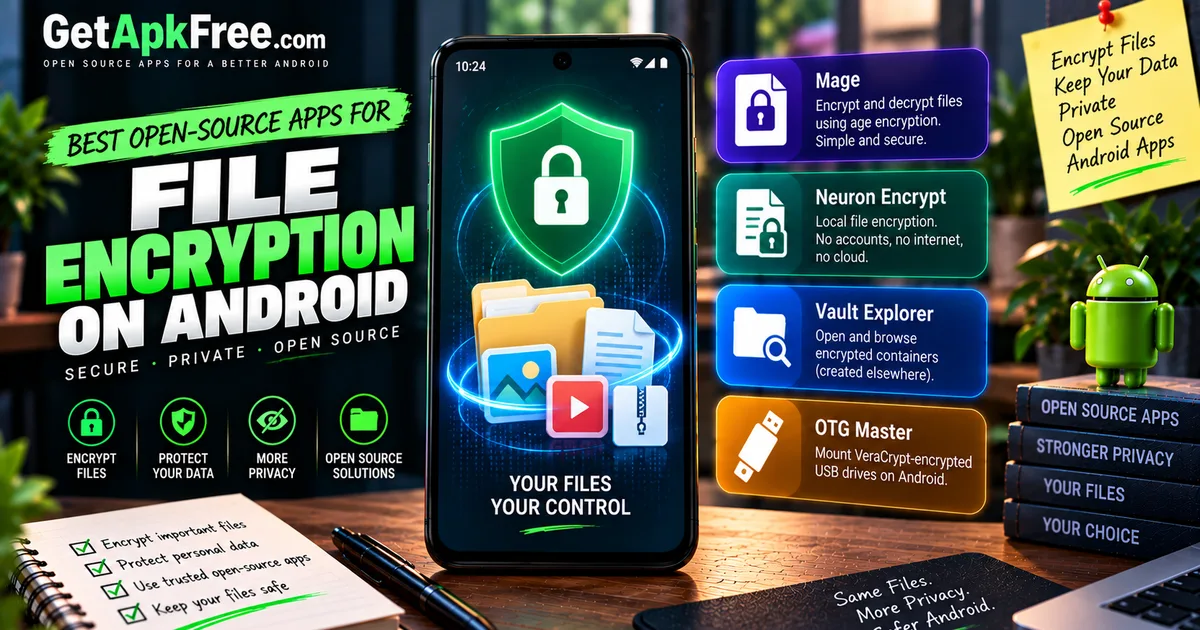
How to Encrypt Files on Android with Open-Source Apps
GetApkFree Team
A factual comparison of four open-source Android apps in GetApkFree's catalogue — two that encrypt files, and two that access containers encrypted elsewhere.
Quick Answer
A factual comparison of four open-source Android apps in GetApkFree's catalogue — two that encrypt files, and two that access containers encrypted elsewhere.
File encryption on Android exists to protect one specific scenario: someone other than you getting local access to your stored files — a lost phone, a stolen device, or anyone who picks up a device left unlocked. This article compares four open-source apps in GetApkFree's catalogue that relate to that problem in different ways, and they aren't interchangeable. Two — Mage and Neuron Encrypt — actually encrypt files. The other two don't encrypt anything themselves: Vault Explorer opens and browses containers already encrypted somewhere else, and OTG Master mounts a USB volume that's already VeraCrypt-encrypted.
Encryption at rest, encryption in transit, and an app lock or photo vault are three different things. This article stays specifically in the first category and its adjacent access tools.
What File Encryption Actually Protects
Encrypting a file changes its stored form into ciphertext that's unreadable without the correct key, password, or passphrase. If someone copies that file off your device — through physical access, a backup, or a misconfigured sync — what they get is the encrypted form, not the original content, unless they also have what's needed to decrypt it. That's the specific thing file encryption protects: the readable contents of a file once it's in storage.
That's different from two things people sometimes conflate with it. Hiding a file, or locking it behind an app's own screen, restricts how you reach the file through that particular app — it doesn't necessarily transform the file's bytes into ciphertext, so a copy pulled directly from storage by another means may still be fully readable. Encrypting a network transfer — the kind of encryption apps like LocalSend or RelayPony use to protect a file while it moves between two devices — protects the file only during that transfer; it says nothing about whether the file sits unencrypted on either device before or after.
None of this means encryption protects every possible access path to a file — a device left unlocked, or a key stored insecurely, can undermine it regardless of the technique used.
How We Selected These Apps
Every app compared here is currently published in GetApkFree's catalogue with a clean scan result, and each is open-source — three of the four are F-Droid-sourced. Two other apps came up during the audit behind this article and were excluded on catalogue-status grounds, not a judgment about their design: AgePony: Encrypt & Sign, whose current version isn't published and is flagged, and Photok - Secure Photo Vault, whose current version also isn't published and is scoped to photos and videos rather than general files.
A few other categories that surfaced in the same search were excluded as out of scope: password managers, which encrypt their own credential vault rather than arbitrary files; encrypted messaging and notes apps; transfer-encryption apps; and general file managers whose listings don't document an encryption feature.
Mage
Mage's own listing describes it as an Android GUI for age file encryption, built on kage — a Kotlin/JVM implementation of the age protocol — and states that it encrypts or decrypts files to age recipients or passphrases, including armor, multi-recipient, and encrypt-to-self options. That's a specific, individual-file operation: choose a file, choose a recipient or passphrase, and get back an encrypted version of that one file.
The current published version is 0.1.3 (build 5), licensed Apache-2.0, with a minimum Android version of 8.0 and an APK size of approximately 3.94 MB. Its manifest requests four permissions: CAMERA, USE_BIOMETRIC, USE_FINGERPRINT, and the standard DYNAMIC_RECEIVER_NOT_EXPORTED_PERMISSION marker. The current changelog documents removing a network-state permission, explaining it was pulled in by an unused part of the camera library and was never actually needed.
One gap worth being precise about: Mage's own listing doesn't state that encryption happens on-device or offline. The app requests no INTERNET permission, but that absence alone isn't treated as proof of local processing here — it's simply not a claim Mage's listing makes either way.
Neuron Encrypt
Neuron Encrypt's own listing is direct: "Neuron Encrypt is a local file encryption app that keeps your files private. No accounts, no internet, no cloud — everything happens on your device." That's an explicit on-device claim, not one inferred from the absence of a permission.
The current published version is 2.1.2 (build 5), licensed GPL-3.0-only, with a minimum Android version of 7.0 and an APK size of approximately 3.33 MB. Its manifest requests four permissions: FOREGROUND_SERVICE, FOREGROUND_SERVICE_DATA_SYNC, POST_NOTIFICATIONS, and the standard DYNAMIC_RECEIVER_NOT_EXPORTED_PERMISSION marker. No encryption algorithm is named anywhere in the current listing or changelog, so this article isn't guessing at one.
The current changelog adds a worthwhile nuance to the "no cloud" framing: it describes a fix for empty output files when the source file came from Drive or another cloud provider, so a file picked from a remote provider now encrypts correctly instead of producing a 0-byte result. That's a file sourced from a cloud provider through Android's file picker, not the app operating as a cloud service — Neuron Encrypt's account-free, internet-free description isn't contradicted by that detail, but it's worth knowing.
Vault Explorer
Vault Explorer's own listing describes what it does precisely: it "opens and browses encrypted containers and vaults directly on your device" in six named formats — VeraCrypt/TrueCrypt, LUKS, BitLocker, Cryptomator, gocryptfs, and CryFS — plus raw VHD/VHDX disk images, "without exporting your files unencrypted to shared storage." Nowhere does it claim to create a new container in any of those formats — it opens and browses ones that already exist.
The current published version is 1.8.0 (build 1203), licensed GPL-3.0-or-later, with a minimum Android version of 8.0 and an APK size of approximately 16.23 MB. The target_sdk value is missing from the catalogue data for this version, so we're reporting that gap rather than guessing at a number. Its manifest requests eleven permissions, including broad storage access (MANAGE_EXTERNAL_STORAGE, READ_EXTERNAL_STORAGE, WRITE_EXTERNAL_STORAGE), biometric permissions, a foreground service, and — unexplained by the listing — CAMERA and RECORD_AUDIO. No changelog data is available for this version.
A practical point worth stating plainly: using Vault Explorer presupposes a supported encrypted container or volume already exists, created elsewhere — a VeraCrypt or Cryptomator install, for instance. It isn't a way to originate encryption from scratch on the phone.
OTG Master
OTG Master's own listing is narrow and specific: it "lets you mount VeraCrypt-encrypted USB mass-storage devices on Android without root access." That's mounting an existing VeraCrypt volume on a USB drive via OTG — the listing doesn't describe creating a new volume, and it doesn't mention any format besides VeraCrypt or any storage besides USB mass-storage devices.
The current published version is 0.3.10 (build 43), licensed GPL-2.0-or-later, with a minimum Android version of 8.0 and an APK size of approximately 12.69 MB. Its manifest requests three permissions: USE_BIOMETRIC, USE_FINGERPRINT, and the standard DYNAMIC_RECEIVER_NOT_EXPORTED_PERMISSION marker. No changelog data is available for this version.
OTG Master's scope is narrower than Vault Explorer's: it names only one container format, VeraCrypt, rather than the six-plus formats Vault Explorer lists, and it's scoped to USB mass-storage devices rather than encrypted containers in general. Nothing in its current listing documents support for internal-storage encryption, or an ability to format or create a new volume — only to mount one that already exists.
Comparison Table
| App | License | Minimum Android | Approx. APK size | Encrypts files? | Role | Documented format/protocol | Scope / notable limitation |
|---|---|---|---|---|---|---|---|
| Mage | Apache-2.0 | 8.0 | ~3.94 MB | Yes | File encryptor | age protocol | Individual files; recipients/passphrases; no documented on-device claim |
| Neuron Encrypt | GPL-3.0-only | 7.0 | ~3.33 MB | Yes | File encryptor | Not documented | Individual files; listing states everything happens on the device |
| Vault Explorer | GPL-3.0-or-later | 8.0 | ~16.23 MB | No | Encrypted container/vault browser | VeraCrypt, TrueCrypt, LUKS, BitLocker, Cryptomator, gocryptfs, CryFS, plus raw VHD/VHDX | Opens/browses pre-existing containers; does not claim to create them; target_sdk missing |
| OTG Master | GPL-2.0-or-later | 8.0 | ~12.69 MB | No | VeraCrypt USB volume mounter | VeraCrypt | Mounts encrypted USB mass-storage via OTG; no documented internal-storage encryption or volume creation |
Encryption Models Explained
The four apps compared here split into two different models, and conflating them would misrepresent what each one does.
Per-file encryption — Mage and Neuron Encrypt — takes an existing, readable file and produces an encrypted version of it. Of the two, Mage is the only candidate here with a named encryption protocol: its listing documents age, via a Kotlin/JVM implementation called kage. Neuron Encrypt's listing and changelog don't name an algorithm — its description commits to where the encryption happens (on-device) without documenting how, and this article isn't filling that gap with an assumption.
Existing encrypted container/volume access — Vault Explorer and OTG Master — works the other way around: both open something already encrypted by different software. Vault Explorer reads six named container formats (VeraCrypt/TrueCrypt, LUKS, BitLocker, Cryptomator, gocryptfs, CryFS) plus raw VHD/VHDX images; OTG Master reads specifically VeraCrypt-encrypted USB mass-storage devices. Neither listing claims it can create a new container or volume — only open or mount one that already exists.
Neither model is presented here as preferable to the other — they solve different problems.
Permissions and Privacy
Looking at what each app's manifest actually requests is more informative than any single permission read in isolation. Mage requests CAMERA alongside its biometric permissions and the standard receiver marker — the current changelog notes a separate network-state permission was removed as unused, but doesn't explain what CAMERA itself is used for. Neuron Encrypt's permissions are all process-management related — FOREGROUND_SERVICE, FOREGROUND_SERVICE_DATA_SYNC, POST_NOTIFICATIONS — none of which are explained further by the app's own listing.
Vault Explorer requests the broadest set of the four: storage access appropriate to browsing arbitrary containers, biometrics, a foreground service, and — without explanation in the listing — CAMERA and RECORD_AUDIO. OTG Master requests only biometric permissions beyond the standard marker.
A permission tells you what capability an app has asked Android to grant it, not automatically why it's needed or how it's used. None of the permissions above are characterized as malicious or suspicious here; they're reported as what each manifest requests, with gaps in explanation stated plainly rather than filled in.
Practical Setup Considerations
Each of these four apps expects a different starting point, based on what their current listings document.
Mage expects you to understand age's own model — recipients and passphrases — before it's meaningfully useful; encrypting a file to the wrong recipient, or losing a passphrase, would leave it inaccessible in practice, though this article isn't asserting a specific recovery outcome Mage's own listing doesn't document.
Neuron Encrypt, per its own listing, is usable without an account or a network connection, with encryption happening on the device itself — no separate sign-in or cloud setup step is described.
Vault Explorer and OTG Master both require something to already exist: Vault Explorer needs a supported encrypted container or volume created by other software, and OTG Master needs a VeraCrypt-encrypted USB mass-storage device already connected via OTG. Neither is a starting point for creating encryption from nothing on the phone.
None of the four apps' current listings document a password-recovery mechanism, and this article isn't asserting one exists or doesn't — that's outside what the audited production data currently shows.
Frequently Asked Questions
What's the difference between a file encryptor and a vault browser? A file encryptor — Mage or Neuron Encrypt here — takes a readable file you already have and produces an encrypted version of it. A vault browser — Vault Explorer — doesn't encrypt anything itself; it opens and reads a container already encrypted by other software, in one of several named formats. Both work with encrypted files, but only one of the two performs the encryption.
Does OTG Master create a new encrypted USB volume? No. OTG Master's own listing describes mounting a VeraCrypt-encrypted USB mass-storage device that already exists — it doesn't describe formatting a drive or creating a new volume. Creating a VeraCrypt volume in the first place happens with different software, before OTG Master comes into the picture.
Why do some of these apps request camera or microphone access?
It varies, and not every case is explained. Mage requests CAMERA without stating why; Vault Explorer requests both CAMERA and RECORD_AUDIO, also unexplained by its listing. Rather than guess at a reason, this article reports what each manifest requests and states plainly where the listing doesn't account for it.
Is there a documented encryption algorithm behind these apps? For Mage, yes — its listing names the age protocol, implemented via a library called kage. For Neuron Encrypt, no algorithm is documented anywhere in its current listing or changelog. Vault Explorer and OTG Master don't perform encryption themselves, so an algorithm claim doesn't apply to either — they read formats created by other software (VeraCrypt, LUKS, BitLocker, Cryptomator, gocryptfs, CryFS for Vault Explorer; VeraCrypt for OTG Master).
Does open-source software automatically mean encrypted files are secure? No. Being open-source means the code is available for inspection; it doesn't, by itself, verify how a specific app implements encryption, how it manages keys, or how securely a device stores that data. This article reports what each app's listing, permissions, and version data document, not a security verdict on any of the four.
If you want the general background on reading a permission list like the ones above, see our guide on what APK permissions actually mean. Installing any of these apps means trusting it with files you specifically want protected, so our guide on how to tell if an APK is safe before installing it is worth reading first. For more open-source picks from the same corner of the catalogue, see our roundup of open-source privacy and security apps.
Related Articles
Truecaller Caller ID Not Showing on Android? How to Fix It
Truecaller Caller ID not showing on Android? Fix missing caller names and caller ID pop-ups by checking permissions, display-over-other-apps settling
GetApkFree Team
Gemini App Not Working on Android? How to Fix It
Gemini not working on Android? Fix “Something went wrong” errors, failed prompts, endless loading, and app problems with practical checks for your connection, app updates, cache, and Google account.
GetApkFree Team
Canva App Keeps Crashing on Android? How to Fix It
Canva keeps crashing, freezing, or closing unexpectedly on Android? Troubleshoot app updates, Android System WebView, internet problems, storage, cache, and device settings with these practical fixes.
GetApkFree Team
ChatGPT App Login Error on Android: How to Fix “Something Went Wrong”
Getting a “Something went wrong” error when logging in to ChatGPT on Android? Check Google Play Store updates, browser sign-in settings, connectivity, and other safe troubleshooting steps.
GetApkFree Team