
This article is about
CapCut Premium
capcutdownload.com.pk · Tools
How to Add Effects in CapCut on Android
GetApkFree Team
Learn how to add effects in CapCut on Android, apply video effects, adjust their duration, combine effects, and fix common problems.
- Source
- Developer
- Package
- CapCut Premium
How to Add Effects in CapCut on Android
Want to make your videos more dynamic, creative, or visually interesting?
CapCut on Android provides a variety of video effects that can change the appearance and style of your footage. You can use effects to emphasize important moments, add visual movement, create a particular mood, or make specific parts of a video stand out.
You can also control where an effect appears and how long it remains visible. This makes it possible to apply an effect to a short section of a video instead of using it throughout the entire project.
In this guide, you'll learn how to add effects in CapCut on Android, choose different types of effects, apply an effect to part of a video, adjust its duration, combine effects with other editing tools, and fix common problems.
Quick Answer
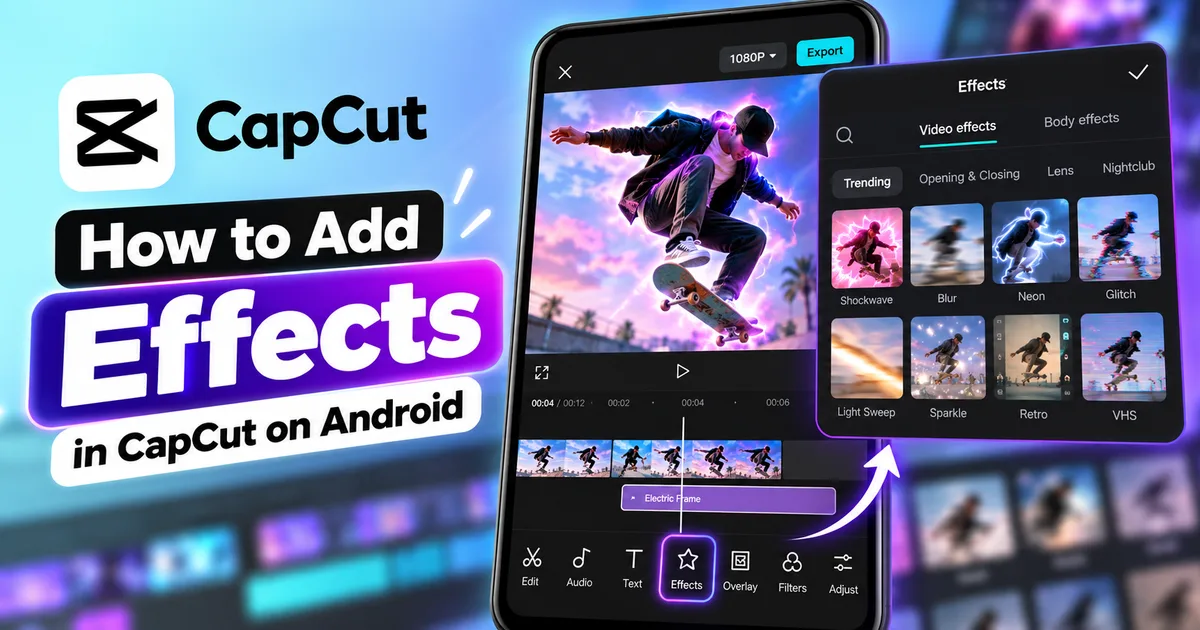
To add an effect in CapCut on Android, open CapCut and create a new project. Import your video and tap Effects from the bottom editing toolbar. Choose Video effects, browse the available effects, and select the effect you want to use.
After applying the effect, adjust its position and duration on the timeline. Preview the video to make sure the effect appears at the correct moment and does not cover important parts of the footage.
The exact location and names of some controls can change between CapCut versions.
What Are Effects in CapCut?
Effects are visual treatments that change or enhance the appearance of video footage.
Depending on the effect you choose, it can add movement, distortion, lighting changes, particles, blur, stylized visuals, or other creative treatments.
CapCut's effect library can include different categories and styles, and the available selection can change as CapCut updates its catalog.
Effects can be useful for:
- YouTube Shorts
- Instagram Reels
- TikTok-style videos
- Gaming videos
- Travel videos
- Reaction videos
- Tutorials
- Montages
- Vlogs
- Creative edits
The best effect depends on the purpose of the video and the moment where you want to use it.
CapCut Video Effects vs Body Effects
CapCut can provide different effect categories on mobile.
Video Effects
Video effects are designed to change or enhance the visual appearance of video footage.
They can be used to create visual styles, distortions, lighting effects, motion effects, and other treatments.
Body Effects
Body effects are designed around people or subjects in the footage.
Depending on the available effect and current CapCut version, body effects can be used to create visual changes associated with a person in the video.
The available effect categories can change between CapCut versions and regions.
CapCut Effects vs Filters
Effects and filters can both change how a video looks, but they serve different purposes.
Effects
Effects can introduce visual changes such as:
- Movement
- Distortion
- Particles
- Blur
- Lighting effects
- Animated visual elements
- Stylized visual treatments
Filters
Filters generally change the overall visual appearance or color style of footage.
For example, you might use a filter to give a video a warmer appearance while using a short visual effect to emphasize a particular moment.
If you want to learn more, see our guide on how to add filters in CapCut on Android.
How to Add Effects in CapCut on Android
Follow these steps to apply a video effect to your project.
Step 1: Open CapCut
Launch CapCut on your Android phone.
From the home screen, start a new project.
Step 2: Import Your Video
Select the video you want to edit from your phone's gallery.
Add the video to the project.
The video will appear on the timeline.
Step 3: Open the Effects Tool
Look through the editing toolbar at the bottom of the screen.
Tap Effects.
The exact location of the button can vary between CapCut versions.
Step 4: Choose Video Effects
Select Video effects if that option is displayed.
CapCut will show the available video effects.
The available effects and categories can vary depending on your CapCut version, device, account, region, and current effect catalog.
Step 5: Browse the Effects
Browse through the available effects.
Look for an effect that matches the style and purpose of your video.
You can preview different effects before deciding which one to use.
Step 6: Select an Effect
Tap the effect you want to use.
CapCut will apply the selected effect to the project.
Depending on the effect and current version, it may appear as an effect layer or section on the timeline.
Step 7: Adjust the Effect Duration
Check the effect section on the timeline.
Adjust the beginning and ending points so the effect appears only during the section where you want it.
Step 8: Preview the Result
Play the affected section.
Check whether:
- The effect starts at the correct moment
- The effect ends at the correct moment
- Important content remains visible
- The effect is too strong
- The video remains easy to watch
Step 9: Export the Video
When everything looks correct, tap Export.
Choose suitable output settings and export the finished video.
How to Apply an Effect to Part of a Video
You don't always need an effect to cover the entire video.
For example, you may want an effect to appear only when:
- Someone enters the frame
- A beat occurs
- A reaction happens
- A transition starts
- An important event takes place
- A visual punchline happens
- A product is shown
- A gaming action occurs
Basic Workflow
- Open CapCut.
- Create a new project.
- Import your video.
- Open Effects.
- Choose Video effects.
- Select an effect.
- Apply the effect.
- Find the effect section on the timeline.
- Move the beginning of the effect to the required point.
- Adjust the ending point.
- Preview the result.
This keeps the effect limited to the section where it is actually useful.
How to Add an Effect to the Entire Video
If you want an effect to remain active throughout the video, extend the effect section across the portion of the timeline you want to modify.
However, preview the entire project before exporting.
A strong visual effect may look interesting for a few seconds but become distracting when it remains active for the entire video.
For many videos, applying effects selectively creates a cleaner result.
How to Change an Effect in CapCut
If you don't like an effect after applying it, you can try another effect.
Select the current effect and browse the effect library again.
Preview different options and compare the results.
Choose the effect that fits the footage instead of automatically choosing the most dramatic option.
How to Remove an Effect in CapCut
If you no longer want an effect:
- Select the effect on the timeline.
- Open the available editing controls.
- Choose the delete or remove option.
- Preview the video again.
Removing an effect does not require you to rebuild the entire project.
How to Combine Multiple Effects in CapCut
You can create more complex edits by combining visual effects with other editing tools.
For example, you can combine effects with:
- Text
- Stickers
- Filters
- Transitions
- Overlays
- Music
- Sound effects
- Keyframes
- Speed changes
However, using too many strong effects at the same time can make a video difficult to follow.
Each effect should have a purpose.
How to Use Effects With Transitions
Transitions control how one clip changes into another.
Effects can be used alongside transitions to create a more noticeable scene change.
For example:
- Place two clips on the timeline.
- Add a transition between them.
- Apply a suitable visual effect.
- Adjust the effect duration.
- Preview the change.
For more information, see our guide on how to add transitions in CapCut on Android.
How to Use Effects With Filters
Filters and effects can be used together.
A filter can establish the overall visual style of the footage, while an effect can emphasize a particular moment.
For example, you could use a subtle filter throughout the video and apply a short effect when an important event happens.
See our guide on how to add filters in CapCut on Android.
How to Use Effects With Stickers
Stickers can add graphic elements or reactions to a video.
Effects can be used at the same time to make a particular moment more noticeable.
For example, you could add a reaction sticker and a short visual effect when something funny happens.
See our guide on how to add stickers in CapCut on Android.
How to Use Effects With Text
Text can explain information while effects can provide visual emphasis.
For example, you might display an important message while using a short effect to draw attention to it.
See our guide on how to add text in CapCut on Android.
How to Use Effects With Overlays
Overlays allow you to place another video or image above your main footage.
Effects can be combined with overlays to create more complex visual compositions.
For example:
Main video
→ Overlay
→ Visual effect
→ Text
This allows you to create layered edits without relying on a single visual element.
See our guide on how to add overlays in CapCut on Android.
How to Use Effects With Keyframes
Keyframes can be useful when you want controlled movement or animation.
Combining keyframes with visual effects can create more dynamic edits.
For example, you can animate the position or scale of an element while using a visual effect.
See our guide on how to add keyframes in CapCut on Android.
How to Use Effects in YouTube Shorts
Effects can be useful in short-form vertical videos when they support the content.
You can use them to:
- Emphasize reactions
- Highlight important moments
- Add energy to a scene
- Support a transition
- Create a visual punchline
- Emphasize a beat
- Introduce a new scene
Because Shorts move quickly, avoid using effects that make the video difficult to understand.
A short effect at the right moment can be more effective than a strong effect covering the entire video.
How to Use Effects in Instagram Reels
Effects can add visual variety to Instagram Reels.
For example, you can use them in:
- Travel videos
- Fashion videos
- Food videos
- Tutorials
- Product demonstrations
- Reaction videos
- Entertainment content
Keep important text and subjects visible after applying the effect.
If your video is already formatted vertically, preview the complete frame after adding the effect.
How to Use Effects for Gaming Videos
Gaming videos can use effects to emphasize important moments.
For example, an effect can appear when:
- A match ends
- A player scores
- An important action happens
- A surprising event occurs
- A major transition takes place
Keep the effect short enough that viewers can still clearly see the gameplay.
How to Use Effects for Travel Videos
Travel videos can benefit from subtle visual effects.
Instead of applying a strong effect to every clip, consider using effects only during important moments or transitions.
You can combine effects with:
- Music
- Transitions
- Text
- Stickers
- Speed changes
This can help create a consistent editing style.
How to Use Effects for Talking-Head Videos
Effects can add visual variety to talking-head videos.
For example, an effect can emphasize a particular statement or help break up a long section where the camera remains static.
However, avoid placing distracting visual effects over the speaker's face.
Subtle effects are often more suitable for instructional or informational videos.
How to Add Effects at a Specific Moment
If you want an effect to appear at an exact point in the video, use the timeline to position it.
For example:
- Find the moment where the effect should begin.
- Add the effect.
- Move the effect to that position.
- Adjust its duration.
- Preview the section.
- Make small timing adjustments if necessary.
This is particularly useful when synchronizing effects with music or sound effects.
How to Sync Effects With Music
You can make an edit feel more connected by timing visual effects with music.
For example, an effect could appear when a beat drops.
A basic workflow is:
- Add music to the project.
- Identify an important beat.
- Add the visual effect.
- Position the effect around that moment.
- Adjust its duration.
- Preview the result.
For more information, see our guide on how to add music to a video in CapCut on Android.
How to Use Effects With Sound Effects
Visual effects can also be synchronized with sound effects.
For example, a short visual effect can accompany:
- An impact sound
- A whoosh
- A notification sound
- A click
- A camera sound
- A transition sound
This can make the visual and audio elements feel more connected.
See our guide on how to add sound effects to a video in CapCut on Android.
How to Add Effects to Multiple Clips
If your project contains multiple clips, check which part of the timeline the effect applies to.
You can create different visual treatments for different sections of the video.
For example:
Clip 1
→ Normal footage
Clip 2
→ Visual effect
Clip 3
→ Different effect
Clip 4
→ Normal footage
This can create visual variation without making the entire video look overly processed.
How to Use Effects Without Making a Video Look Overedited
More effects do not necessarily mean a better video.
If every clip contains a strong effect, viewers may have difficulty focusing on the actual content.
A better approach is to use effects strategically.
Consider:
- Why am I using this effect?
- Does it improve the scene?
- Does it emphasize something?
- Does it match the music?
- Does it distract from the subject?
If an effect doesn't contribute anything useful, removing it may produce a cleaner result.
How to Add Effects Without Covering Important Content
Some effects can make parts of a video difficult to see.
After applying an effect, check:
- Faces
- Text
- Captions
- Products
- Important objects
- Logos
- Gameplay details
If important information becomes difficult to see, consider using a different effect or shortening its duration.
How to Choose the Right CapCut Effect
The right effect depends on the type of video and the result you want.
For example:
For Gaming Videos
Consider effects that emphasize action or important moments.
For Travel Videos
Subtle visual effects can work better than aggressive effects.
For Reels and Shorts
Short effects can help emphasize fast-paced moments.
For Tutorials
Use effects to draw attention to important information without hiding the interface or subject.
For Vlogs
Choose effects that match the overall mood and visual style.
The effect should support the video rather than become the main subject.
CapCut Effects Not Showing
If you cannot find the Effects option, check the bottom editing toolbar.
Make sure:
- You are inside a video project.
- A video has been imported.
- You have selected the appropriate editing interface.
- You have checked the available toolbar options.
CapCut's interface can change between versions, so the exact location of the Effects option may not always be identical.
CapCut Effects Not Applying
If an effect doesn't appear after selecting it, check the following:
- Make sure the correct video clip is selected.
- Check whether the effect was added to the timeline.
- Check the effect's duration.
- Move the playhead into the effect's active section.
- Try another effect.
- Restart CapCut if the editor appears to be malfunctioning.
CapCut's current troubleshooting guidance specifically notes that an unselected clip, incorrect layer, incorrect timeline position, conflicting effects or adjustments, and performance issues can prevent an effect from appearing as expected.
CapCut Effects Are Lagging
Some effects require more processing than basic video edits.
If the preview becomes slow:
- Close other demanding apps.
- Make sure your phone has sufficient free storage.
- Reduce the number of effects.
- Avoid stacking many demanding effects.
- Restart CapCut.
- Preview shorter sections of the project.
Performance can vary depending on the phone, project complexity, video resolution, and effects being used.
CapCut Effect Is Too Strong
Some effects may dominate the original footage.
If an effect looks too strong, check whether the effect provides intensity or adjustment controls.
If the available controls don't produce the result you want, try another effect or shorten the duration.
A subtle effect can sometimes produce a better result than a highly visible one.
CapCut Effect Looks Different After Export
The preview and final exported video should be checked separately.
If the exported result doesn't look the way you expected:
- Check the project settings.
- Check the export resolution.
- Preview the exported file.
- Make sure the effect was active for the intended section.
- Check whether another layer or adjustment is affecting the appearance.
CapCut Effect Is No Longer Available
CapCut's effect library can change over time.
Some effects may be removed, replaced, renamed, or moved to another category as CapCut updates its catalog.
If you cannot find an effect you previously used:
- Search the current Effects library.
- Check related categories.
- Look for a newer alternative.
- Check whether the effect has been replaced by another version.
- Update CapCut if an update is available.
The availability of individual effects can change between versions and regions.
How to Improve Video Quality After Adding Effects
Effects themselves don't automatically mean that the final video will have poor quality.
However, your source footage, scaling, project settings, and export settings can all affect the final result.
For better results:
- Start with the original video.
- Avoid excessive scaling.
- Avoid unnecessary re-exporting.
- Use suitable resolution settings.
- Use appropriate frame-rate settings.
- Preview the complete project before exporting.
For additional guidance, see our guide on how to improve video quality in CapCut on Android.
Effects vs Stickers in CapCut
These tools have different purposes.
Effects
Effects modify or enhance the visual appearance of footage.
Stickers
Stickers add graphic or animated elements over the video.
For example, a visual effect can create distortion while a sticker can add a laughing emoji.
See our guide on how to add stickers in CapCut on Android.
Effects vs Overlays in CapCut
Overlays are additional image or video layers placed over the main footage.
Effects are visual treatments applied to the project or footage.
You can combine both.
For example:
Main video
→ Overlay
→ Visual effect
→ Text
This allows you to create more complex edits.
Effects vs Transitions in CapCut
These are also different.
Effects
Effects modify or enhance the appearance of footage.
Transitions
Transitions control the visual change between clips.
A transition is normally associated with the point where two clips meet, while an effect can be used within a clip or section of the project.
How to Add Effects and Maintain Good Video Quality
A good workflow is:
Start With the Original Footage
Use the highest-quality original recording available.
Choose the Effect Carefully
Don't choose an effect simply because it looks dramatic.
Use Effects Selectively
Apply effects where they provide a useful visual purpose.
Avoid Excessive Scaling
Don't enlarge low-resolution footage unnecessarily.
Check the Timeline
Make sure the effect starts and ends where intended.
Preview the Complete Project
Don't only check the first few seconds.
Export Appropriately
Choose suitable resolution and frame-rate settings.
For additional export guidance, see our guide on how to export 4K videos in CapCut on Android.
Common Problems When Adding Effects in CapCut
The Effects Option Is Missing
Check the editing toolbar and scroll through the available tools.
The interface can change between CapCut versions.
The Effect Is Not Visible
Check that the effect is actually present on the timeline and that its duration covers the section you're previewing.
Also make sure the correct clip or layer is selected.
The Effect Disappears Too Quickly
Extend the effect's duration on the timeline.
The Effect Lasts Too Long
Shorten the effect section on the timeline.
The Video Becomes Difficult to See
Try a less aggressive effect or shorten its duration.
CapCut Becomes Slow
Reduce the number of effects and close other demanding apps.
The Effect Covers Important Content
Choose another effect or adjust the affected section if possible.
The Effect Is Applied to the Wrong Clip
Check the selected clip and the effect's position on the timeline.
The Effect Looks Fine in One Section but Not Another
Check whether the effect's duration ends before the section you are viewing.
The Exported Video Looks Different
Check the project and export settings and preview the final exported file.
Tips for Better CapCut Effects
Choose Effects Based on the Content
A gaming video, tutorial, travel video, and talking-head video may require different visual treatments.
Don't Use Effects on Every Clip
Leaving some clips clean can make important effects stand out more.
Keep Important Content Visible
Don't allow effects to hide faces, text, products, or other important details.
Match Effects With Music
Timing visual changes with important beats can make edits feel more connected.
Keep Effects Short When Appropriate
A short effect can have more impact than one that remains active for too long.
Avoid Stacking Too Many Effects
Multiple effects can make the preview more difficult to understand and may also increase processing demands.
Preview Before Exporting
Always watch the complete project.
Keep the Original Footage
Preserve your original video so you can create another version later.
Frequently Asked Questions
How do I add effects in CapCut on Android?
Open a CapCut project, import your video, tap Effects, choose Video effects, select an effect, and apply it to the project.
Where are effects in CapCut?
Effects are available through the editing toolbar when you're working on a project. The exact location can change between CapCut versions.
Can I add an effect to only part of a video?
Yes. You can adjust the effect's position and duration on the timeline so it appears only during the required section.
Can I use multiple effects in CapCut?
Yes. You can combine effects and other editing tools, although the exact behavior depends on the effects and current CapCut version.
Can I remove an effect after adding it?
Yes. Select the effect on the timeline and use the available delete or remove control.
Are CapCut effects the same as filters?
No. Filters generally change the overall visual appearance, while effects can create additional visual changes such as movement, distortion, particles, blur, or other treatments.
Can I use effects in YouTube Shorts?
Yes. Effects can be used when editing Shorts and other short-form videos.
Can I use effects in Instagram Reels?
Yes. You can apply effects while creating vertical Reel-style videos.
Do CapCut effects reduce video quality?
Adding an effect does not automatically mean that video quality will be reduced. Final quality also depends on the original footage, scaling, project settings, and export settings.
Why are CapCut effects not working?
Check that the effect was added to the timeline, that its duration covers the section you're viewing, and that the correct clip or project is selected. You can also restart CapCut and test another effect.
Why did a CapCut effect disappear?
CapCut regularly changes its effect catalog. An effect may be moved, replaced, renamed, or removed in a newer version.
Can I combine effects with stickers?
Yes. Effects and stickers can be used together to create more visually engaging edits.
Can I combine effects with text?
Yes. Text and effects can be combined to emphasize titles, messages, captions, and other information.
Can I use effects with overlays?
Yes. Effects and overlays can be combined to create layered visual edits.
Can I add effects to a specific moment?
Yes. Add the effect and adjust its position and duration on the timeline so it appears at the desired moment.
Final Thoughts
Adding effects in CapCut on Android is useful when you want to change the visual style of your footage or emphasize particular moments.
The basic workflow is:
- Open CapCut.
- Create a new project.
- Import your video.
- Open Effects.
- Choose Video effects.
- Select an effect.
- Apply the effect.
- Adjust its position.
- Adjust its duration.
- Preview the complete project.
- Export the video.
Remember that effects, filters, stickers, overlays, and transitions serve different purposes.
You don't need to use an effect on every clip. In many cases, a short and well-timed effect can be more effective than applying strong visual changes throughout the video.
If you're creating a Short, Reel, gaming video, travel edit, tutorial, or other social-media video, choose effects that support the content rather than distracting from it.
CapCut's effect library can also change over time, so if a particular effect is unavailable, look through the current effect categories for a suitable alternative.
Related Articles

How to Fix CapCut Video Lagging After Export on Android
Fix CapCut video lagging after export on Android. Learn how to troubleshoot choppy playback, frame-rate mismatches, heavy effects, storage issues, and export settings.
GetApkFree Team

How to Fix CapCut Preview Not Matching Export on Android
Fix CapCut preview not matching the exported video on Android. Troubleshoot missing effects, text, transitions, timing, colors, and rendering differences.
GetApkFree Team

How to Fix Couldn't Apply AI Background in CapCut on Android
Getting "Couldn't Apply AI Background" in CapCut on Android? Check usage limits, clip selection, video quality, app updates, and practical troubleshooting steps.
GetApkFree Team

How to Fix CapCut Effects Not Applying on Android
CapCut effects not working on Android? Check clip selection, effect layers, timeline timing, conflicting adjustments, and app performance with these practical fixes.
GetApkFree Team